Checking content
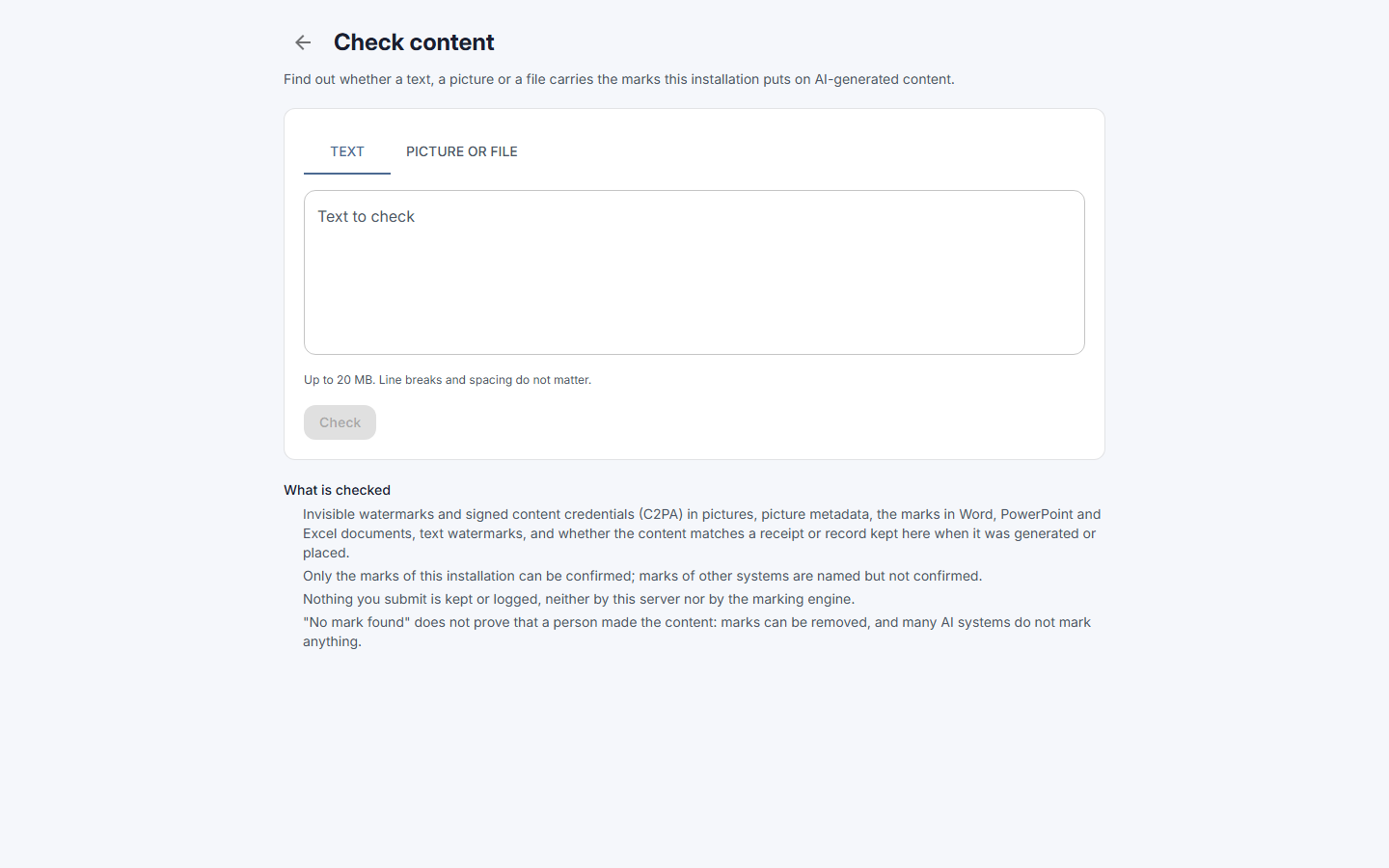
Find out whether a text, a picture or a file carries the mark that Fadenstack puts on what your organisation's models generate. You get a verdict in plain words, what was found, and, if you need it, a signed result to show someone else.
Before you start
Check content is in your avatar menu at the top right of the chat. If it is not there, ask your administrator.
Check a text, a picture or a file
- Open your avatar menu and select Check content.
- Choose Text and paste the text, or choose Picture or file and select Choose a file, or drop the file on the box.
- Select Check.
What you can check
- Texts you paste. Line breaks and spacing do not matter.
- Pictures: PNG, JPEG and WebP.
- Word, PowerPoint and Excel documents, PDF, and text files (
.txt,.md,.html). - Mails saved as
.emlfiles. A mail that an assistant drafted names its record in the mail'sX-AI-Generatedheader, which the check reads; the mail's text is checked as well.
Up to 20 MB at a time. Administrators also find the same check in the console under Utilities → Check content.
Read the result
| You see | It means |
|---|---|
| Marked as AI-generated | A mark of this installation was found and confirmed. |
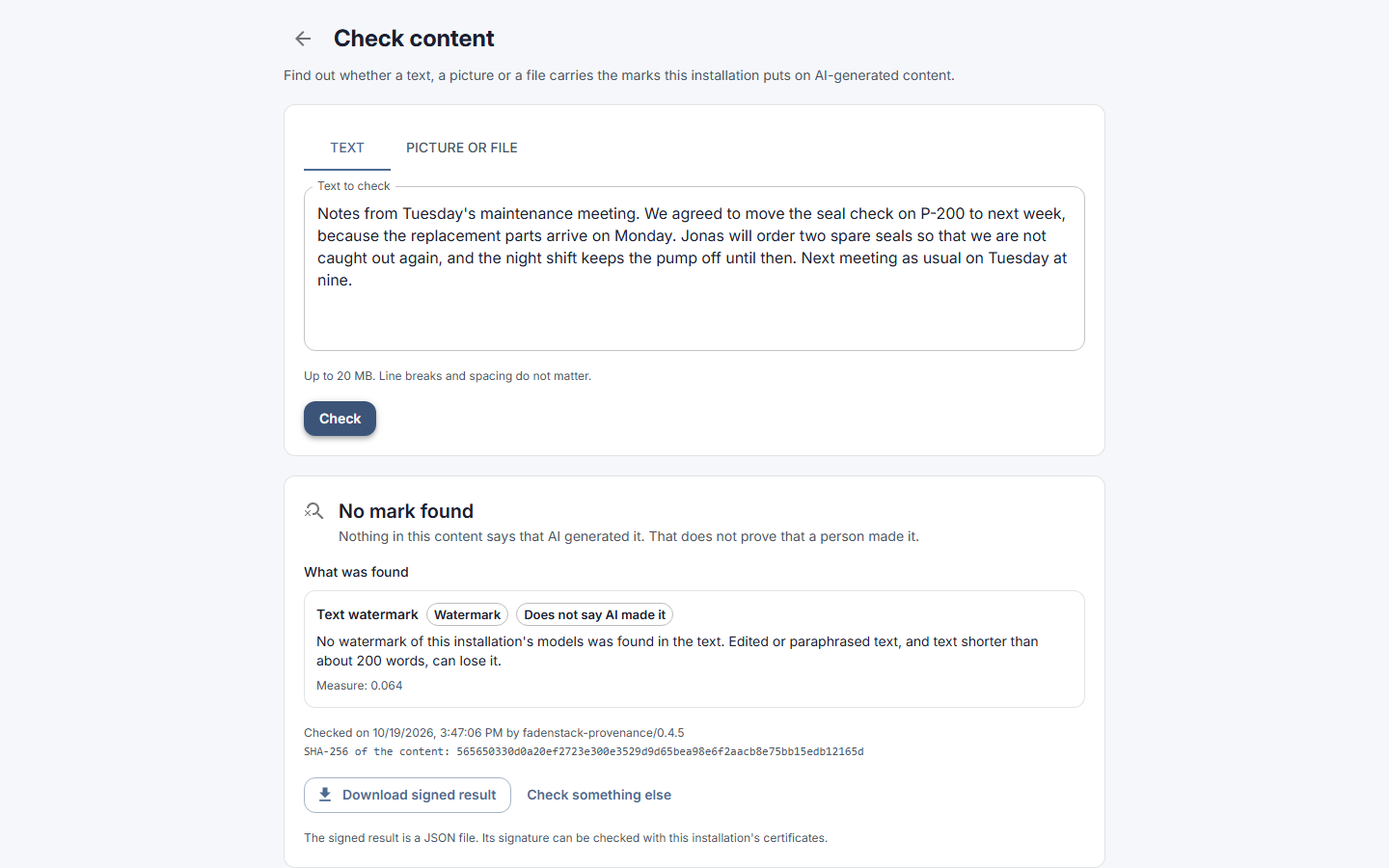
| No mark found | Nothing in the content says that AI generated it. |
| Inconclusive | There are signs that AI generated it, for example another system's mark, but none that can be confirmed here. |
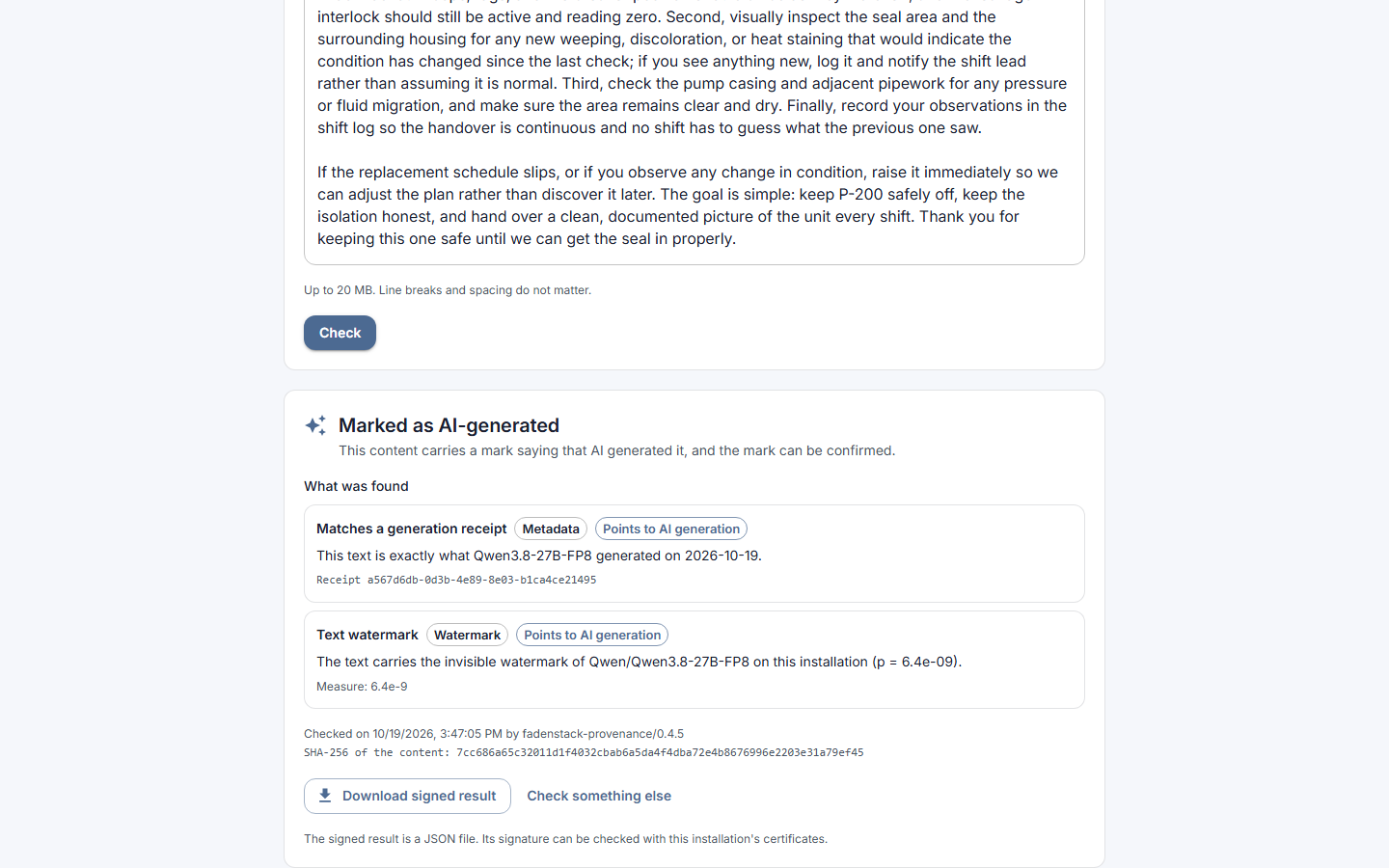
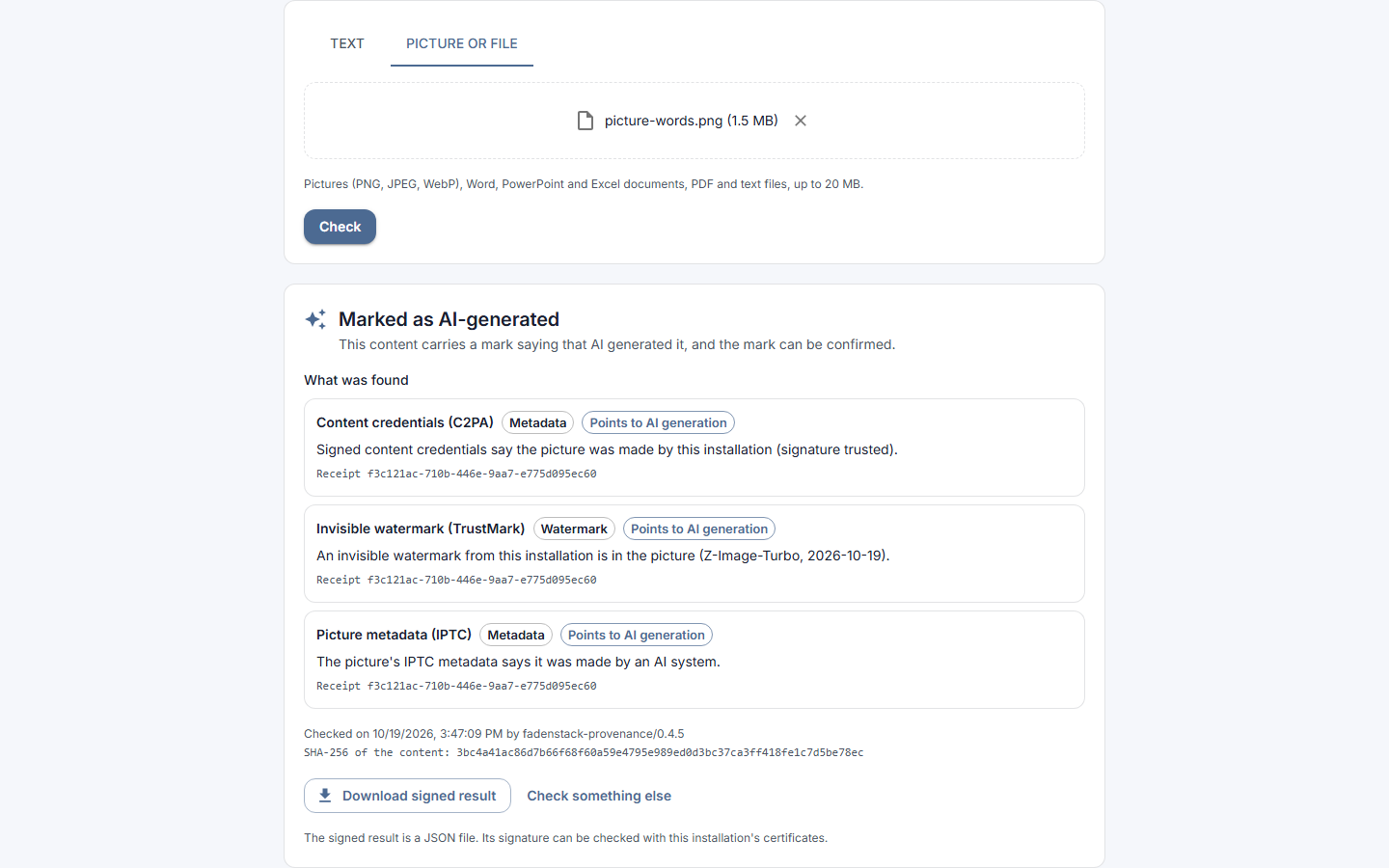
Under What was found, each finding names what was looked for, such as Invisible watermark (TrustMark), Content credentials (C2PA), Picture metadata (IPTC), Text watermark or Matches a generation receipt, and says whether it Points to AI generation. A receipt or record that was found shows its id.
How a text is checked
A text is compared with the receipts and records this installation keeps of what its models wrote. That still works when the text was reformatted, but not once it is reworded. The text is also checked for the invisible text watermark, which needs roughly 200 words or more and weakens when the text is heavily edited, translated or paraphrased.
No mark found is no proof
No mark found does not prove that a person wrote it: marks can be removed, and content from other systems carries none of this installation's marks.
Keep the marks
Do not remove the marks from what you take out of Fadenstack: keep a picture's metadata and content credentials, and do not rewrite a text only to lose its watermark. When you publish a picture, audio or video that could pass as real, or an AI-written text to inform the public, say visibly that AI made it, unless a person reviewed the text and someone answers for publishing it; your administrator can tell you your organisation's rules.
An answer without a mark
Your organisation may allow a model to answer without an AI mark. The chat panels of the browser agent and the Office add-ins do not tell you about it, unless you ask them to: select the gear (Settings) at the top of the panel and switch on Tell me when an answer carries no AI mark. From then on, such an answer shows the notice Answer without an AI mark under it. The setting is yours and is kept for your account.
Show the result to someone else
Download signed result saves the result as a JSON file signed by this installation. Whoever you give it to can check the signature with this installation's certificates. Check something else clears the page.
What is kept
Nothing you submit is kept or logged: the text or file is checked and then dropped.
Without an account
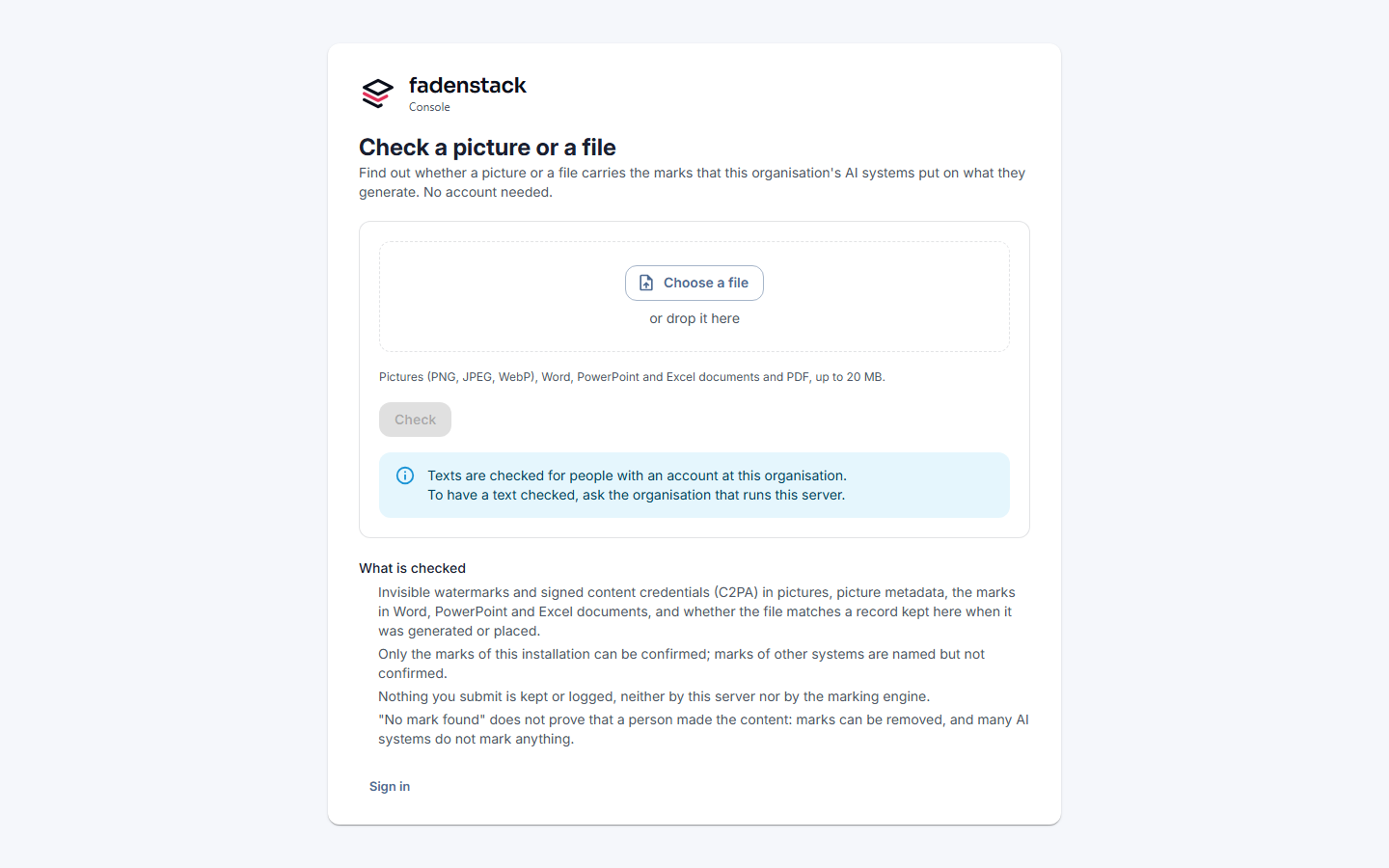
Your organisation can offer a public check page, for example at https://ai.example.internal/check. There,
anyone can check pictures and files without signing in. Texts and mails are checked only for people with an
account; the page names whom to ask. Administrators switch it on: see
Content marking.
When it does not work
| You see | What to do |
|---|---|
| Check content is not in your menu | The check is not offered to you. Ask your administrator. |
| You do not have the right to check content. Ask your administrator. | Your role lacks the permission provenance:check. Ask your administrator. |
| Content cannot be checked here: the provenance module is switched off. | Your organisation switched content marking off. Ask your administrator. |
| This is larger than 20 MB and cannot be checked. | Check a smaller file, or a part of the text. |
| Too many checks in a minute. Wait a moment and try again. | Wait, then select Check again. |
| The marking engine is busy. Try again in a moment. or The marking engine is not available right now. Try again later. | Try again later. If it stays, tell your administrator. |
| The result cannot be signed right now: the marking engine has no signing key. | The result is shown, but cannot be downloaded signed. Tell your administrator. |