Chat
The chat is where you talk to your organisation's models. This page covers starting a chat, picking a model, stopping and retrying a reply, and finding your chats again.
Start a chat
- Select New chat in the sidebar.
- Pick a model in the Model picker beside the message box. A model is already picked: the first in the list, or the one you picked last.
- Type your message and press Enter. Shift+Enter starts a new line.
The reply appears as it is written. A new chat is named after the start of your first message.
To add a file, select the paper clip before you send. The model reads the file along with your question, and can use it for the rest of the chat. What files you can add, and the limits, are on Knowledge.
Choose a model
The Model picker lists the models your administrator offers. You can switch models in the middle of a chat: the next reply comes from the model now picked, and it sees the conversation so far.
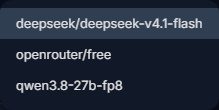
Some models run on your organisation's own machines, others at an outside provider. The name in the list does not always say which; ask your administrator if it matters for what you write. See Your data and privacy.
While a reply is written
- Stop it. The send button turns into a square while the reply is written. Select it to stop. What was written stays, marked Stopped.
- Read earlier messages. The chat follows the reply to the bottom. Scroll up and it stops following, so you can read in peace. The round button with the arrow (Jump to the latest message) takes you back down.
- Watch the model think. Some models think before they answer. You see Thinking… with the last lines of their thoughts; once the answer begins, it folds into Thought for N s, which you can select to read. The thinking is not saved: when you open the chat again later, you see the answer without it.
Leave while a reply is written
A reply keeps being written when you open another chat, go to another page, reload, or close the tab. Come back to the chat and it shows the reply from its start. A chat whose reply is still being written has a small spinner in the sidebar.
- One reply at a time in a chat: send the next message once the reply is done.
- Replies in up to three chats at once, unless your administrator set another number. A fourth is refused until one of them finishes; then select Retry.
When a reply fails
A reply that failed stays in the chat with the reason. Select Retry under the chat's last reply to ask again with the model now picked; the new reply takes its place. If you stopped the last reply, Retry is beside it too.
A failed reply is not sent to the model with your later messages. A stopped reply is.
Details of a reply
Under each reply:
- how long it took, for a reply written while you had the chat open;
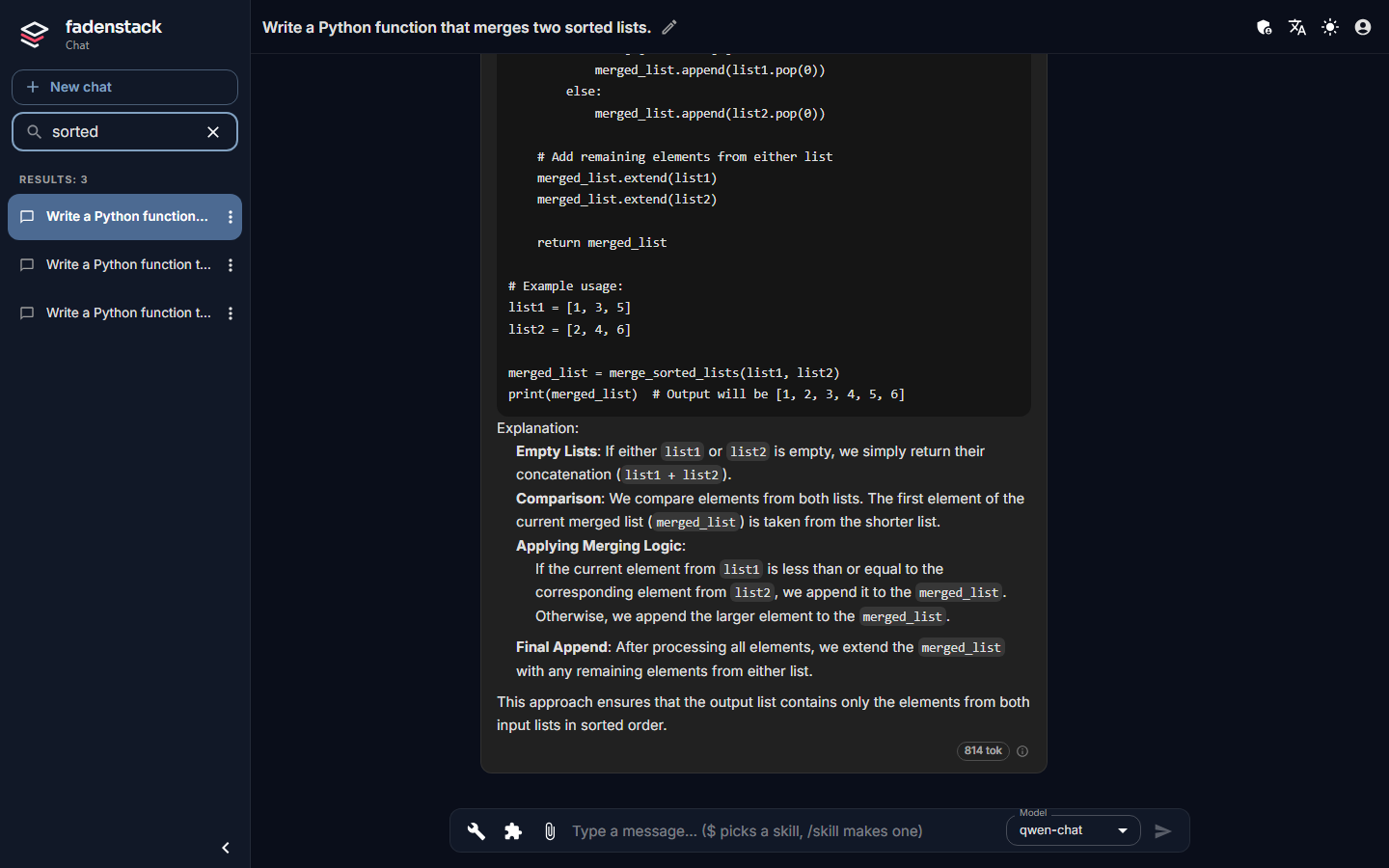
- a badge with its size in tokens (the units models count text in). Point at it for the prompt, the reply and the total;
- an ⓘ: point at it to see which model answered.
To use an answer elsewhere, select its text and copy it.
Titles, projects and search
- Rename a chat: select the pencil beside its title in the top bar, type, and press Enter (Escape cancels).
- Projects group chats. Select New project beside the Projects heading and name it. A project's Project Settings hold a description and a System prompt: instructions that go before every message in the project's chats, such as the context, a role or rules for that piece of work.
- Move a chat into a project: drag it onto the project, or use Move to project. Choose No project to take it out again.
- Search chats finds chats by their title as you type. It does not search what was said in them.
- The sidebar lists your most recent chats by when you used them (Today, Yesterday, Previous 7 days, Previous 30 days, Older). Show more loads older ones.
- The arrow at the bottom of the sidebar (Collapse) folds it into a narrow strip; the logo opens it again.
Chats are yours: there is no way to share a chat with a colleague from the chat.
Deleting has no undo
Delete on a chat removes it at once, without asking. Deleting a project deletes all the chats in it, also without asking. Neither can be undone from the chat. What happens to deleted chats on the server is on Your data and privacy.
On a phone
On a narrow screen the sidebar opens from the round menu button in a bottom corner, or from the logo in the top bar. Menu button (Left or Right) in the sidebar puts it on the side of your thumb. On a phone, Enter starts a new line and the send button sends, and a chat's actions (Move to project, Delete) are behind its ⋮ button.
When it does not work
No models next to the message box. No model is offered to you yet. Tell your administrator.
A reply is still being written in this chat. Wait for it, or stop it. Wait for the reply, or stop it, then send again.
Rate limit reached with Replies are being written in 3 of your chats. Wait for one to finish. You reached the number of replies you can have at once. Select Retry once one is done.
Rate limit reached with Try again in N s. Your organisation limits how many requests can be sent in a given time. Wait the time shown, then select Retry.
The model did not start its reply within … s; it may be busy. Many people are using that model. Select Retry, try again a little later, or pick another model.
The server restarted while this reply was being written. Select Retry.