Clusters
A cluster groups one or more GPU machines so they can serve models together. You create it in the console, it starts on its machines, and from then on you can add machines to it, drain one, take one out, switch its runtime, and stop or start it. Models are deployed onto a cluster by an administrator (see Deployments).
Before you start
- The machines are added and healthy (see GPU machines).
- Machines that should share a cluster can reach each other on one network. See Network and ports.
- A model runs on one kind of GPU at a time. Machines of different kinds can share a cluster, but no copy of a model spans both kinds. If machines cannot reach each other, or should run different models anyway, give them a cluster each: the gateway sends requests to whichever cluster serves the model.
Create a cluster
-
Open AI Infrastructure → Clusters and select Create a cluster.
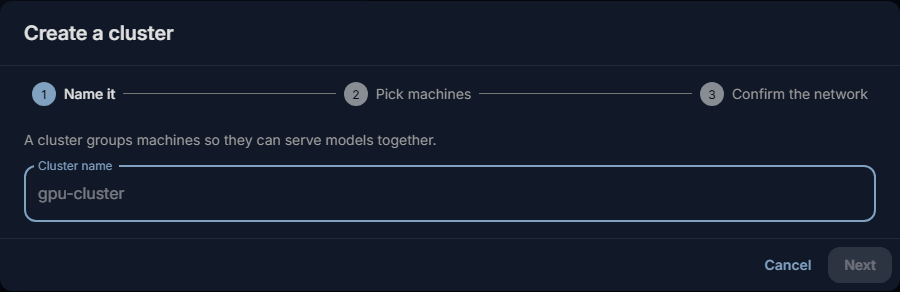
-
Name it: enter a Cluster name, such as
gpu-room, and select Next. - Pick machines: tick the machines that will serve models. One machine makes a fine cluster; you can add more later. For each machine the wizard names the runtime it will run. With more than one machine, choose Which machine leads the cluster (the head; the one with the most accelerators is suggested). Select Next.
- Confirm the network: the console lists the networks the machines share, tests them, and suggests the fastest one that is not shared with management traffic. Check it: a VPN interface can look like a dedicated link. Pick another if the suggestion is not the network you want the cluster on.
- Select Create cluster.
The cluster page opens on Starting. The machines:
- get the runtime image and check it. It comes from the server once; the first machine that has it passes it on to the others over the cluster's network. A dropped transfer resumes where it stopped, when the machine has room on disk for a copy of the image. The page shows a bar per machine;
- start Ray in it: the head first, then the other machines join;
- report what they found.
The cluster reaches Running, with every machine up and its accelerators counted, and offers Deploy a model. If the totals are lower than you expect, a machine did not join: open it and read its status.
Machines marked in the list. A machine already in another cluster is marked so: take it out of that cluster before you pick it. "No certified runtime image runs on …" means there is no runtime for that kind of machine; remove it from the selection.
"These machines cannot form a cluster yet." The network step found no network all of them share. Check their cabling and addresses, then try again.
The cluster's page
Open Clusters and select the cluster.
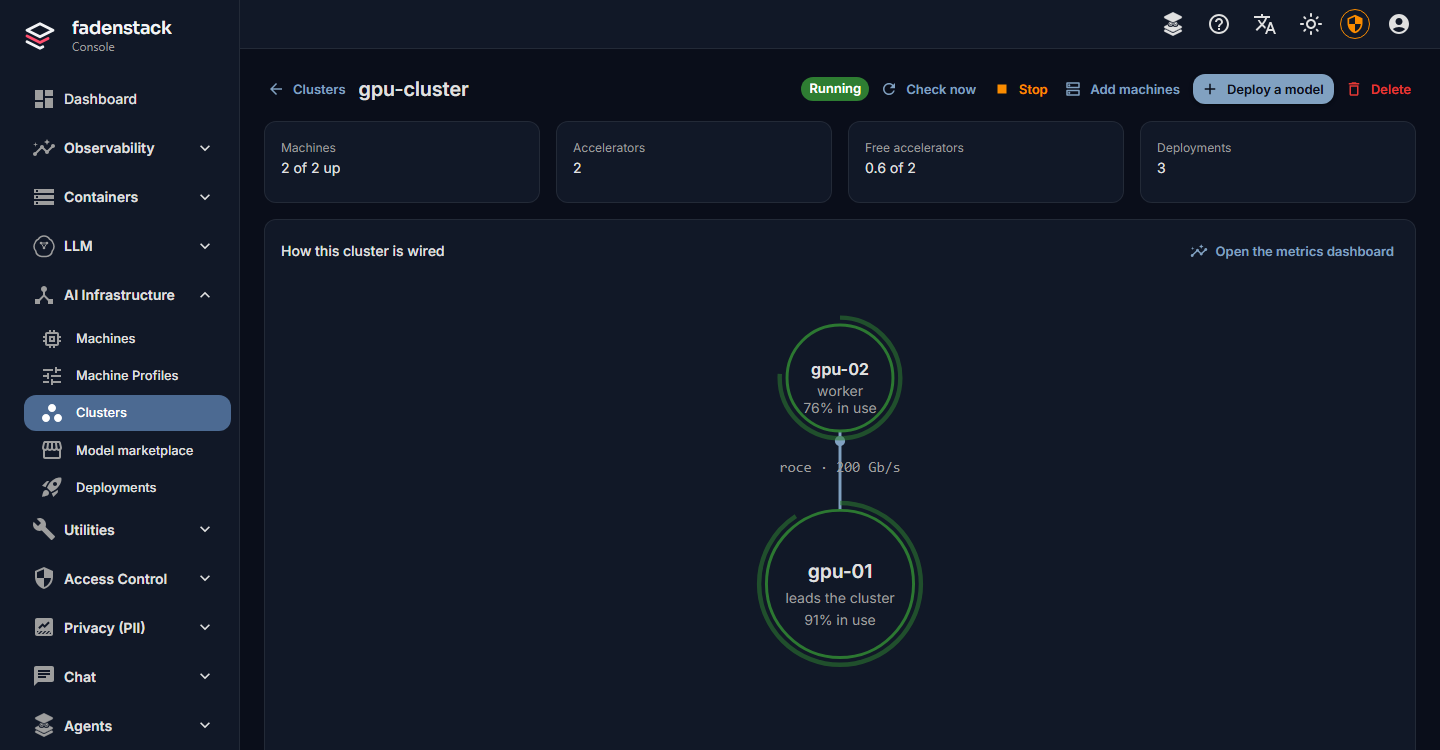
- At the top: its state, Check now (look at the cluster at once instead of waiting for the next check), Stop or Start, Add machines, Deploy a model and Delete.
- A summary: Machines up, Accelerators, Free accelerators, Deployments.
- How this cluster is wired: the machines and how they connect. Select a machine to see what it runs, and to Drain it or Remove from cluster.
- Models on this cluster: each deployment with its state and copies.
- Cards for the Runtime, Model traffic, Traffic between machines and Where the machines get models.
- Advanced: the Health checks the server ran, Change the network, and the raw status.
| Cluster state | Meaning |
|---|---|
| Starting | Getting the runtime onto the machines and starting Ray |
| Running | Every machine up; models can be served |
| Needs attention | Something is wrong, and the page says what; Fadenstack is checking or repairing it (see Health checks) |
| Failed | It could not start, or could not be repaired; the page says why |
| Stopped | Stopped on purpose; its machines and network are kept |
Stop, start and delete
Stop stops the cluster on its machines and frees their GPUs. Its machines, network and deployments are kept; Start brings it back and applies its models again.
Delete removes the cluster. A cluster that still has deployments cannot be deleted: delete them first, so no model is left running on the machines. A running cluster is stopped first, then deleted; the machines stay enrolled and can join another cluster. If the cluster's machines are all offline, it cannot be stopped from here; it is deleted anyway, and what it left on a machine is replaced the next time that machine starts a cluster.
Add machines to a running cluster
- On the cluster's page, select Add machines.
- Tick the machines to add. Machines that cannot join are listed with the reason, and cannot be ticked.
- Select Add.
Each machine is checked first: it must reach the cluster's head on the cluster's network. Then it gets the runtime image (from a machine of the cluster that has it), starts its container and joins Ray, the way the cluster's first machines did.
The copies already running stay where they are. New copies and new models can use the new machine, which receives the models' files when it needs them. To put a model on the new machine, an administrator scales its deployment up; changing the number of copies does not restart the copies already running (see Deployments).
| Reason shown | What to do |
|---|---|
| It is offline. | Start the machine or its agent |
| It is in maintenance. | Exit Maintenance on the machine's page |
| It is being drained. | Stop the drain on the machine first |
| It belongs to the cluster … ; remove it there first. | Take it out of the other cluster |
| It has no address on the cluster's network (…). | Connect the machine to that network, or give it an address there |
| The cluster runs Ray with TLS, which needs agent … or later on it. | Update the machine's agent (re-run the install line) |
| Machine could not reach the cluster's head on … | The machine has an address on the network but cannot reach the head there: check cabling, routes and firewalls |
A warning that the machine is of another kind than the head (another architecture) is not a refusal: it runs another runtime image, and no copy of a model may span both kinds.
Drain a machine
Draining moves a machine's model copies to the cluster's other machines and keeps new copies off it: before maintenance, a reboot, or taking it out of the cluster. You see a plan first, and nothing stops unless you agree.
- On the cluster's page, select the machine, then Drain. (Or Drain on the machine's own page, or Enable drain in the Machines list.)
- Read the plan. For every copy on the machine it says either Moves to a named machine, or Stops, with the reason.
- Select Drain. If copies would stop, the button says Drain and stop with their number: you are agreeing to that.
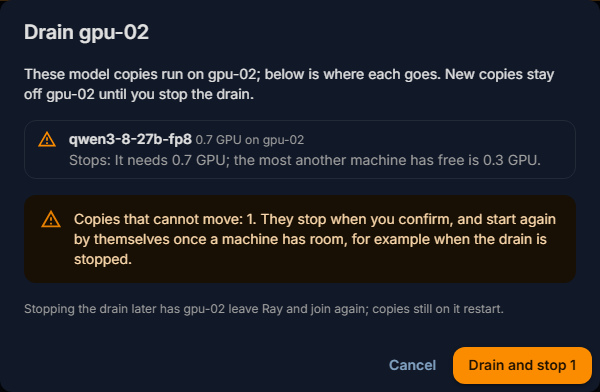
A copy moves only when another machine of the cluster holds the model's files and has both the accelerator share and the GPU memory the copy needs free. Each moving copy keeps serving until its replacement on the other machine is up; nothing is stopped early.
A copy that cannot move says why:
| Reason in the plan | What it means |
|---|---|
| The cluster has no other machine that can take it. | No other machine is up and in the cluster |
| No other machine holds this model's files yet. | The copy could not load anywhere else |
| It needs … GPU; the most another machine has free is … GPU. | Not enough free accelerators elsewhere |
| It needs about … of GPU memory; the most another machine has free is … | Not enough free GPU memory elsewhere |
Copies you agreed to stop start again by themselves once a machine has room, for example after the drain is stopped.
While it runs, the cluster's page shows the drain with its state: Starting the drain, Moving copies, Drained. A drained machine runs nothing and takes nothing new; do your work on it.
Stop drain (on the cluster's page, or Stop Drain on the machine's page) ends it: the machine leaves Ray and joins again, and copies still on it restart. Ray has no other way to undo a drain.
The head cannot be drained while the cluster runs: the cluster cannot run without it. Stop the cluster instead, or drain the other machines. Draining needs a recent agent on the machine and on the head; the plan names the machines to update.
A copy has not moved after 30 minutes. The drain says so ("… have not moved after 30 minutes: the replacement did not start"). Read the deployment's errors, or stop the drain.
Remove a machine from a cluster
- On the cluster's page, select the machine, then Remove from cluster.
- Read the plan: it is the drain plan, followed by the machine leaving.
- Select Remove (or Remove and stop with the number of copies that would stop).
The machine is drained first, then it leaves Ray and the cluster (Leaving the cluster). It stays enrolled and can join another cluster. Cancel removal stops it while it is still draining.
On a stopped cluster nothing runs, so the machine only leaves the record. To take out the head, stop the cluster first.
Health checks and repairs
Every minute, Fadenstack looks at each running cluster and each serving model, and again whenever a machine reconnects. It restarts nothing unless something is wrong, and it looks twice before it does. What it repairs by itself, and what you see meanwhile, is in Failures and logs. In short:
- a machine that dropped out of the cluster is taken out of Ray and joined again; copies on the other machines keep serving;
- a head that stopped is restarted with the whole cluster, and the models are applied again;
- after three failed restarts the cluster reads Failed and is tried again every 15 minutes. Try again on the cluster's page starts over at once.
Advanced → Health checks lists the checks and what they found.
Runtime
The Runtime card shows the image the cluster's machines run, Ray and vLLM together, and whether a newer certified one is available. A cluster keeps its runtime until you switch it, which restarts every model on it. See Move a cluster to another runtime.
Encryption
- Model traffic: the gateway reaches the cluster's models over mutual TLS. A cluster started before this protection existed shows "not encrypted"; Encrypt model traffic moves its models behind TLS, and they load again.
- Traffic between machines: Encrypt turns on TLS for Ray between the cluster's machines. It restarts the cluster and its models; every machine needs a recent agent.
Both are explained in HTTPS and trust.
Where the machines get models
By default the server downloads a model and each machine copies it from the server, so the machines need no internet access. The Where the machines get models card can switch a cluster to Machines download models themselves: each machine downloads from Hugging Face into its own store, with the server's Hugging Face token for a gated model. This needs every machine to reach Hugging Face; the card checks them and names any that cannot. The change applies to the next model placed on the cluster.
Models running without a deployment
A deployment deleted while its cluster could not be reached can leave its model running: it holds GPUs and still answers at the gateway. Under Models running here without a deployment, select Look for them, then Take over a model to manage it again: keep it, or delete it properly.
When it does not work
The cluster fails to start with Address already in use. Something on a machine holds one of the cluster's
ports. Free it (see Network and ports), then select
Try again.
"This will not change by retrying …" The cluster waits instead of retrying, because the cause comes out the
same every time; the most common one is that the server holds a different build of the runtime image than the
cluster needs. Run faden runtime-images --check on the server, fetch what is missing, then Try again.
Other start failures are shown in the machine's own words, and retried with growing pauses. Fix the cause and select Try again to retry at once.
"The machines did not confirm the cluster stopped." Check that they are online, then stop or delete again.