Agents and add-ins
An agent is the assistant inside another application: the side panel of the Fadenstack browser agent for Chrome, or the task pane of the Word, Excel, PowerPoint or Outlook add-in. The application brings the tools (read the page, fill a form, write a cell); Fadenstack decides who may use the agent, which model answers and which of the application's tools it may run. You set up one agent per application and grant it to the teams that should have it.
What people do with the agents is described in The browser agent and Office add-ins.
Before you start
- The application is installed for your users (see Install the applications).
- A model the agent answers with: one of your own deployments, or a remote provider's. Everything a person asks, and the page or document the agent reads for it, goes to that model, so choose it with the same care as for the chat (see What leaves the organisation).
- A group with the people in it (Access Control → Groups), or the people themselves: an agent is granted to people and groups, and refused to everyone else.
Create the agent
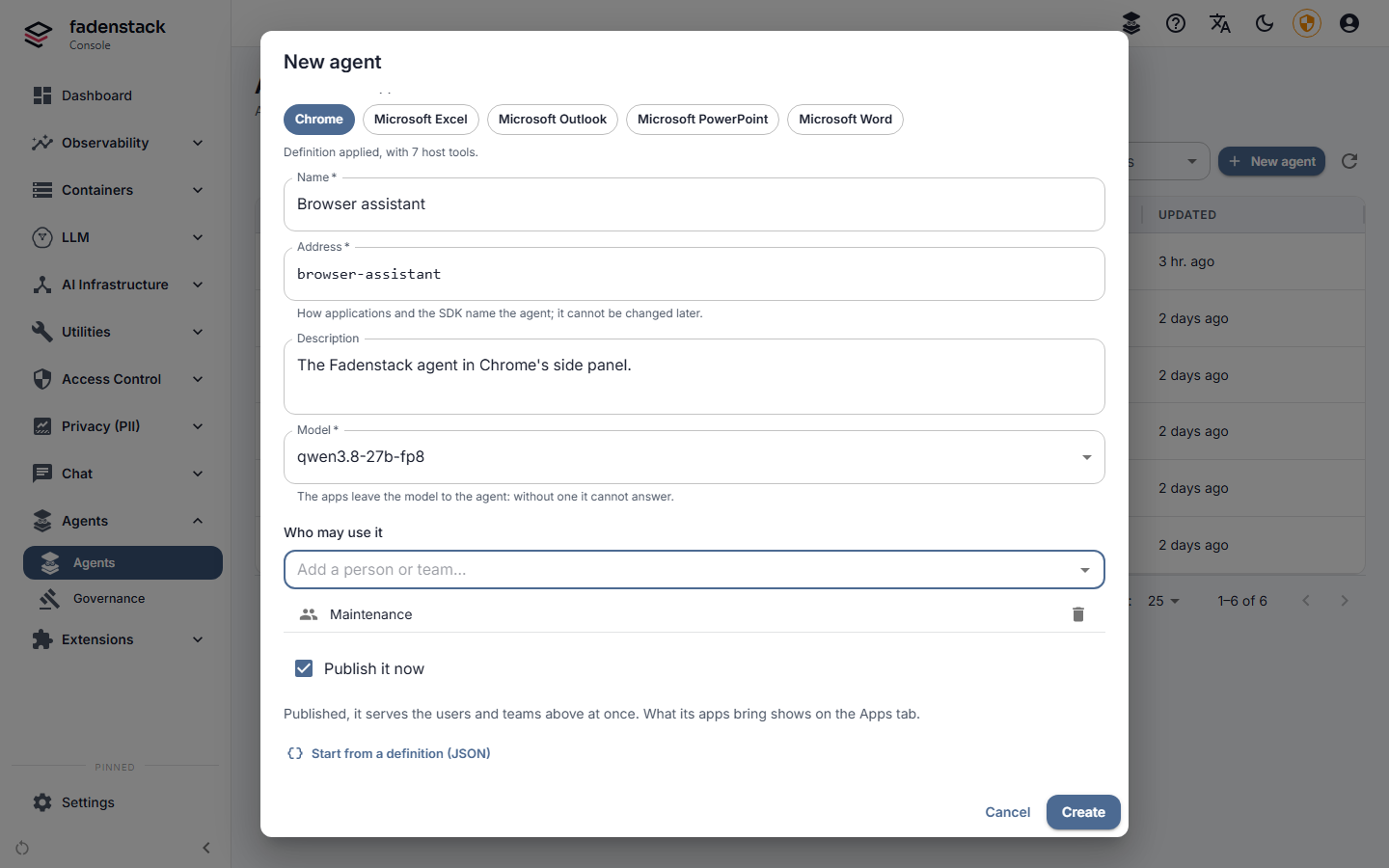
- Open Agents → Agents and select New agent.
- Under Start from an app, pick the application: Chrome, Microsoft Word, Microsoft Excel, Microsoft PowerPoint or Microsoft Outlook. Its definition is filled in: the instructions, the tools the application brings with their classes, and the greeting.
-
Keep the Address. It is what the application asks for, and it cannot be changed later:
Application Address Chrome browser-assistantWord word-assistantExcel excel-assistantPowerPoint powerpoint-assistantOutlook outlook-assistant -
Pick the Model. It is required: the applications leave the model to the agent, and without one the agent cannot answer.
- Under Who may use it, type part of a group's name or an e-mail address, and pick it.
- Tick Publish it now to serve the agent to those people at once. Left unticked, it starts as a draft that only its maintainers can use.
- Select Create.
The agent's page opens. Its list status is Draft, Published or Retired.
The agent's page
| Tab | What it holds |
|---|---|
| Definition | The version people get: Instructions, Model, Knowledge (collections it may search), Server tools (What a chat gets, Only these, or None), Local MCP servers, Host tools (the application's tools and their classes), Appearance (greeting and suggested prompts) and Privacy. |
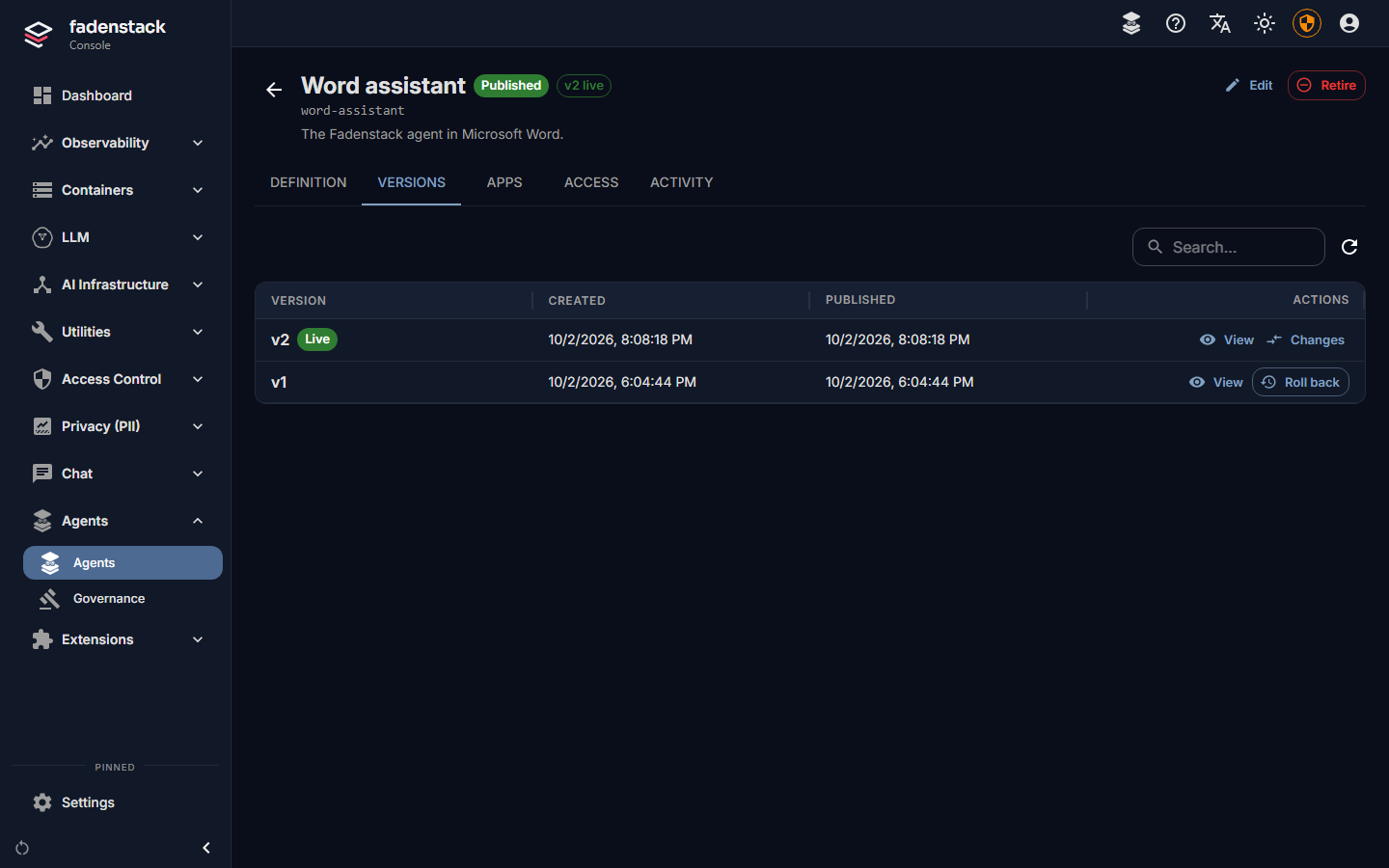
| Versions | Every version. Publish one, Roll back to an earlier one, see the Changes. |
| Access | Who may use it and its Maintainers. Check someone's access says whether a person may use the agent, and why. |
| Activity | Usage over a time range (requests, errors, tokens, users, conversations: counts only, never content), what the applications reported (tools that ran, approvals), and the Signed-in devices. |
| Apps | What the applications bring, compared with the agent's version (see When an application brings new tools). |
Saving the definition makes a new version (Save as new version, or Save and publish); versions never change. Publishing a version reaches everyone who uses the agent within a minute.
Maintainers change the agent, publish versions and decide who may use it, and can use it before it is published. They do this from Agents in the chat's user menu; they need no access to the console.
Local MCP servers: Not allowed (the default) keeps the agent to the server's tools and the application tools its version lists under Host tools; a version that lists none holds nothing back. Allowed lets it attach MCP servers on the person's computer; their tools are unclassified, so they always ask first. People in Developer mode (see Users, groups and roles) may attach them either way.
Install the applications
Chrome. Install the extension for your users with Chrome's ExtensionInstallForcelist policy, and preset
the server and the agent in the extension's managed storage (Chrome's 3rdparty policy), so that people only
sign in and cannot change them:
Chrome uses the operating system's certificate store: the computers must trust the server's certificate (see HTTPS and trust).
Office. The add-ins run in desktop Office for Windows: Word, Excel, PowerPoint and Outlook, tested with the
Microsoft 365 apps only. For Outlook,
only classic Outlook: the new Outlook for Windows runs no such add-ins. IT presets the server and the agents
in the machine policy %PROGRAMDATA%\Fadenstack\Office\policy.json; what it sets, people cannot change:
{
  "serverUrl": "https://ai.example.internal",
  "agents": {
    "word": "word-assistant",
    "excel": "excel-assistant",
    "powerpoint": "powerpoint-assistant",
    "outlook": "outlook-assistant"
  },
  "trustedCaCertificate": null
}
trustedCaCertificate names a CA certificate file to trust for the server, for an installation whose CA is
not deployed to the computers. One sign-in serves all the Office add-ins on a computer.
People sign in with their Fadenstack account. Their conversations stay on their computer; the server keeps usage and events (which tools ran, how long, with what outcome), never the content. What the agent reads reaches the model through Fadenstack, so your personal data policy applies.
Tools and approvals
Each tool an application brings has a class, which the agent's version sets:
- Read tools run in every tool mode but Off;
- Write tools ask first in Ask mode and run in Auto;
- Destructive tools always ask;
- Unclassified tools always ask.
People pick the tool mode in the panel, per conversation; every conversation starts in Ask. The application can make a class stricter, never looser. Your tool rules apply to agents as well as chats. Two examples: the Outlook add-in never sends mail itself, it opens drafts for the person; and the browser agent never reads or fills password fields, nor card fields the site marks as such.
When an application brings new tools
Each time an application starts, it tells the server what it brings: its tools with the class its developer gave them, the context it offers, its greeting and its version. The Apps tab compares this with the agent's version.
When an update of the application brings a tool the agent's version does not list, nothing breaks: the tool is held back (the model does not see it), and the application keeps working with the tools it may use. The dashboard shows "Tool changes waiting for …" until you decide.
-
Open the agent's Apps tab. Each tool shows a status:
Status Meaning New The agent's version does not list it: it is held back. Changed Its parameters differ from the ones accepted. Riskier The application now calls it riskier than the agent does. Unused In the agent's version, but no application in use brings it. In the contract Nothing to do. -
Read the tool's description, especially when it carries a warning: Instructs the model, Hidden characters, Link or Long. Models read tool descriptions like instructions.
- Keep or change the class the application suggests, or choose Leave out.
- Select Accept and publish, or Accept as draft to publish later from Versions.
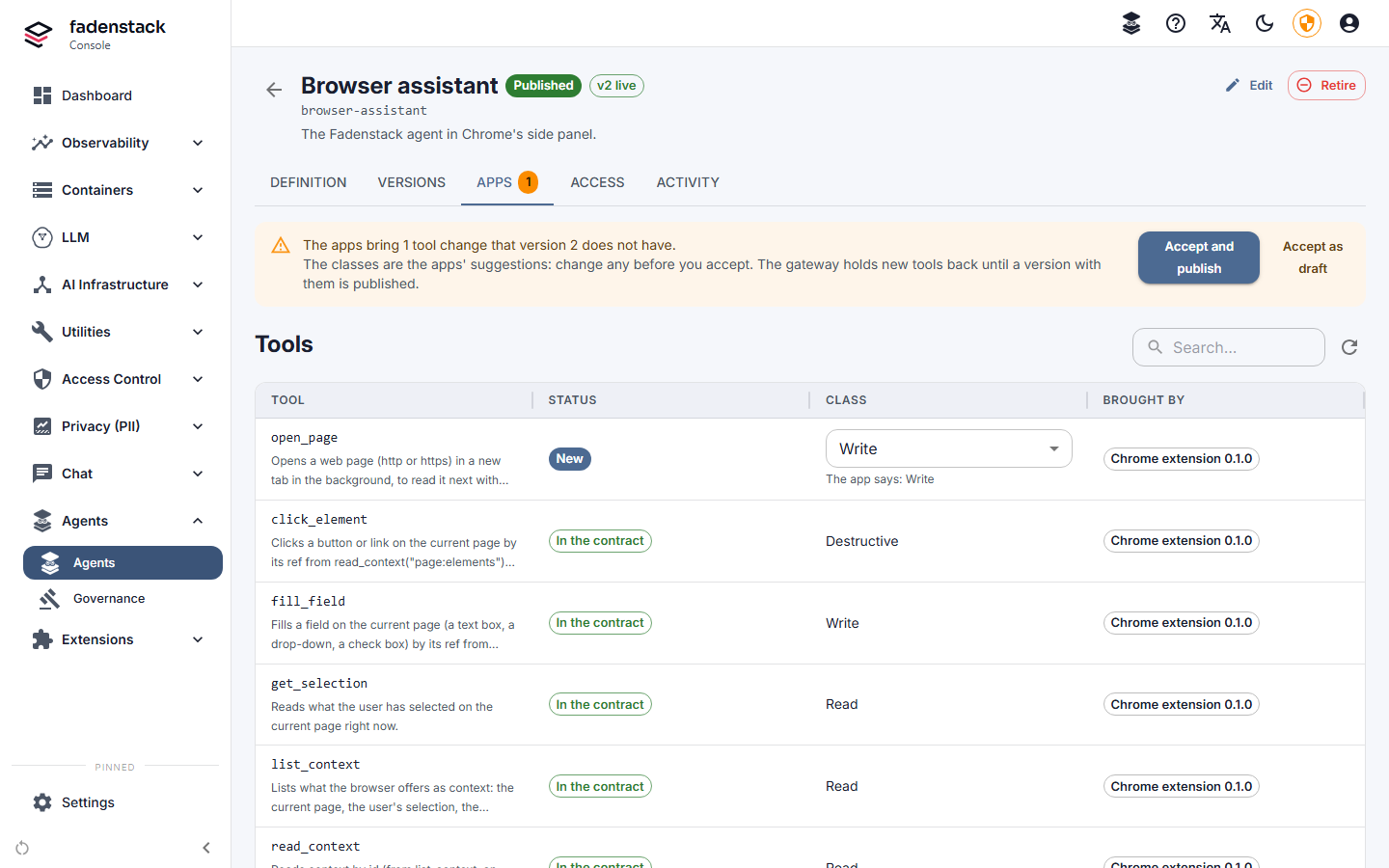
Nothing is taken in without that click. Apps in use lists each application and version that runs the agent, who last reported it and the context it offers.
Agents created from the extension
Someone whose role has agents:create can also start from the Chrome extension: when it finds no agent under
its address, it offers Create it from this extension. The agent is created from the extension's
definition as a draft they maintain. Publishing it and granting it to others is then done in the console or
on their Agents page.
Retire and delete
- Retire closes the agent to everyone within a minute: sign-ins stop working, and its versions, access and history are kept. Restore brings it back as it was.
- A retired agent can be deleted for good: Delete, then type its address to confirm. Its versions, access
and sign-ins go; what it did stays in the usage and audit logs, and its address is free for a new agent.
Deleting needs the permission
agents:delete, which the built-inadminrole has and maintainers do not. - Sign out on the Activity tab ends one device's sign-in: that person must sign in again.
An agent sign-in on a device lasts 30 days, and ends after 7 days without use. Removing someone's access takes effect within ten minutes. These are Agent sign-in lifetime (s), Agent sign-in idle timeout (s) and Agent access token lifetime (s) under Settings → General.
When it does not work
The panel says why a sign-in failed:
There is no agent under that address. The address in the application differs from the agent's. Compare it with the Agents list; an agent made without Start from an app has an address derived from its name.
The person has no access. Add them, or their group, on the Access tab, and check that the agent is published. Check someone's access says what stops them.
The server does not answer. Check the server address in the application and that the computer trusts the server's certificate.
A tool the application offers is not used. It is held back: accept it on the Apps tab.