MCP servers
An MCP server gives chats and agents tools: search a repository, open a ticket, read a file. You register the server once; Fadenstack connects to it, lists its tools, and runs a tool when a model asks for it, under the rules you set.
Before you start
- The MCP module is on (Settings → Modules; see Modules). Its pages are under Extensions → MCP Hub.
- The server's address, or the command that starts it, and the credentials it needs. A server that speaks MCP over HTTP can also run as a container on the Fadenstack server itself (see Containers).
- The models people use with tools can call them: for your own models, Tool calling is on in the deployment's engine settings; for a remote provider, Offer the gateway's tools is on (see Remote providers).
Register a server
- Open Extensions → MCP Hub and select Register Server.
-
Fill in the form:
Field What to enter Server Name The name shown in the console. Transport Streamable HTTP for current servers, SSE (legacy HTTP) for older ones, or Stdio (command) for a server the MCP service starts itself. Server URL For HTTP: the server's MCP address, usually ending in /mcp(or/sse), for examplehttps://tools.example.internal/mcp.Command For stdio: the command and its arguments, for example uvx mcp-server-time.Tool Prefix A short, unique name. The server's tools are named mcp.<prefix>.<tool>, for examplemcp.github.search_repositories. Made up if left empty.PII Mode What the server may see of personal data (see Personal data). Timeout (seconds) How long connecting and each tool call may take: 5 to 600 seconds. 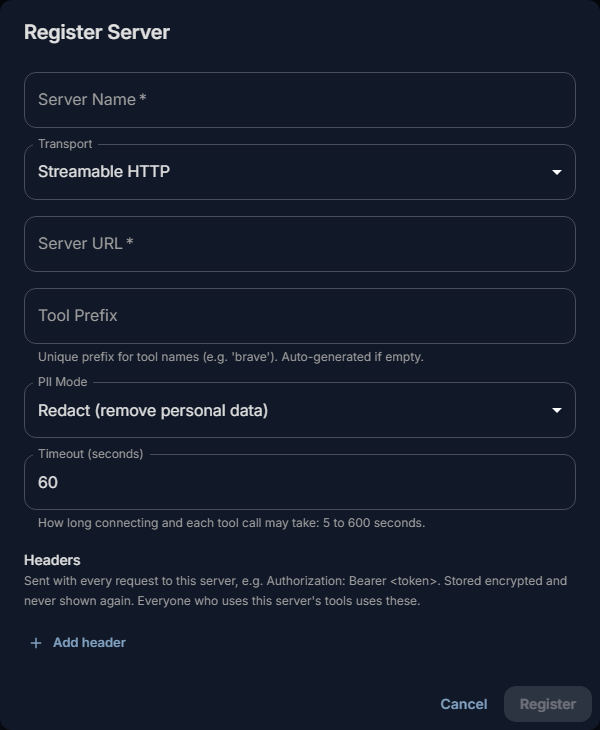
-
Under Headers (HTTP) or Environment variables (stdio), add what the server needs to let you in, such as
Authorization: Bearer <token>. - Select Register.
Fadenstack connects to the server and lists its tools. The server then shows as active, with its number of tools.
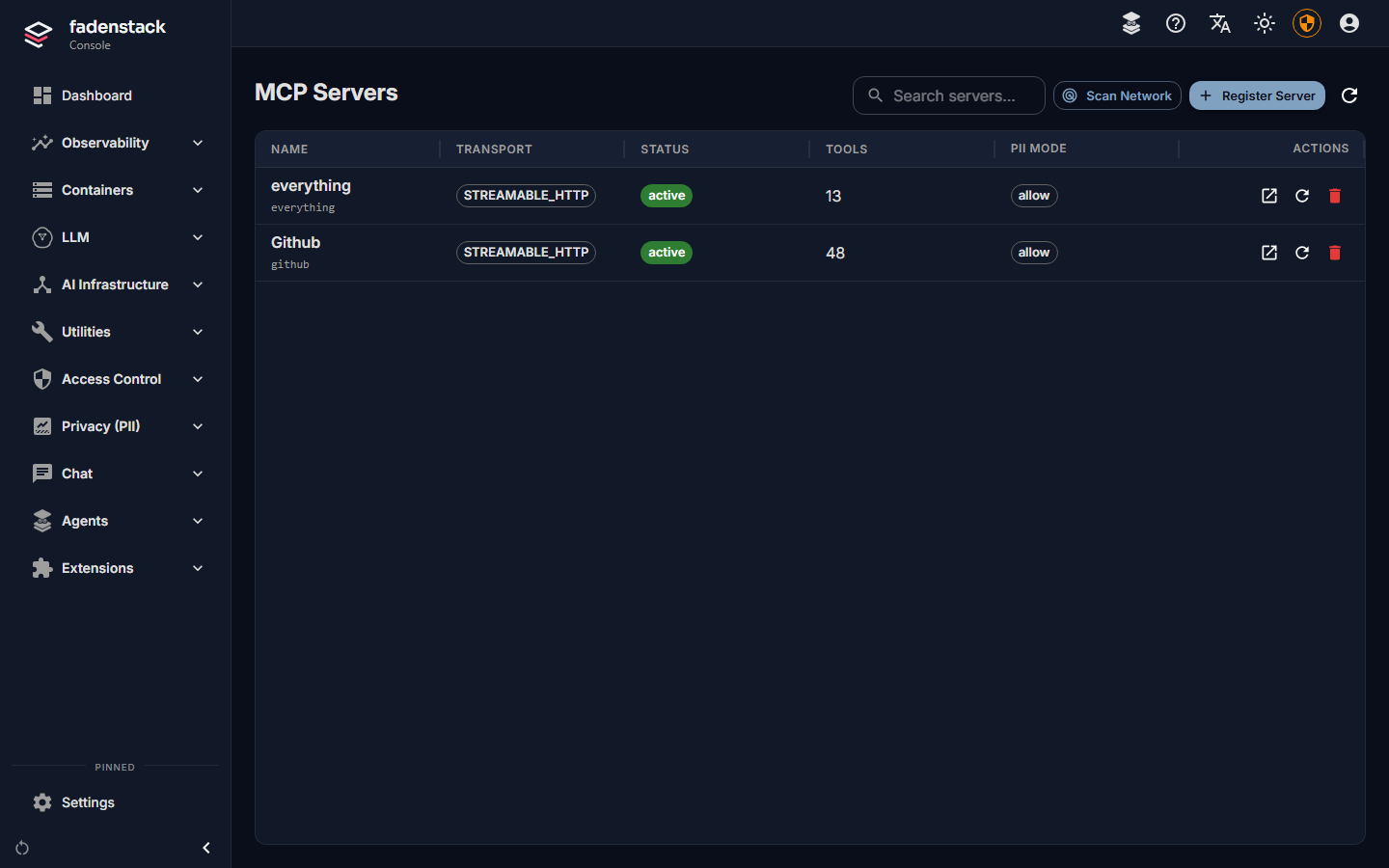
Everyone uses these credentials
Headers and variables are stored encrypted and never shown again; the console lists their names only. Every person whose chat uses the server's tools acts with these credentials. Give the server a token with only the rights the tools need, read-only where you can.
Scan Network looks for MCP servers on a host and a range of ports, and offers the ones it finds for registration.
A server's page
Select a server in the list to open its page. It shows its status, transport, prefix, PII mode, timeout and which headers are set, and, if its last connection failed, The last connection attempt failed with the reason.
- Discovered Tools lists every tool the server offers. The Enabled switch beside a tool turns it off (or on) for everyone.
- Enabled at the top turns the whole server off or on.
- Refresh lists the tools again; Test checks the connection and counts the tools.
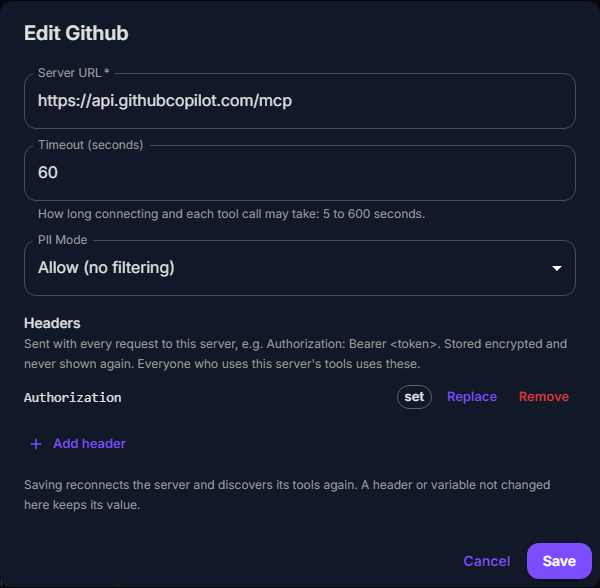
- Edit changes the URL or command, the timeout, the PII mode, and the headers or variables. A stored header is replaced or removed on its own, without entering the others again. Saving reconnects the server and lists its tools again.
- Delete Server removes it and all its tools.
Who can use the tools
A registered, enabled server's tools are available to every chat in the organisation and to agents. There is no per-person list of MCP servers. You decide what runs with:
- Turning tools off under Discovered Tools, for tools nobody should use.
- Tool rules under Agents → Governance: deny a tool, have the person approve it before it runs, or
allow it, by name or pattern, such as
mcp.github.*(see Policies and personal data). - Tool classes under Agents → Governance: say whether a tool only reads, writes or deletes. The tool mode people pick in the chat acts on that class. A tool nobody classified always asks before it runs.
- An agent's server tools: each agent gets what a chat gets, only the tools you list (such as
mcp.github.*), or none (see Agents and add-ins).
How people get the tools in a chat
- Every MCP tool starts switched off in a new chat. Each tool offered to the model takes room in every message, so only the tools a chat needs are sent.
- A tool is switched on when the person turns it on in the chat's Tools panel (the wrench), when their message names it, or when the model finds it with its tool search. Once on, it stays on for that chat.
- The tool mode decides what may run without asking: Off, Read only, Ask (every chat starts here: tools that read run, any other tool waits for the person's approval) or Auto (tools that read or write run; destructive and unclassified ones ask).
Tools in the chat explains this for the people who use it.
Hosted servers with many tools often let you narrow them with a header. GitHub's server, for example, takes
X-MCP-Toolsets: repos or X-MCP-Readonly: true.
Personal data (PII mode)
With the Privacy (PII) module on, the chat's PII policy may replace personal data with placeholders before a model sees it. What a tool then receives depends on its server's PII Mode:
| Mode | The tool receives |
|---|---|
| Allow (no filtering) | The real values. |
| Redact (remove personal data) | The placeholders; personal data found in the call's arguments is removed as well. |
| Block (reject if personal data is found) | Nothing: the call is refused when its arguments contain personal data. |
Choose Redact or Block for a server outside your organisation. If the PII module is off or cannot be reached, the call goes through as it is.
When it does not work
"… is registered but could not be connected: … Open it to correct the URL or credentials." The server is saved in error. Open it, read the reason, and select Edit. Common reasons:
- it answered
401 Unauthorized: it needs credentials; add them as a header, for exampleAuthorization: Bearer <token>; - it has no MCP endpoint at that address (
404): Streamable HTTP addresses usually end in/mcp, SSE ones in/sse; Connection refused: nothing listens at that address, or the Fadenstack server cannot reach it.
"MCP server … is …" on the dashboard. The server is in error or disconnected, and its tools are not available to chats. Open it and select Test.
People see no tools in the chat. Check that the server is enabled, its tools are enabled, and the model they chat with can call tools.