Administering Fadenstack
As the administrator, you set Fadenstack up for your organisation in the console: you choose which models people can use and where they run, add the people, connect tools, and set the rules for personal data. This section walks through each of those tasks.
Before you start
- Fadenstack is installed, and you can sign in to the console, for example at
https://ai.example.internal/admin. Installing is described in Installing. - Your account is a Superuser. The console is for superusers only: anyone else who signs in lands in the chat. See Users, groups and roles.
Find your way around
The Help menu (the question mark in the top bar) has:
- Getting started is a list on the dashboard that takes you from a fresh install to people using it. Each step ticks itself when the server has what it needs, so you can do the steps in any order. Show me starts a guide for the step; Hide removes the list from the dashboard. It stays under Help.
- Tour of the console is a minute's look at where things are.
- About this page (or F1) explains the page you are on and what you can do there. How-to guides walk you through a task on the real pages: you do the clicks, the guide shows the way. There are guides for adding a machine, creating a cluster, hosting a model, connecting a cloud model, adding people and creating an API token.
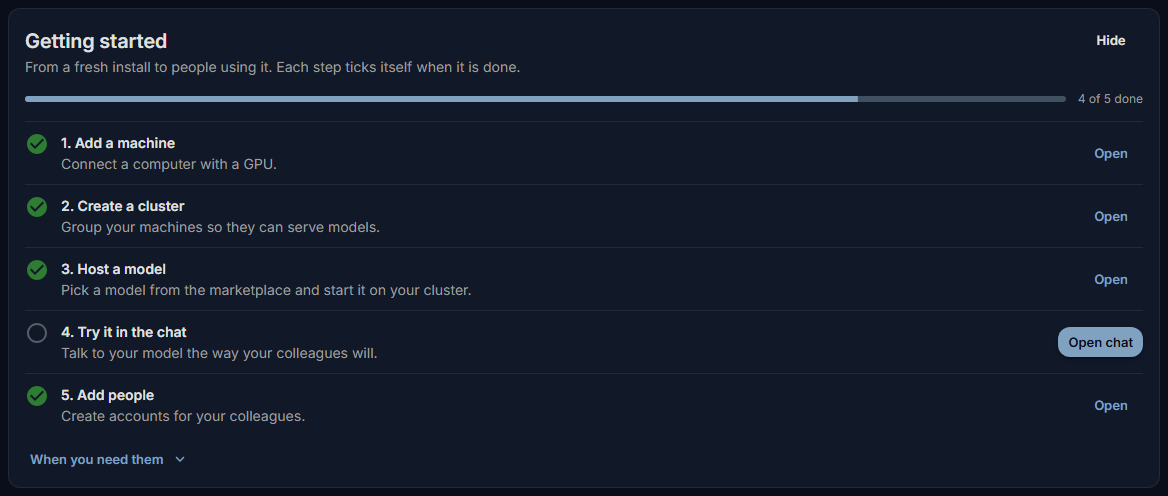
First steps, in order
- Connect your GPU machines and group them into a cluster. A machine joins by running one command on it and being approved under AI Infrastructure → Machines. Then create a cluster under Clusters. Whoever runs the machines does the command-line part: see GPU machines and Clusters. If you use no machines of your own, skip to step 3.
- Offer a model. Pick one in the model marketplace, see whether it fits your cluster, and host it. The deployment page shows how far it got. Then open the chat and try it, the way your colleagues will.
- Connect a cloud model, if you want one next to your own: see Remote providers. Check what leaves the organisation first.
- Add the people. Create their accounts, and give roles and groups where they need more than the chat. See Users, groups and roles.
- Add tools, skills and agents as you need them: MCP servers give chats tools, skills are instructions people reuse, and agents bring the assistant into Chrome and Microsoft Office.
- Set the rules. Decide what personal data is masked before it reaches a model and which tools may run without asking: see Policies and personal data.
After that, the dashboard tells you what needs attention, and Usage and costs shows how much is used and by whom. What happens to a request explains, in plain terms, what Fadenstack does with each message people send.
Modules
Some parts of Fadenstack are optional modules: PII / Privacy, MCP and Skills. Whoever runs the server adds them to the installation (see Installing). Once added, they can be switched on and off under Settings → Modules; switching one off stops it, and requests running through it are interrupted. Their pages, and their steps in Getting started, appear only while the module is on.