Remote providers
A remote provider is a model that runs elsewhere: at a cloud provider such as OpenAI, Azure OpenAI, Anthropic, Google, Mistral or OpenRouter, or on any server that speaks the OpenAI API. Once connected, it is offered in the chat and at the API next to your own models, under the same rules.
Before you start
- An account at the provider and an API key from its console.
- A decision about what may leave the organisation: read What leaves the organisation first.
Connect a provider
-
Open LLM → Providers and select Add Provider.

-
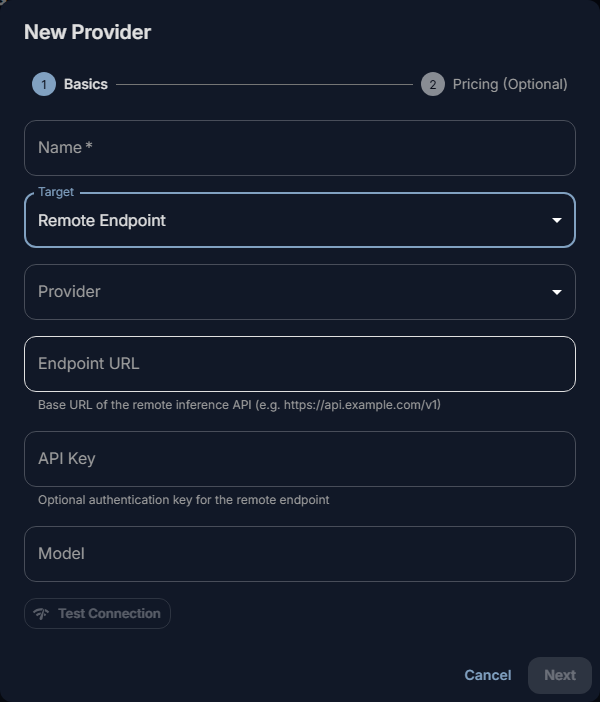
Enter a Name people will recognise, such as
OpenRouter. - Under Target, choose Remote Endpoint.
- Under Provider, pick the provider. For OpenAI, Mistral, Groq, DeepSeek and OpenRouter the
Endpoint URL is filled in; change it only for a proxy. For hosted providers such as Anthropic or Google
Gemini, leave it empty. For any other OpenAI-compatible service, choose Other (OpenAI-compatible) and
enter its address, for example
https://api.example.com/v1. - Paste the API Key.
- Select Test Connection. It sends a small request to check the address and the key, and lists the provider's models: "Connection successful — 214 model(s) available."
-
Under Model, pick the model to offer, or type its name as the provider spells it.
-
Select Next. Under Pricing (Optional), enter what a million input and output tokens cost, so that the console can estimate what usage costs (see Usage and costs). Leave both empty to skip.
- Select Create.
The model is available in the chat and through the API at once, under the model's name as you entered it.
One provider entry offers one model. To offer several models of the same provider, add one entry for each, with the same key.
At most three
Core takes at most three remote providers in all, stopped ones included, so at most three remote models. A fourth is refused with "Resource capacity reached for this deployment. Please upgrade your plan to add more providers." A vLLM server routed through Fadenstack counts as one too (see Existing vLLM servers).
The provider's key
- The key stays on the server. People using the chat or the API never see it, and the console does not show it again.
- To change it, select Edit in the provider's row and enter the new one under API Key. Left empty, the key stays as it is.
- Everyone who uses the model uses this key: the provider bills the organisation's account, not the person.
Change or remove a provider
Edit in the provider's row changes the Name, the Endpoint URL, the API Key and the Model, and the switch Offer the gateway's tools. That switch decides whether the model is offered the time, the tool search and the chat's MCP tools. Switch it off for a model or a router that does not call tools; with OpenRouter's free router, for example, requests are then shorter and the router can choose among all free models.
Stop in the provider's row stops sending requests to it without removing it; Start sends them again. Delete removes a stopped provider. It cannot be undone.
Set price (in the Price $/1M column) sets or changes the price later.
The Providers list also shows the models your clusters serve (Target: Cluster). Those are managed on their deployment's page, not here (see Deployments).
What leaves the organisation
A request answered by a remote provider is sent to that provider, over the internet unless the provider is on your own network. It carries what the model needs to answer:
- the person's new message and the chat's earlier messages;
- the instructions that go with it: the chat project's instructions and the skills in use;
- the text of files attached to the chat, and what tools returned, such as passages from the knowledge base or an MCP tool's answer;
- when Offer the gateway's tools is on, the names and descriptions of the tools offered;
- for an agent, the page or document the agent reads to answer.
The answer comes back the same way. What the provider keeps, and for how long, is set by its own terms.
Personal data. With the Privacy (PII) module on, the policy decides whether personal data is replaced before a request leaves. The policy Fadenstack starts with protects requests to cloud providers: names, e-mail addresses, phone numbers, card and account numbers and similar data are removed from them. The filter reads English: names and places in German or other languages are often missed. Check and adjust it under Policies and personal data.
Choose with care which model an agent uses. Everything an agent reads for a person goes to the agent's model.
Data residency
Observability → Data Residency shows where prompts are processed, for every provider:
| Class | Meaning |
|---|---|
| On your machines | Served by Fadenstack on your GPU machines, or on this server. |
| Your network | An address in a private range, or in a network you declared internal. |
| External | A known cloud API, or a public address: data leaves your network. |
| Unknown | The address does not resolve from this server, or none is set. |
Each provider says why it was placed where it is, for example "Cloud API: openrouter" or "Enrolled machine: gpu-01". The page also shows how much data went each way, estimated from the tokens, and a badge for the whole setup: Air-Gapped ✓, Hybrid or Cloud Only. Until every unknown provider is placed, the setup is not counted as air-gapped.
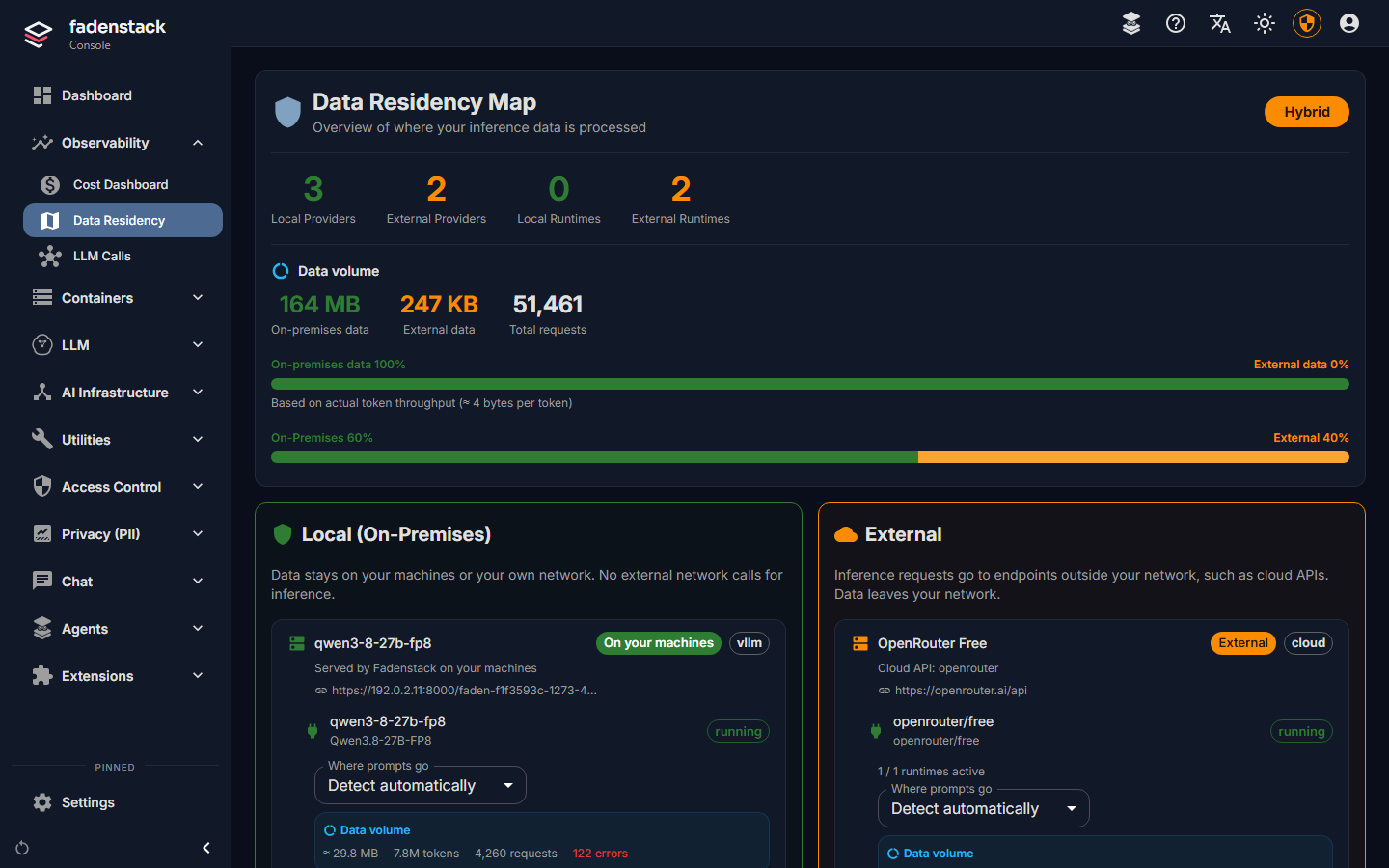
When Fadenstack cannot tell, or tells wrongly, set Where prompts go on the provider: On your machines, Your network or External. Detect automatically goes back to detection. Networks of your own outside the private ranges, such as your data centre's public range, are declared under Settings → General: Internal networks.
The dashboard shows the same classes as Kept in-house and in AI traffic.
When it does not work
"Not OpenAI API compatible". The address or the key is wrong, or the service does not speak the OpenAI
API at that address. Check the address ends where the provider's documentation says, usually /v1.
The model is not in the chat. Check that the provider is not stopped, and its name under Model in the provider's Edit dialog.
"… is not answering" on the dashboard. The provider did not answer its last checks, and requests are not sent to it until it answers again. Check the provider's status page and your server's internet access.