Skills
A skill teaches the assistant how to do one kind of task the way your team does it: a review checklist, a report layout, the steps of an incident write-up. You pick it once in a chat, and the model follows it for every message there. This page shows how to use skills and how to save your own from a chat.
Before you start
Skills are an optional part of Fadenstack. If the chat has no puzzle-piece button beside the message box, skills are switched off for your organisation, or your account may not use them; ask your administrator.
What a skill does to a reply
A skill is a set of written instructions. While it is picked, they go to the model with each of your messages, so the reply follows them: the steps, the format, the checks, the tone. A skill can also bring files, such as a template, which the model can read when it needs them.
A skill does not add to what the model knows or what it may do: documents come from Knowledge, actions from Tools. A skill can keep some tools out of the chat while it is used.
Use a skill in a chat
Either way works, also before your first message:
- Type
$in the message box, then part of the skill's name, for example$incident. Matching skills are listed as you type. Use the arrow keys and press Enter or Tab to pick one. - Select the puzzle piece beside the message box. Skills for this chat lists the skills you can use; tick the ones you want.
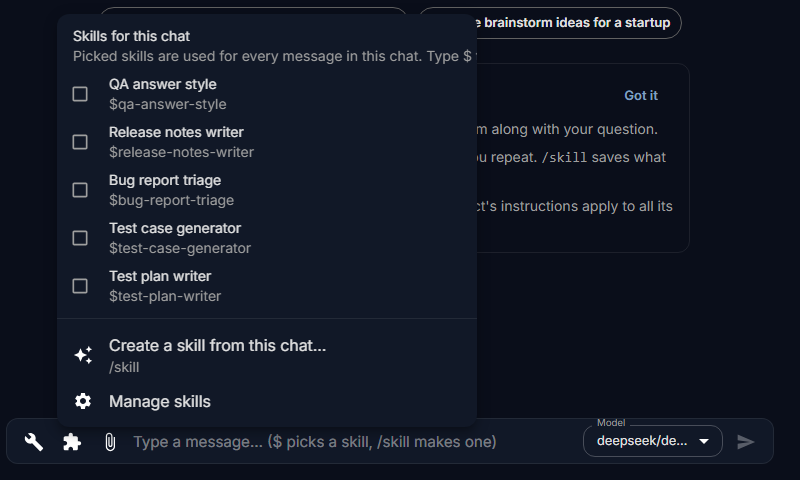
A picked skill shows as a chip above the message box. It is used for every message in this chat until you take it off with the × on its chip. Each chat has its own picks, remembered in this browser: on another computer, pick them again.
Skills that come in on their own
Some skills are set up to come into a chat without being picked: when your message contains certain words, when the chat has a file of a certain type, or always. They do not show as a chip. If a reply follows a format you did not ask for, a skill like that may be the reason; your administrator can tell you which skills your organisation uses this way.
Save a skill from a chat
When a conversation went the way you want it to go next time, save it as a skill:
- Type
/skillin the message box and press Enter. You can add what the skill should do, for example/skill review pull requests the way we just did. Or select the puzzle piece and Create a skill from this chat…. - In New skill, select Draft from this chat. The chat's model reads the conversation and writes a draft: a name, a description and the instructions. Or select Write it myself.
- Read the draft and change what is needed. The model is asked to leave out names, passwords and other details of the conversation, but check for them yourself.
- Choose a Short name: it is what you type after
$. Use it in this chat now is ticked, so the skill is picked straight away; untick it if you do not want that. - Select Save skill.
Nothing is saved before you select Save skill. New skills are private: only you, and administrators, see them until you share them.
Your skills
Select your avatar in the top bar, then Skills. The page lists the skills you can use, in Mine, Shared with me and Organization. Open one to read its instructions or change one of your own. Each save is kept as a version.
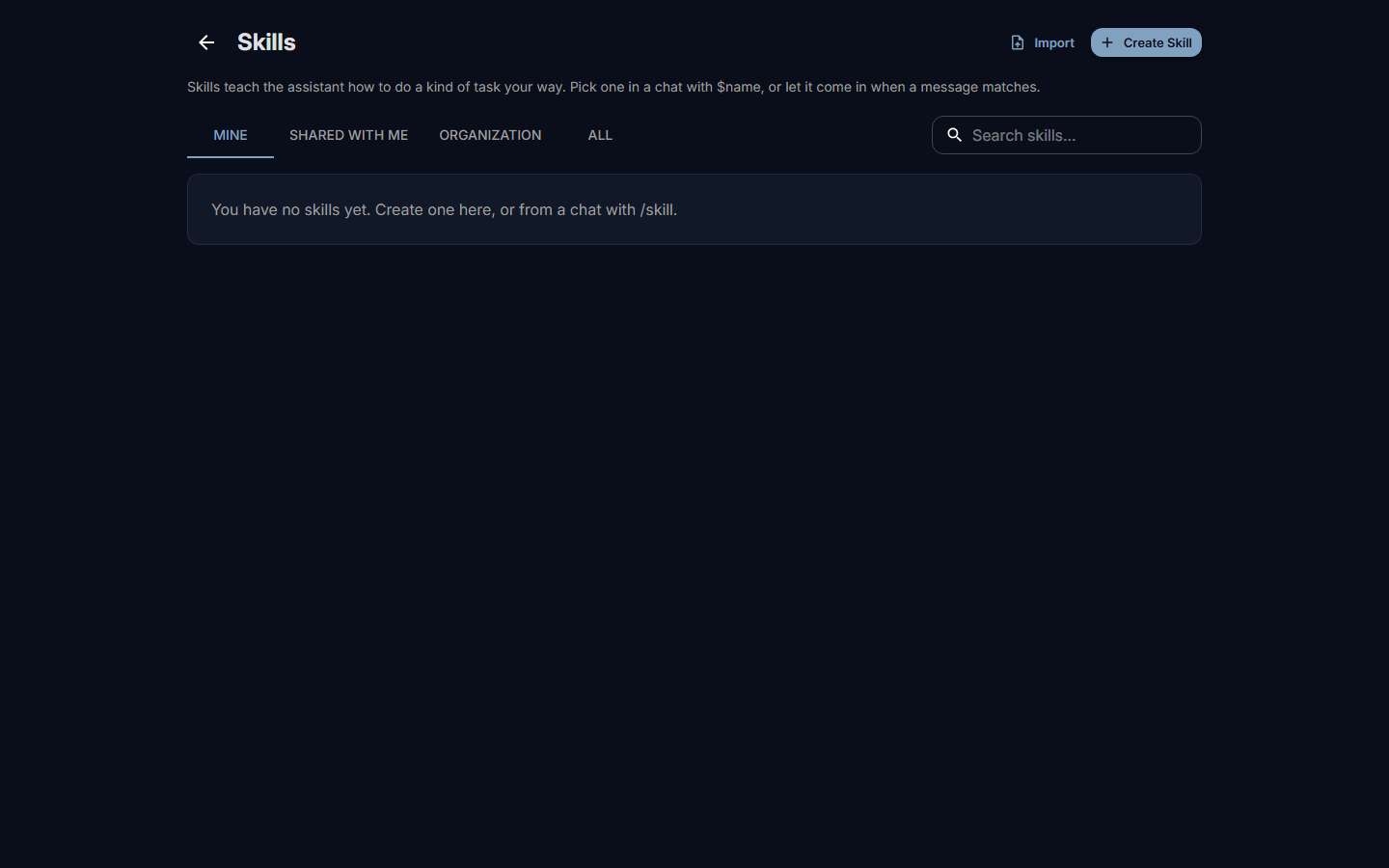
Who can see a skill, how sharing works and how versions are published is on Skills for the organisation. The skill format, for writing or importing skills by hand, is on the Developers site: Skills.
When it does not work
The list after $ is empty. There is no skill you can use with that name. Check Skills in your avatar menu, or ask whoever owns the skill to share it with you.
The reply ignores the skill. Check that its chip is above the message box. Smaller models follow long instructions less reliably; try a larger model.
You do not have access to skills. Ask an administrator for the skills permissions. Your account may not use skills. Ask your administrator.
The Skills module is switched off. An administrator can switch it on. Skills are not in use in your organisation.