Mail
Enterprise
Fadenstack sends mail for password resets, for the codes that link a sign-in to an account, and for alerts to administrators. It hands each mail to your organisation's mail server, on this machine or another one, over an encrypted connection: signed in with an account's password, as an app in Microsoft 365, or as a machine your relay accepts. Mail needs Fadenstack Enterprise.
Before you start
- You are signed in to the console as a Superuser.
- The mail module runs: Settings → Modules, Mailer.
- You know the mail server: its name, its port (587 for STARTTLS, 465 for TLS from the start), and an account that may send as the sender address. For Microsoft 365 you need an app instead of an account (below).
- This server can reach the mail server on that port. Ask your network team to allow it through firewalls.
- For Microsoft 365, the mail service must also reach
https://login.microsoftonline.com(port 443), directly or through your proxy: it gets its sign-in token there. - A new password or client secret, and a change to the trusted certificates, need root mode: switch it on in the top bar before you save.
Set up mail
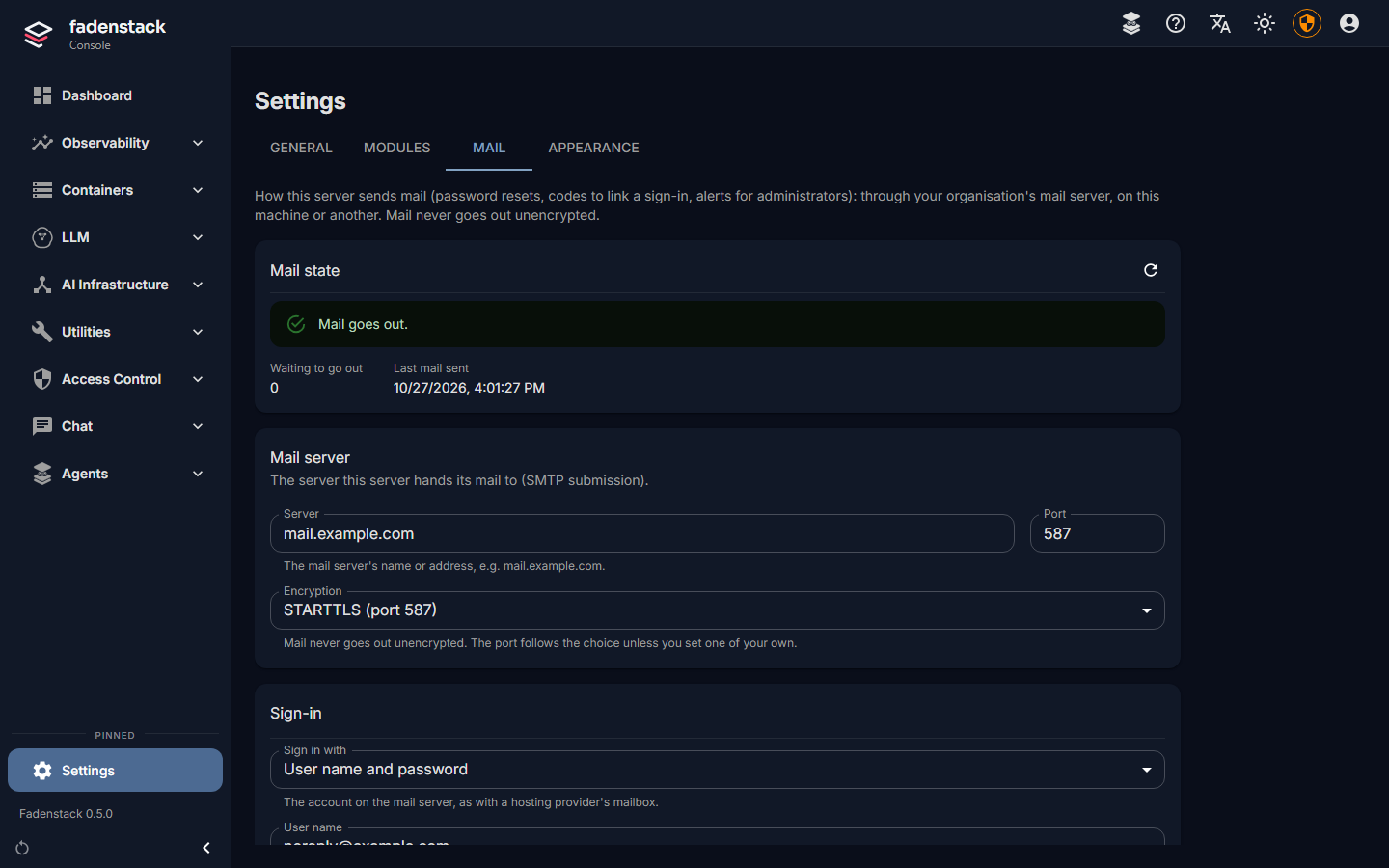
- Open Settings and select the Mail tab.
- Under Mail server, enter the Server and choose the Encryption. The Port follows the encryption, unless you enter a port of your own.
- Under Sign-in, choose Sign in with:
- User name and password: the account on the mail server, as with a hosting provider's mailbox;
- Microsoft 365: see Microsoft 365 below;
- No sign-in: a relay in your network that accepts mail from this server.
- If the mail server's certificate comes from your organisation's own certificate authority (CA), paste the CA's certificate under Trusted certificates. Certificates from public CAs are trusted already.
- Under Sender, enter the Sender address and the Sender name people see.
- Under Links, enter the Console address: where people open this console, e.g.
https://ai.example.internal. Links in mail start with it; without it no mail goes out. - Under Alerts, add the addresses that get alerts besides every active administrator.
- Under Test mail, select Send a test mail. It goes out with the settings as they are on the page, saved or not, to your own address unless you enter another.
- Select Save.
When it worked, the test mail arrives, and the page says Mail goes out. at the top. Changes apply to the next mail; nothing restarts.
More about encryption, certificates and stored secrets
- Mail never goes out unencrypted. Fadenstack uses TLS 1.2 or newer and checks the mail server's certificate: its name and that a trusted CA issued it. There is no setting to switch this off.
- Trusted certificates takes one or more certificates in PEM format, each from
-----BEGIN CERTIFICATE-----to-----END CERTIFICATE-----, and nothing else: never a private key. The page reads what you paste before you save: it lists each certificate with its expiry date under Pasted certificates, not saved yet, or says that the text holds none it can read, or holds another kind of block. After saving, they are listed under Saved certificates. They decide which servers Fadenstack trusts, so changing them needs root mode, as a secret does. - A CA must be allowed to sign certificates (key usage, as RFC 5280 requires). The page says so under a CA that is not: paste the mail server's own certificate instead, or have the CA reissued.
- A relay with a self-signed certificate (as Exchange Server has by default): paste that certificate.
- The password and the client secret are stored encrypted and never shown again. They go only to the server and port they were saved for: if you change Server or Port, enter them again.
- Greeting name is the name this server greets the mail server with. Leave it empty: the sender address's domain is used. Hardened mail servers refuse a name that is not a full DNS name.
A hosting provider's mailbox
Most hosting providers offer a mailbox with SMTP access. Their help pages name the server and port, for
example smtp.example.com on 587 with STARTTLS or on 465 with TLS from the start.
- Choose User name and password. The User name is usually the mailbox's address.
- Enter that address as the Sender address too. Most providers refuse other sender addresses.
Microsoft 365
Exchange Online turns off password sign-ins for SMTP by default at the end of December 2026. Fadenstack signs in with OAuth instead, as an app you register in Microsoft Entra ID. No person's password is stored, and the app may send only from the mailbox you allow.
You need an administrator in Microsoft Entra ID and in Exchange Online, and a mailbox for the mail to come from,
e.g. [email protected].
- In the Microsoft Entra admin center, open App registrations and select New registration. Choose Accounts in this organizational directory only. On the app's Overview, note the Application (client) ID and the Directory (tenant) ID.
- Open Certificates & secrets and add a New client secret. Copy its Value (not its ID): it is shown only once.
- Open API permissions, select Add a permission, APIs my organization uses, Office 365 Exchange Online, Application permissions, then SMTP.SendAsApp. Select Grant admin consent.
-
In Exchange Online PowerShell, register the app and give it the mailbox. The object ID is the one on the app's page under Enterprise applications, not under App registrations.
Connect-ExchangeOnline -Organization example.onmicrosoft.com
New-ServicePrincipal -AppId <application ID> -ObjectId <enterprise application's object ID>
$app = Get-ServicePrincipal -Identity <application ID>
Add-MailboxPermission -Identity noreply@example.com -User $app.Identity -AccessRights FullAccess
Set-CASMailbox -Identity noreply@example.com -SmtpClientAuthenticationDisabled $false
The last line switches SMTP AUTH on for that mailbox. Microsoft recommends keeping it off for the organisation (
Set-TransportConfig -SmtpClientAuthenticationDisabled $true) and on only for the mailboxes that need it: the mailbox's setting wins over the organisation's. With security defaults switched on in Microsoft Entra ID, SMTP AUTH is off in Exchange Online whatever these settings say: it works only once security defaults are switched off. -
In the console, choose Sign in with Microsoft 365. The page sets the Server to
smtp.office365.com, port 587, STARTTLS, and says so when it replaces another server: Microsoft 365 takes mail from applications only there, and Fadenstack sends the sign-in to no other server. Enter the Mailbox, the Tenant, the Application (client) ID and the Client secret. - Enter the mailbox as the Sender address. To send as another address, give the app Send As on it
(
Add-RecipientPermission). - Send a test mail, then save.
When the client secret expires in Entra ID, mail stops with Microsoft 365 issued no token: add a new secret there and enter it here.
A relay in your network
- Choose No sign-in. The relay must accept mail from this server's address and pass it on.
- The relay must offer STARTTLS or TLS. Exchange Server's receive connectors do; if its certificate is self-signed, paste it under Trusted certificates.
Your domain's records
The mail server signs and sends the mail, so your domain's SPF, DKIM and DMARC records are about it, not about Fadenstack. If mail lands in spam folders, check those records for the mail server you set up here.
What the page shows
Mail state at the top says whether mail goes out, and if not, why: the mail module is off, no server is set, or the console address is missing. It shows how many mails wait, when the last one went out, and the last failure: which mail, the reason in words, the mail server's reply or other details, how often it was tried, and whether it is tried again, or being sent right now. Mails are tried again for a while and are deleted, unsent, once they are of no use any more (a reset link that expired). A mail the mail server refused for good (the sign-in, the sender, the recipient or the message) is not tried again.
Each mail goes out once, even when Fadenstack repeats a delivery, for example after the mail service answered too late. One case remains: when the mail server took a mail but its answer never arrived (the connection broke at that moment), the mail is sent again, as the same message, which most mailboxes then show once.
After the mail server refuses a sign-in, Fadenstack does not sign in again with the same settings for 15 minutes: many failed sign-ins in a row make mail servers ban the address they come from. A test mail tries at once, and one that goes through ends the wait. Changed sign-in settings do not wait.
One test mail at a time: while yours is on its way, the page asks you to wait for its result.
When mail fails, every console page shows a notice until a mail goes out again.
When it does not work
The test mail and the mail state say what went wrong. Below that they show the mail server's own reply, labelled as its words, or other details, such as the network's error.
| You see | What to do |
|---|---|
| The mail settings are incomplete | The details below name what is missing or cannot be used: no server; a Microsoft 365 field, or another server than smtp.office365.com for Microsoft 365; trusted certificates that are not PEM or hold another block, such as a private key; a sender address without a domain, or with other characters before the @ than letters, digits and . _ - +; a sender name of more than one line; characters in the user name or password that an SMTP sign-in cannot send (only ASCII). |
| The mail server's certificate is not trusted | Paste your organisation's CA under Trusted certificates. |
| The mail service refuses this CA | Paste the mail server's own certificate instead, or have the CA reissued with key usage. |
| The mail server's certificate has expired | It must be renewed on the mail server. Fadenstack sends no mail to a server whose certificate has expired. |
| The mail server's certificate is for another name | Enter the server under the name its certificate is issued to. |
| The mail server did not answer in time | Check the port: STARTTLS on 587, TLS from the start on 465. Check that no firewall drops the connection. |
| The encrypted connection failed | The encryption does not match the port: STARTTLS on 587, TLS from the start on 465. Or the mail server offers only TLS older than 1.2, which Fadenstack refuses (old Exchange receive connectors and appliances): have it updated. |
| The mail server offers no encryption on this port | Use TLS from the start on 465, or ask for STARTTLS on 587. Fadenstack never sends unencrypted. |
| No connection to the mail server | Check the server and the port, and that firewalls let this server through. |
| The server's name cannot be found | Check the spelling, and that this server's DNS knows the name. |
| The mail server offers no sign-in of this kind on this port | Check the port: mail servers offer sign-ins on 587 and 465. For Microsoft 365, the server must be smtp.office365.com. Or choose another sign-in. |
| The mail server refused the sign-in | Check the user name and the password. For Microsoft 365: the app's permission, consent and mailbox permission (steps 3 and 4). A reply with 5.7.139 means Microsoft 365 does not allow SMTP AUTH: for the organisation, for the mailbox, or because of security defaults (step 4). Fadenstack does not try a refused sign-in again by itself. |
| The mail server refused this sign-in a short while ago | Mail waits up to 15 minutes before the next sign-in with the same settings (above). Fix the sign-in: the account on the mail server, or the settings here. Then send a test mail: it tries at once, and once it goes through, mail goes out again. |
| Microsoft 365 issued no token | Check the tenant, the application ID and the client secret (its value, not its ID), and the admin consent. When Entra ID cannot be reached, let the mail service reach https://login.microsoftonline.com on port 443, directly or through your proxy. Entra's reason is shown below. |
| The mail server refused the sender address | The account must be allowed to send as the sender address: use its own address, or give it the right. |
| The mail server does not pass on mail for this server | Sign in, or have the relay accept this server's address. |
| The mail server requires a sign-in | Choose a sign-in and enter the account. |
| The mail server refused the recipient | Check the address. The mail server's reply below says why it refused it. |
| The mail server refused the message itself, e.g. as too large or as spam | The mail server's reply below says why. Mail taken for spam: check your domain's records for this mail server (above). |
| The mail server refused for now | A reply that starts with 4 (e.g. 421, 451): the mail server is busy, limits connections, or greylists. Mail that waits is tried again by itself; send a test mail again in a few minutes. If it keeps happening, the mail server's reply below says why. |
| The mail server answered with an error | The mail server's reply below says why. |
| The mail server refused this server's greeting | Enter a Greeting name that is a full DNS name, e.g. ai.example.internal. |
| The stored password or secret was saved for another server | A stored password or secret goes only with the settings it was saved for: the same server and port, trusted certificates and sign-in (for Microsoft 365, the same tenant and app). Enter it again to test or save other settings. |
| The mail service cannot be reached | Start the mail module under Settings → Modules. |
| This mail is still being sent by the mail service | An earlier delivery of this mail is still on its way. It is checked again shortly; nothing to do. |
Under a field, the page may say:
| You see | What to do |
|---|---|
| With Microsoft 365 the server must be smtp.office365.com | Enter smtp.office365.com as the Server, or choose Microsoft 365 again under Sign in with: the page sets it. |
| Only certificates | Remove every block from Trusted certificates that is no certificate, such as a private key (-----BEGIN PRIVATE KEY-----). |