Budgets¶
Enterprise
A budget limits how many tokens, or how much money, the whole organisation, a team, an agent or one person may use per day, week or month. Every request has to fit into each budget that applies to it; a budget can refuse what does not fit, or only alert. The same page gives the monthly chargeback report per team or cost centre. Budgets need Fadenstack Enterprise.
Before you start¶
- You are signed in to the console as a Superuser.
- Your teams are set up as a tree, and each person has a Usage group: their home team, where their usage counts (see Teams in a tree).
- For budgets in money, the models have prices (see Set prices). A model without a price adds nothing to a money budget.
- Budgets for single people are off until you switch them on, which needs Root Mode (see The settings).
Set up a budget¶
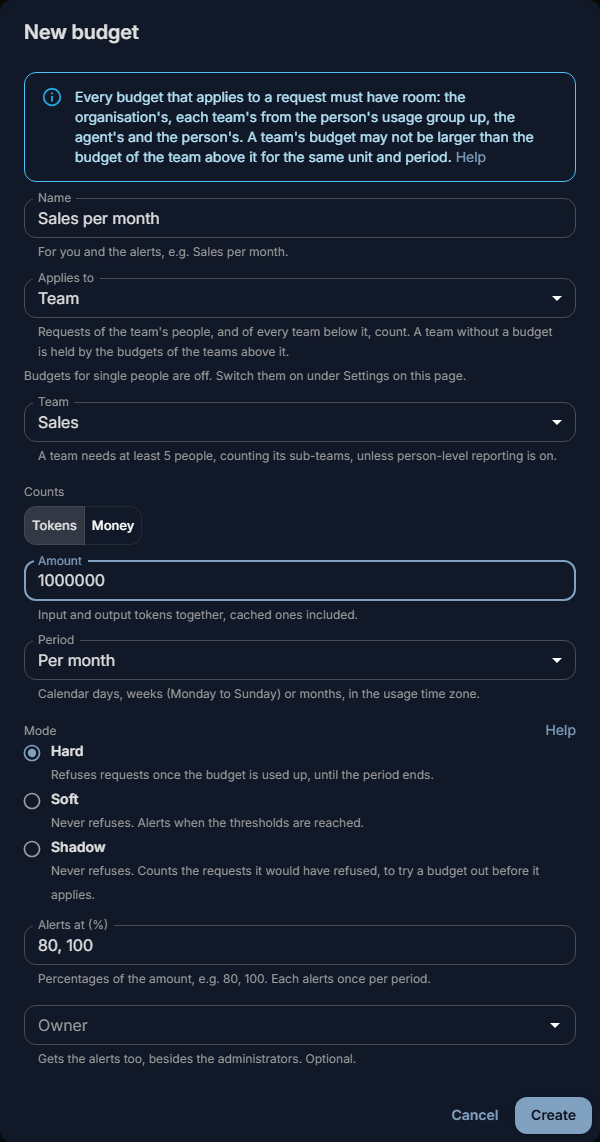
- Open Observability → Budgets and select New budget.
- Enter a Name, for example
Sales per month. Alerts use it. - Under Applies to, choose Organisation, Team, Agent or Person, and pick the team, agent or person (see Who a budget applies to).
- Under Counts, choose Tokens or Money. For money, enter the Currency, for example
EUR. - Enter the Amount and choose the Period: Per day, Per week or Per month.
- Choose the Mode: Hard, Soft or Shadow (see Modes).
- Under Alerts at (%), keep
80, 100or enter other percentages of the amount. Pick an Owner if someone besides the administrators is to get the alerts. - Select Create.
The budget counts from the start of the current period. Each change, and each new or deleted budget, is
recorded in the audit log with your name (budget.create, budget.update, budget.delete), and applies to
requests within seconds.
More about periods and what is counted
- Periods are calendar days, weeks from Monday to Sunday, and calendar months, in the usage time zone (Settings → Usage and privacy, Time zone). A budget starts again at midnight when its period ends.
- Tokens are input and output tokens together, cached input included, as on the usage pages (see What is counted).
- Money is the estimated cost at the prices set on this instance, in the budget's currency. Usage of models priced in another currency does not count toward it: the list says so under the budget.
- A request counts when it starts, with its prompt and the most it may write; when the answer is done, its real tokens replace that. An answer that is already being written is never cut off, so a budget can end up a little over its amount.
- Whom a budget applies to is fixed once it exists. To move a budget to another team, delete it and set up a new one.
The list¶
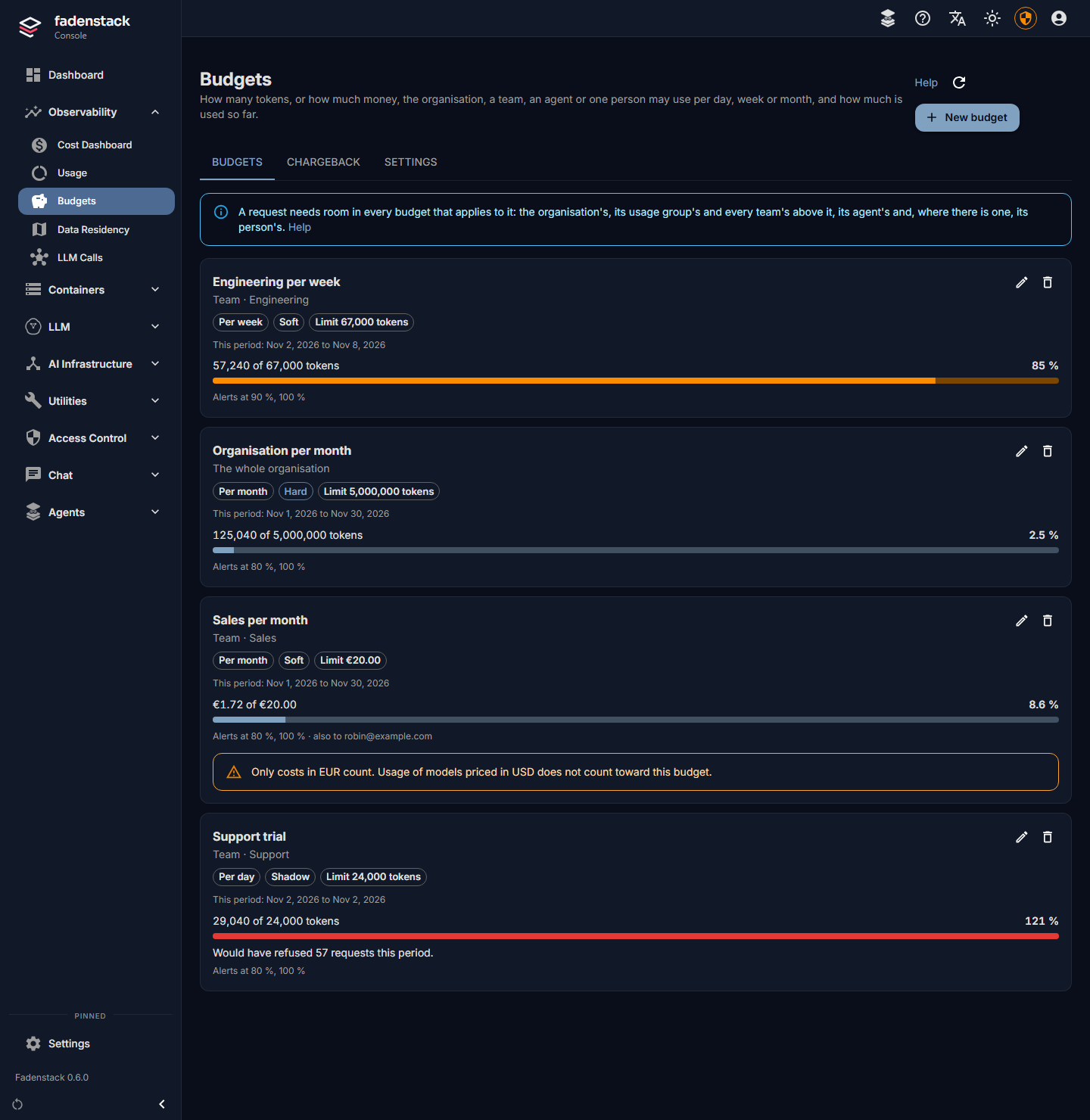
Each budget on the Budgets tab shows, for the current period:
| You see | What it means |
|---|---|
| Team · Sales, Agent · …, The whole organisation | Whom it applies to. |
| Per month, Hard, Limit 1,000,000 tokens | The period, the mode and the amount. |
| This period: … to … | The first and the last day of the current period. |
| A bar with 250,000 of 1,000,000 tokens and 25 % | What is used so far. Amber from 80 %, red once it is used up. |
| At this rate it runs out on … | The use so far, carried on at the same rate, would use it up before the period ends. |
| Would have refused 12 requests this period. | A shadow budget: what a hard budget would have refused. |
| Alerts at 80 %, 100 %, also to … | The thresholds, and the owner who gets the alerts too. |
| The budgets of the teams below add up to more than this one. | Allowed: see The tree rule. |
| Only costs in EUR count. or No model has a price in CHF | Models priced in another currency do not count toward this budget. |
| What a person uses of their budget is shown only to them. | A person's budget: you see its limit, not their use (see Privacy). |
The budgets are listed by name. Edit one with the pencil, delete it with the bin; a deleted budget stops limiting at once.
Who a budget applies to¶
| Applies to | Which requests count | Who sees what is used |
|---|---|---|
| Organisation | Every request of the organisation, through the chat, the agents and the API. | Administrators; everyone on My usage, once enough people share it. |
| Team | The requests of everyone whose usage group is the team or a team below it. | Administrators; the team's people on My usage, once the team has at least five people. |
| Agent | The requests through that agent, whoever uses it. | Administrators. |
| Person | Only that person's requests. Only while budgets for single people are on. | The person alone, on My usage (see Privacy). |
An agent that only one person uses (a personal agent) counts as that person's: a budget for it is a budget for the person, and needs budgets for single people switched on.
The tree rule¶
Budgets follow the team tree (see Teams in a tree):
- Every budget that applies must have room. A request counts toward the organisation's budget, the budget of the person's usage group and of every team above it up to the top, the agent's budget and the person's budget. A hard budget without room refuses the request, even when the others have room.
- A team without a budget of its own is held by the budgets of the teams above it.
- A team's budget may not be larger than the budget of the team above it, for the same unit, currency and period. The dialog says Larger than the budget of the team above it …: lower it, or raise that budget first.
- The budgets of the teams below may add up to more than their parent's. That is allowed, as one team often leaves room unused; the parent's budget still holds for all of them, and the list warns under it.
- A team needs at least five people (the minimum group size, counting its sub-teams) for a budget of its own, unless person-level reporting is on (see Usage and privacy). A smaller team's use would be the use of single people.
- Usage counts toward the teams as they stood when it happened: after a reorganisation, past use stays where it was counted.
Modes¶
| Mode | When the budget is used up | Use it for |
|---|---|---|
| Hard | Requests are refused until the period ends. An answer already being written is finished. | A firm limit. |
| Soft | Nothing is refused. The alerts go out, and the bar stays red. | Watching costs without stopping anyone. |
| Shadow | Nothing is refused. The list counts how many requests a hard budget would have refused. | Trying out an amount before you switch the budget to Hard. |
What people see when a budget refuses¶
In the chat, people see Budget used up with a message in their language that names the kind of budget, for example "This would go over your team's budget for this period. Ask an administrator or the budget's owner for more.", and when it starts again. The same goes for "your personal budget", "this agent's budget" and "the organisation's budget". It never shows a figure or anyone's use, and nobody else is told.
Applications and agents get the answer OpenAI's API gives for a quota: HTTP status 429 with error.type
insufficient_quota, error.code budget_exceeded and the kind of budget in error.param (personal,
team, agent or organisation), Retry-After with the seconds until the period ends, and
x-should-retry: false, so OpenAI's client libraries do not try again by themselves.
Alerts and who gets them¶
A budget alerts once per threshold and period: at 80 % and 100 % unless you set other thresholds. It alerts once more per period when, at the rate so far, it would run out before the period ends. An alert's mail goes out once, unless the mail server's answer to it was lost: then it is sent again, and can come twice.
| Budget | Who is told, and how |
|---|---|
| Organisation, team, agent | Administrators, by a notice above every console page ("The budget … has used 80 % of its amount this month."), and by mail: to the budget's owner when it has one, else to the alert recipients under Settings → Mail. |
| Person | The person alone, on their My usage, under Budgets. No administrator is told. |
No alert holds the use of a single person. The mail needs mail to be set up under Settings → Mail.
Chargeback¶
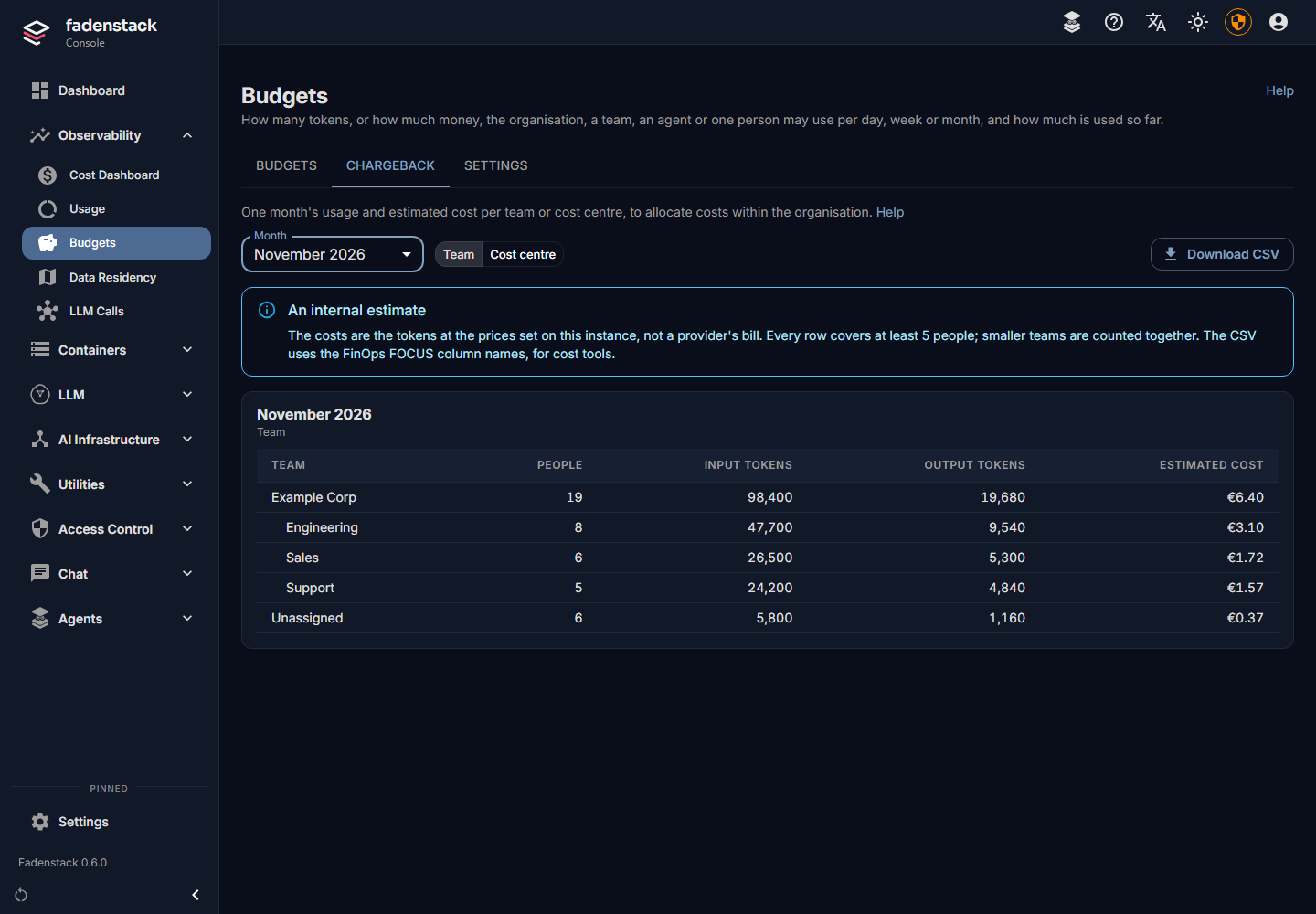
The Chargeback tab shows one month's usage and estimated cost per team or per cost centre, to allocate costs within the organisation.
- Open Observability → Budgets and select the Chargeback tab.
- Choose the Month: last month is shown first.
- Under Per, choose Team or Cost centre.
-
Select Download CSV for the same report as a file.
-
By team, a team's figures include its sub-teams', and the rows are indented by the tree. People without a usage group are counted under Unassigned.
- By cost centre, the figures follow the Cost centre of each team, as set on Access Control → Groups. Teams without one are counted under No cost centre.
- Every row covers at least five people. Smaller teams or cost centres are counted together in the row Fewer than 5 people, as on the Usage page (see The minimum group size).
- The costs are an internal estimate: the tokens at the prices set on this instance, not what a provider bills you. The page and the file say so.
The CSV and FinOps FOCUS
The file uses the column names of the FinOps FOCUS specification (version 1.4), so cost tools can read it: one row per team or cost centre, model and token direction.
| Column | Holds |
|---|---|
BillingPeriodStart, BillingPeriodEnd, ChargePeriodStart, ChargePeriodEnd |
The month. |
ChargeCategory |
Usage. |
ServiceCategory, ServiceName |
AI and Machine Learning, Fadenstack. |
SkuId |
The model's name. |
ConsumedQuantity, ConsumedUnit |
The tokens, and Tokens. |
PricingUnit |
1000000 Tokens. |
EffectiveCost, BillingCurrency |
The estimated cost and its currency. |
x_Team, x_CostCenter |
The team or the cost centre. |
x_TokenDirection |
input or output. |
x_CostIsEstimate |
true: the cost is an internal estimate. |
The settings¶
Open Observability → Budgets and select the Settings tab. Every change is recorded in the audit log.
| Setting | Default | What changing it means |
|---|---|---|
Person budgets (faden_ee.budgets.person_budgets) |
Off | On: administrators can give one person a budget. Only that person sees what they used of it, and only they get its alerts. Switching it on or off needs Root Mode. Agree it first: see Privacy. |
Set the usage group from the cost centre (faden_ee.budgets.cost_center_rule) |
Off | On: when your sign-in provider creates or changes a person by provisioning (SCIM) and sends their cost centre, the rule for that cost centre sets their usage group. People whose cost centre has no rule keep theirs. |
Under Rules, select Add rule, enter the Cost centre as your sign-in provider sends it, and choose the Team. Each cost centre once. A change of a person's usage group by a rule is recorded in the audit log. How the sign-in provider sends the cost centre is on Provisioning (SCIM).
Privacy¶
Budgets work with usage figures, which at work are data about employees (see Usage and privacy). They follow the same rules:
- Budgets for single people are off by default. A budget for one person limits how that person works. In Germany, switching them on is co-determined by the works council (§ 87(1) no. 6 BetrVG): agree it first, and tell employees in your notice.
- A person's use is theirs alone. They see it on My usage. Administrators see a person's budget, its
limit and its mode, but neither their use nor, on the list, whose budget it is: unless person-level reporting
is on and they hold the role
usage_auditor. - A person's alerts go to that person only. Nobody else is told when they reach a threshold.
- A refusal names the kind of budget, never a figure. Nobody else is told about it.
- Team figures need five people. A team's budget, its use on My usage and every chargeback row cover at least five people, as every figure on the Usage page does.
- Chargeback is per team or cost centre, never per person, and its money is an internal estimate.
- Nothing ranks or compares teams' or people's use of their budgets.
What is stored for budgets is listed on Usage and privacy.
Your own budgets¶
Everyone sees the budgets that apply to them on My usage, under Budgets: their personal budget, their team's, an agent's, the organisation's. For each, what is used of it (for a team or the organisation only when enough people share it), when the period ends, what happens once it is used up, and this period's alerts.
When it does not work¶
| You see | What to do |
|---|---|
| This team has fewer than 5 people, counting its sub-teams. | Set the budget on the team above it, or switch on person-level reporting once it is agreed (see The tree rule). |
| Larger than the budget of the team above it … | Lower the amount, or raise the parent team's budget first. |
| Budgets for single people are off. | Switch on Person budgets under Settings on this page, with Root Mode. |
| Only one person uses this agent, so its budget is a budget for that person. | A personal agent's budget is a person's budget: switch on Person budgets first, or set a budget for a shared agent. |
| A budget for this with the same unit and period exists already. | Edit that budget instead. A second one for the same team needs another unit or period. |
| Switching budgets for single people on or off needs root mode. | Start Root Mode in the top bar, then save again. |
| No model has a price in … or Only costs in … count. | Set prices in the budget's currency (see Set prices), or change the budget's currency. |
| A team is refused although its budget has room | Another budget on the way has none: the organisation's, a team's above it, the agent's or the person's. |
| A budget never refuses | It is Soft or Shadow. Edit it and choose Hard. |
| Budgets is missing under Observability | Budgets need Fadenstack Enterprise, with a valid licence. |