Containers
The Containers pages of the console manage Docker on the server: the containers Fadenstack itself runs, and any you add next to it, such as an MCP server or a small service your models call. They do not manage the GPU machines; what runs there is managed through clusters and deployments.
The list
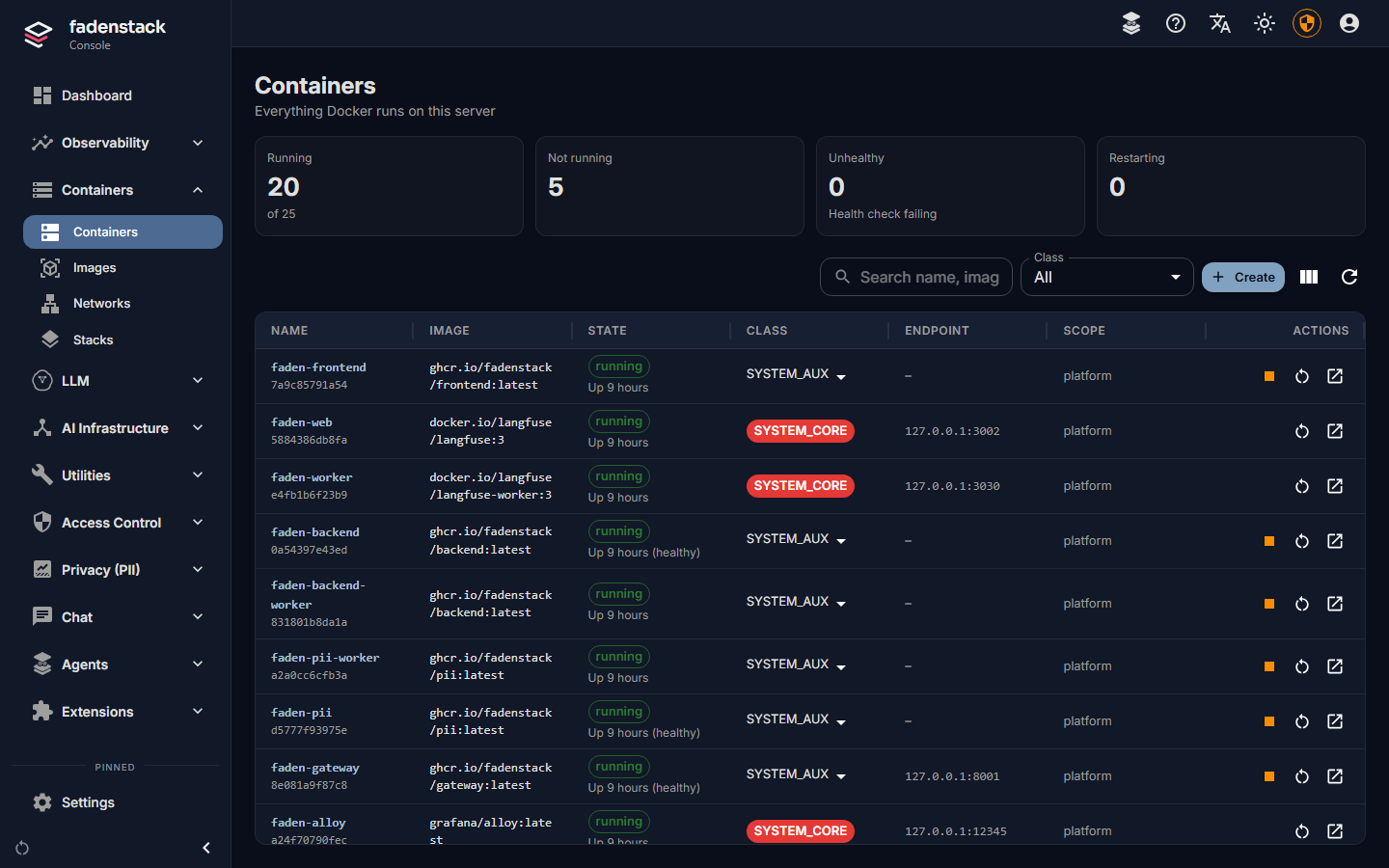
Open Containers → Containers. It lists every container on the server, Fadenstack's own included. Four tiles above the list count them, and each is also a filter (select it again to list all):
| Tile | Counts |
|---|---|
| Running | Running containers, of all listed |
| Not running | Exited, created or paused |
| Unhealthy | Running, but failing their health check |
| Restarting | Restarting, often in a crash loop |
| Column | What it shows |
|---|---|
| Name | The container's name and short ID |
| Image | What it runs |
| State | Running, exited or paused, and for how long |
| Class | What the console may do with it (below) |
| Endpoint | The host port it is published on, if any |
| Scope | The team or unit that owns it |
| Actions | Start, stop, pause, restart, delete, details: only those its class allows |
The dashboard's Needs attention list reports containers that keep restarting.
Classes
A container's class decides what the console lets anyone do with it:
| Class | For | View, logs | Start, restart | Stop | Pause, exec, delete |
|---|---|---|---|---|---|
SYSTEM_CORE |
Postgres, Redis, the proxy, RabbitMQ, the logs and metrics stores | yes | yes | no | no |
SYSTEM_AUX |
Fadenstack's own services and modules | yes | yes | yes | no |
MCP |
MCP servers | yes | yes | yes | no |
TENANT_APP |
Containers you run | yes | yes | yes | yes |
UNTRUSTED |
Anything not classified | yes | no | no | no |
A container made elsewhere is classified by its name the first time the list sees it: a name that contains the name
of one of Fadenstack's services or of the infrastructure above (redis, postgres and so on) makes a system
container, a name that contains mcp- makes MCP, anything else is UNTRUSTED. Change a container's class from its row; SYSTEM_CORE stays locked.
Root Mode lifts the class limits for the administrator who activates it, for system maintenance. Select Activate Root Mode, give a Reason (at least 10 characters) and a Duration (60 to 3600 seconds). Every action in root mode is audited at high severity. A container whose policy is locked cannot be stopped, paused, edited or deleted even then.
Get an image
A container starts from an image on the server; creating one does not pull it.
- Open Containers → Images.
- Enter the image name and tag, and select Pull Image. The progress shows while it downloads.
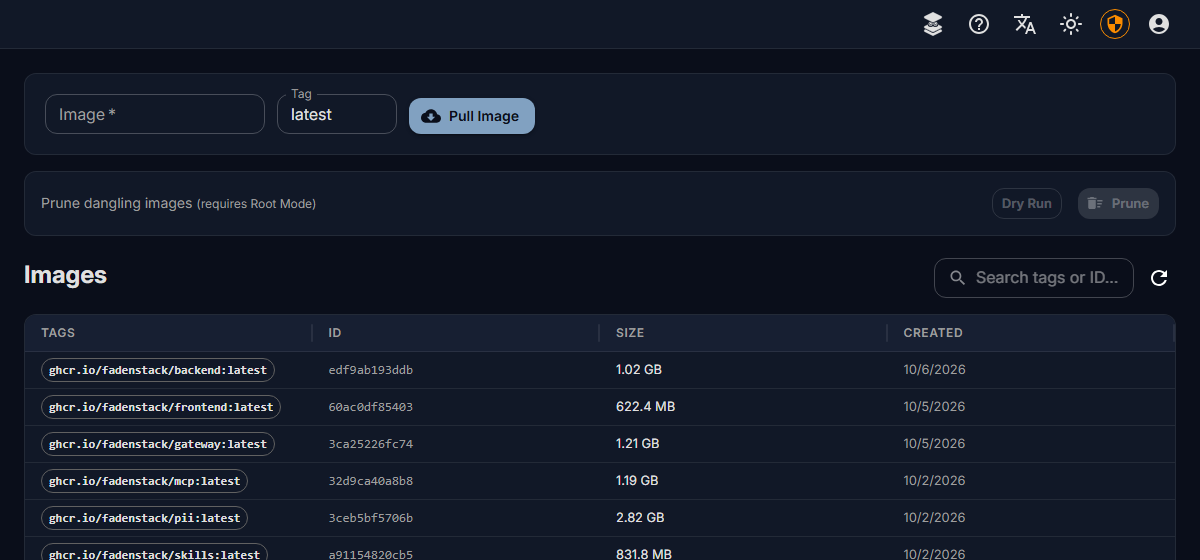
Prune dangling images removes images no tag points to. It needs Root Mode; try Dry Run first.
Create a container
- On Containers → Containers, select Create.
- Fill in Image (suggestions come from the images on the server), a Container Name, and optionally a Command Override written as in a shell.
- Choose the Class:
TENANT_APPfor a container of your own,MCPfor an MCP server. Set Policy and Scope if you use them. - Add Port Bindings only if something outside the server must reach it. Fadenstack's services reach it by name over its network without one. A host port must be free on the server.
- Add Environment Variables and Volume Mounts as needed.
- Under Networks, choose
fadenstack_defaultso the gateway, the console API and the MCP service can reach it by its name (for examplehttp://my-service:8080). Without one it joins Docker's default bridge. - Turn on Start immediately after creation and select Create & Start, or leave it off and select Create Container to create it stopped.
Note
Environment variables are visible to anyone who can see the container. Do not put secrets there that those people should not see.
Work with a container
Its page has three tabs:
- Overview: state, image, networks.
- Logs: the Last 300 lines, to refresh or download.
- Exec: prepares a shell session in the container and shows its ID. There is no terminal on the page, and
nothing in the console connects to the session yet. Exec needs the
TENANT_APPclass, or Root Mode.
Stop a container before you delete it: a running one is not deleted. A process that ignores the stop signal is
killed after ten seconds and shows as Exited (137). Deleting asks for confirmation; the image stays under
Images.
Edit a container
Edit on the container's page opens the form with what the container was created with. Docker cannot change these settings in a container that exists, so Save and replace replaces it, after you confirm:
- a new container is made with the new settings, on the same networks under the same name;
- what the form does not show is kept: GPU devices, restart policy, labels, health check;
- the old container is removed once the new one runs. The container gets a new ID, and files it wrote outside its volumes are lost;
- if the new one cannot be made or started (an image that is not on the server, a host port in use), the old one is put back as it was, and the page says why.
Fadenstack's own containers can be edited too, for a test or a quick fix, but the next faden deploy or
faden upgrade makes them again from the compose file and .env, without your edits; the form says so. The
console API's own container cannot be edited from the console: change its settings in ~/fadenstack/.env and run
faden upgrade (or faden up).

Networks and stacks
Containers → Networks lists Docker's networks. fadenstack_default is Fadenstack's own; system networks are
read-only. You can create a network (optionally internal, without outbound access), inspect one, and delete the
ones you created.
Containers → Stacks keeps Docker Compose files under an ID. Deploy Stack saves one; saving again under the
same ID makes a new revision. Every revision is kept, two can be compared, and you can roll back to an earlier one.
Despite its name, Deploy Stack does not start the containers a file describes: run it with docker compose on
the server yourself.
Related
- MCP servers: an MCP server can run as a container here and be registered by its name on the network.