GPU machines
A GPU machine joins Fadenstack by running one command on it and being approved in the console. From then on you manage it from the console: its hardware, its logs, maintenance, draining, and the clusters it belongs to.
The console calls them Machines. The agent, the API and some messages still say node; it is the same thing.
Before you start
- You are signed in to the console as an administrator.
- The machine meets the System requirements: Linux on x86_64 with an NVIDIA GPU, or an NVIDIA DGX Spark, with Docker or Podman.
nvidia-smion the machine prints your card. A machine that cannot see its GPU still joins, but cannot be put in a cluster.- The machine can reach the server at an address you know, such as
https://ai.example.internal.
Add a machine
-
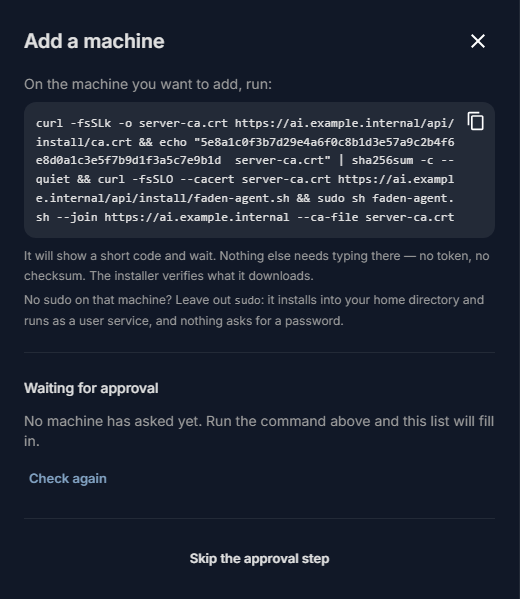
In the console, open AI Infrastructure → Machines and select Add a machine.
-
If the panel says the server has more than one address, pick the one the machine can reach. Each address is listed with its network interface; the command changes with your choice.
- Select Copy command.
- Run the command in a terminal on the machine. It installs the agent, shows a short code and waits.
- Back in the console, the waiting machine appears under Waiting for approval in the panel, and the Machines page shows how many machines are waiting, with Review.
- Check that the code matches the one on the machine, and select Approve. Not this one refuses it.
The machine is listed as healthy, and its page shows its GPUs. Next: put it in a cluster.
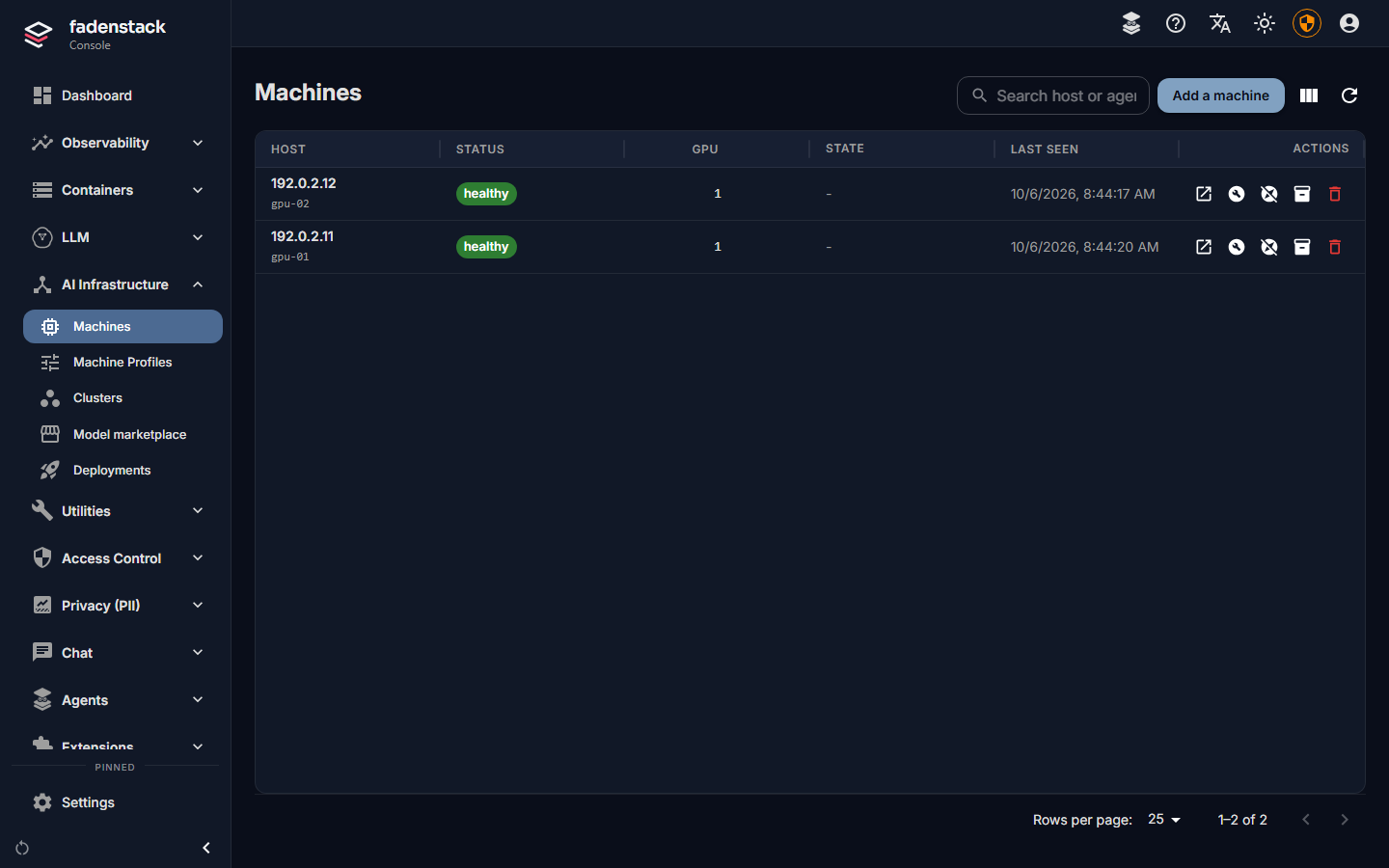
The install line
curl -fsSLO https://ai.example.internal/api/install/faden-agent.sh && sudo sh faden-agent.sh --join https://ai.example.internal
The installer is generated by your server: it already knows the server's address and which agent version the server expects. It lands on disk before it runs, so you can read it first. It downloads the agent, installs it, and asks to join. When the server holds its own copy of the agent builds, the download is checked against it (see Machines without internet access).
While the server uses a certificate it made itself, the console's line is longer: it first fetches the server's certificate authority and checks it against a fingerprint written into the line, so nothing is trusted that did not come from your server (see HTTPS and trust).
Without sudo
Leave sudo out of the line. Run as yourself, the installer puts the agent in ~/.local/bin and runs it as a
systemd user service. Nothing asks for a password. Your user still needs to be able to use Docker (or Podman).
A user service stops when you log out unless linger is on for your user. The installer turns it on; where the machine does not allow that, it says so and names the command an administrator runs once:
If your user has passwordless sudo but you want a user service anyway, add --user to the line, still without sudo.
Without approving each machine
For Ansible, cloud-init, image builds or many machines at once:
- In Add a machine, select Skip the approval step.
- Optionally write a Note (which machine or rack it is for), and select Create a token.
- Copy the command. It carries a single-use token that expires; it is shown once.
A machine that runs it joins on its own, with nothing to approve.
Machines without internet access
The installer tries the project's published release first and falls back to the server's own copy of the agent.
A server holds a copy when you put the builds in ~/fadenstack/agent-binaries/: faden-agent-linux-x86_64 and
faden-agent-linux-aarch64, with their .sha256 files, from the project's releases page. Replace them after every
server upgrade.
With that copy, every download, from either source, is checked against it. A copy that is not the build of the
server's release is set aside when the server can read the release's own digest: machines then get the release,
checked against that digest, and a machine without internet access cannot install. Without a copy, the installer says
this backend published no digest, so nothing was verified, and a machine without internet access stops with
could not download the agent.
What a machine's page shows
Open Machines and select a machine.
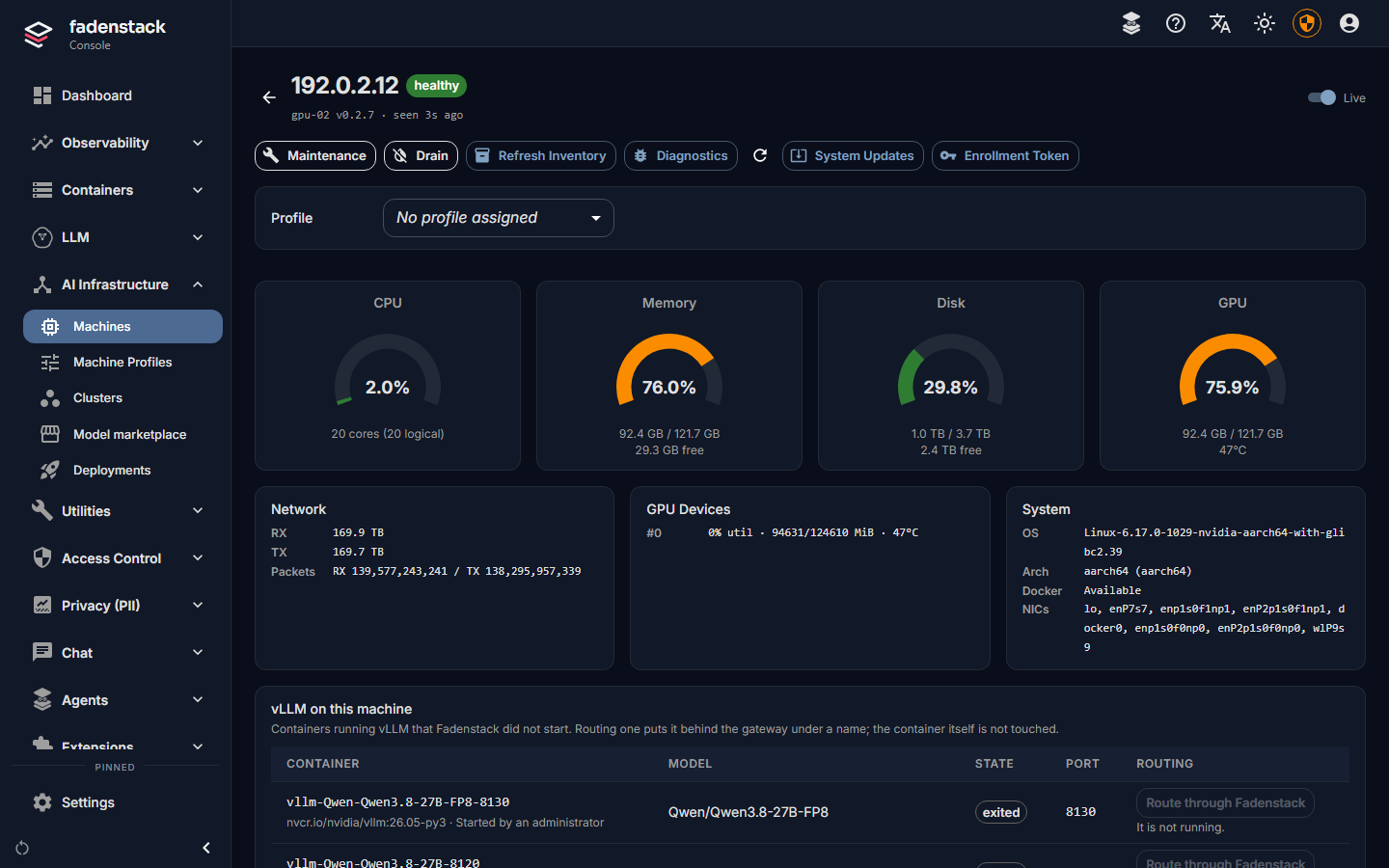
- Status: healthy, degraded, unhealthy or offline, with chips for maintenance, draining, and Agent version available when the server expects a newer agent. The agent's own version is shown under the name. Live refreshes the page by itself.
- Hardware: CPU, Memory, Disk, GPU and Network use, the GPU Devices and System (operating system, architecture, Docker, network interfaces).
- System Logs: the last 15 minutes of the machine's own logs. Open in Logs opens the full Logs page for this machine.
- Deployments on this machine: what its clusters serve.
- vLLM on this machine: vLLM containers Fadenstack did not start (see Existing vLLM servers).
- Commands and Timeline: what the server asked the machine to do, and what happened.
- Raw Inventory & Utilization: everything the agent reports, as data.
And its actions:
| Action | What it does |
|---|---|
| Maintenance / Exit Maintenance | Marks the machine for servicing (below) |
| Drain / Stop Drain | Moves its model copies to the cluster's other machines (see Clusters) |
| Refresh Inventory | The agent reads the hardware again |
| Diagnostics | Collects the agent's diagnostic logs and system state |
| System Updates | Checks for and installs the machine's operating-system packages and firmware updates, and can reboot it |
| Enrollment token | A one-time token for this machine |
System Updates runs the package manager with sudo, so it works only where the agent's user may do that
without a password.
Maintenance and draining
Maintenance marks a machine for servicing: nothing new is placed on it, it cannot be added to a cluster, and what already runs on it keeps running. Use it while you work on a machine.
Drain empties a machine: its model copies move to the cluster's other machines, each serving until its replacement is up, and no new copies land on it. You see first which copies can move and which cannot. Drain a machine before you reboot it, change its hardware, or take it out of its cluster. Details: Drain a machine.
Both are also on the Machines list, as the row's Enable maintenance and Enable drain buttons.
Update the agent
When a machine shows Agent version available, run the same install line on it again, the same way as the
first time (with or without sudo). The agent restarts on the new build; nothing needs approving, and the models
keep running. See Upgrading.
On the machine itself
faden-agent with no arguments offers a menu. The commands:
| Command | What it does |
|---|---|
faden-agent status |
Whether the service runs |
faden-agent show |
The configuration in use, the server's address, and whether it moved to HTTPS |
faden-agent configure --set KEY=VALUE |
Change one setting, such as BACKEND_URL or ADVERTISE_HOST |
faden-agent stop |
Stop the service and disable it; a user service is also removed (sudo for a system service) |
faden-agent run |
Run in the foreground, to watch what goes wrong |
faden-agent scan |
List the models already in the machine's model store |
The agent's own log is in the system journal: journalctl -u faden-agent for a system service,
journalctl --user -u faden-agent for a user service. After changing a setting, restart it:
sudo systemctl restart faden-agent, or systemctl --user restart faden-agent.
A machine with several networks
The address a machine is listed with is the one it tells the server and the other machines to use. If it names an address they cannot reach (a VPN, a container bridge), set the right one and restart the agent:
The network a cluster runs on is chosen separately, when you create the cluster.
Remove a machine
- If the machine is in a cluster, take it out first: on the cluster's page, select the machine and Remove from cluster (see Clusters).
- On the machine, stop the agent:
sudo faden-agent stop(orfaden-agent stopfor a user service). - Check that nothing is left running:
pgrep -af faden-agentprints nothing. - In Machines, select Delete machine on its row, type its name to confirm, and select Delete. If runtimes or providers were set up on it, you can delete them with it.
Deleting a machine revokes its membership. Run the install line on it again to bring it back; it asks to join as it did the first time.
Warning
Delete a machine only after its agent is stopped. A machine deleted while its agent still runs keeps asking to join.
When it does not work
The installer asks for a sudo password you do not have. Leave sudo out of the line (see
Without sudo).
ERROR: this backend publishes no agent build for linux-…. There is no agent build for this machine: on Linux,
the agent runs on x86_64 and aarch64 only.
ERROR: the download does not match the expected digest. The download is not the build the server expects,
usually because the copy in ~/fadenstack/agent-binaries/ is from an older release. Replace it with the current
release's builds.
The machine never shows up for approval. A request expires if nobody approves it in time; run the line again
for a new code. If the machine cannot reach the server at all, the installer says could not reach with the
address: pick another address in Add a machine.
The machine joined but shows no GPU. The driver works in your shell but not for the service. Check that
nvidia-smi is on a standard path, and that the service runs the agent you installed:
sudo systemctl show faden-agent -p ExecStart (or systemctl --user show faden-agent -p ExecStart).
More: Troubleshooting.