Tools in the chat
Tools let the model do more than write: look something up in a service your organisation uses, read a ticket, search files, or change something for you. This page shows how to switch tools on in a chat and how you stay in control of what they do.
What tools there are
- Tools your administrator connected. Each service (a ticket system, a code host, a file store, a search engine) brings a group of tools. Which services there are is your administrator's choice; see MCP servers for how they are connected.
- Tools that are always there. The model can read the current date and time, look for a fitting tool among the ones your chat may use, and search your organisation's knowledge base and long files you attached (see Knowledge). They only read.
Every tool has a class that says what it does:
| Class | Meaning |
|---|---|
| read | Only reads; changes nothing |
| write | Changes something that can be changed back |
| destructive | Deletes, or does something that cannot be undone |
| unclassified | Nobody has said what it does yet |
Open the tools
Select the wrench beside the message box. The panel that opens has two tabs: Tools for the tools and Privacy for the protection of personal data in this chat (see Your data and privacy).
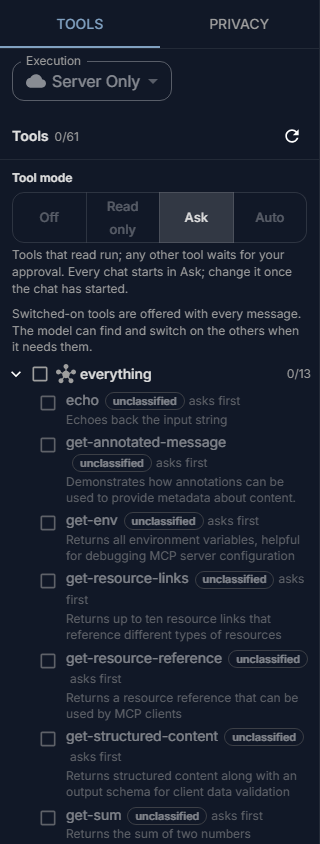
Switch tools on
The services' tools start off in every chat.
- Open the tools panel.
- Tick a tool to switch it on, or tick a group to switch on all its tools.
Switched-on tools are offered to the model with every message. The count beside Tools says how many are on. You can tick tools before your first message; they apply to the chat once it starts.
You do not have to switch on everything you might need. When no tool it has fits your question, the model can look for one among the tools your chat may use and switch it on itself. It then stays on for the rest of the chat, and the panel shows it ticked. Untick it to switch it off again.
A tool with a note under it cannot be used right now, and the note says why: for example, its service is not reachable, your organisation does not allow it, or the tool mode leaves it out.
Choose the tool mode
The Tool mode decides what tools may do in this chat without asking you:
| Mode | What happens |
|---|---|
| Off | No tools are used in this chat, not even the knowledge base. |
| Read only | Only tools that read are used; the others are not offered. |
| Ask | Tools that read run; any other tool waits for your approval. |
| Auto | Tools that read or write run; destructive and unclassified tools wait for your approval. |
Every chat starts in Ask. You can change the mode once the chat has started; it stays with that chat. A tool that will ask first says asks first in the list.
No mode runs a destructive or unclassified tool without asking you. Many services' tools are unclassified until your administrator says what they do: they always ask, and Read only leaves them out.
Approve a tool
When a tool needs your approval, the reply pauses and a card shows … wants to run, with what the tool is about to do.
- Select Approve to let it run. The reply goes on with its result.
- Select Decline to refuse. The tool does not run, and the model is told so and carries on without it.
If you leave the card unanswered for a few minutes, the tool does not run.
Your organisation can also have rules for single tools: some never run, some always ask first. When a rule stops a tool, you see Not run with the tool's name and the reason while the reply is written.
Execution
Above the tool list, Execution chooses where tools come from. Server Only, the default, uses the tools of the services your organisation connected. Local Only and Hybrid are for tools on your own computer, which work only when an application your organisation provides offers them. Leave it on Server Only unless your administrator tells you otherwise.
What tools receive
A tool gets what the model passes to it: often a search term, a ticket number, or text from your conversation. Your administrator decides, per service, how personal data in those calls is handled. See Your data and privacy.
When it does not work
No tools available. Check that the MCP services are set up and running. No service is connected for you, or none is reachable. Tell your administrator.
The model does not use a tool you switched on. Not every model can use tools. Try another model, or say in your message which tool to use.
Not run with a tool's name. The tool mode or a rule of your organisation kept it from running. Change the tool mode if the reason says so; otherwise ask your administrator.