Using Fadenstack
Fadenstack is your organisation's own AI assistant. You chat with the models your IT department offers, in the browser, and you can bring the same assistant into Chrome and into Word, Excel, PowerPoint and Outlook. It runs on your organisation's server, under your organisation's rules.
What you can do
- Chat with a model: ask questions, have a text drafted or checked, attach a file and ask about it. See Chat.
- Use tools your administrator connected, such as a ticket system or a file store, so the model can look things up or act for you, with your approval. See Tools in the chat.
- Use skills: saved instructions for tasks you repeat, such as "review this the way our team does". See Skills.
- Ask about your organisation's documents: the model can search the knowledge base your administrator filled. See Knowledge.
- Work in Chrome with the browser agent, which reads the page you are on. See The browser agent.
- Work in Office with the add-ins for Word, Excel, PowerPoint and Outlook. See Office add-ins.
Before you start
You need an account. Your administrator creates it and gives you the server's address, your e-mail address as your user name, and a first password.
Sign in
- Open the address your administrator gave you, for example
https://ai.example.internal. - On Sign in to Fadenstack, enter your Email and Password, and select Sign In.
You land in the chat. A sign-in lasts seven days unless your organisation set another length; then you are asked to sign in again. Your password, the sign-in length and API tokens are on Your account.
Where things are in the chat
| Where | What is there |
|---|---|
| The sidebar on the left | New chat, the search, your Projects and your Chats |
| The bar at the top | The chat's title (the pencil renames it), Language, the light or dark theme, and your avatar with Manage Profile, Skills and Logout |
| The box at the bottom | Where you type. Beside it: the tools button (a wrench), the skills button (a puzzle piece), the paper clip for files, the Model picker and the send button |
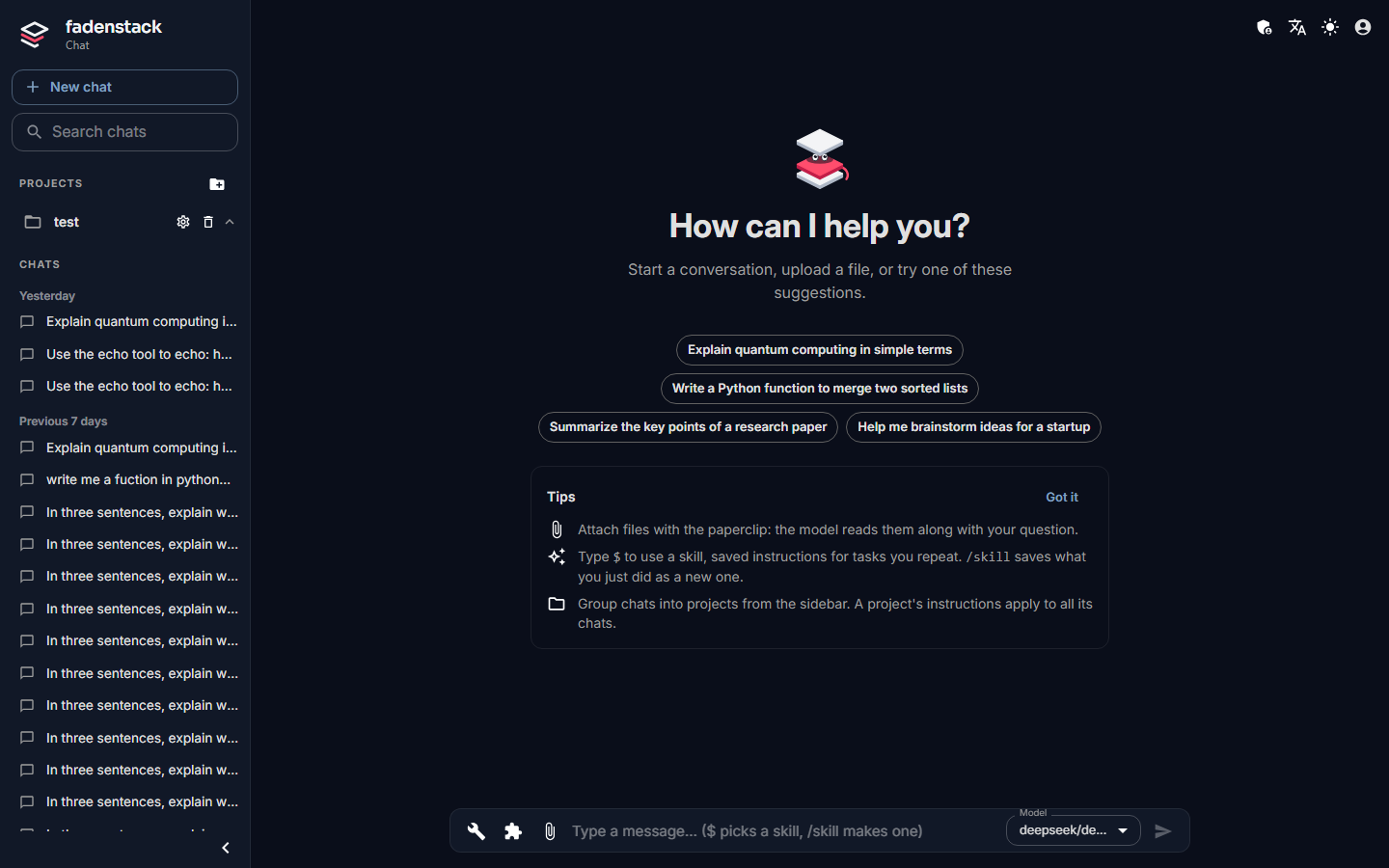
Administrators also see a shield in the top bar, which opens the admin console. Everything about the console is in Administer.
Your data
What you type, and the files you attach, go to your organisation's server and to the model you picked. What is kept, who can see it, and what reaches models outside your organisation is on Your data and privacy.