Your account
Your account is how Fadenstack knows you: your sign-in, your chats, your skills, and the API tokens your scripts and applications use. This page covers your profile, your password, the language and look of the console, how long a sign-in lasts, and personal API tokens.
Your profile
Select your avatar in the top bar, then Manage Profile. My Profile opens with:
- Account Information: your Email, your User ID and your Status.
- Change Password.
- Appearance: the Accent colour (Frost, Graphite or Aurora) and the Theme (Light or Dark). They are saved in this browser.
- API Token: your personal API tokens (below).
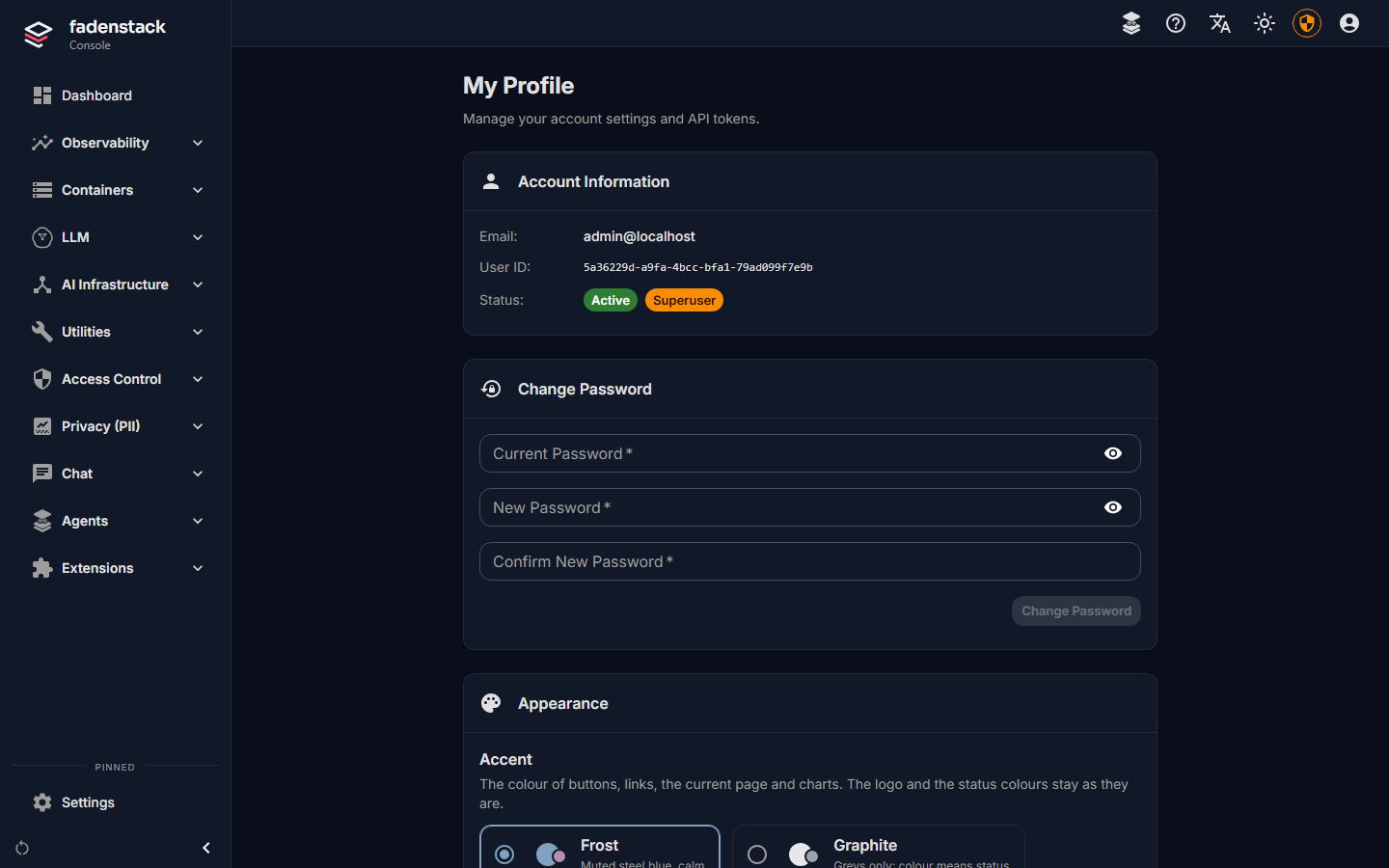
Your e-mail address and what you may do are set by your administrator. See Users, groups and roles.
Change your password
- In My Profile, under Change Password, enter your Current Password.
- Enter the New Password twice. It needs at least 6 characters.
- Select Change Password.
You see Password changed successfully.
Forgot your password
On the sign-in page, select Forgot password?, enter your e-mail address and select Send reset link. If your organisation's server sends e-mail, a link to set a new password arrives. If nothing arrives, ask your administrator to set a new password for you.
Language and theme
- Language: the button with the translation symbol in the top bar. English, German, Spanish, French and Chinese are available. The choice changes the console's labels, not the language the model answers in, and is kept in this browser.
- Light or dark: the sun or moon button in the top bar.
How long a sign-in lasts
A sign-in lasts seven days, unless your organisation set another length. Then you are asked to sign in again. To end it sooner, select your avatar, then Logout. Sign out on any computer others use.
Signing in with your company account (single sign-on) Planned
API tokens
An API token lets a script or an application use your organisation's models in your name, through the API that works like OpenAI's for chat, embeddings and rerank. It acts as you: what it sends counts as your usage, under the same rules as your chats. You do not need a token for the chat, the browser agent or the Office add-ins.
Create a token
- In My Profile, go to API Token.
- Enter a Name after what will use the token, for example
report script, so you know which one to revoke later. - Leave Tenant ID as it is, unless your administrator tells you otherwise.
- Choose the Token Expiry: 1 hour, 24 hours, 7 days, 30 days, 90 days or 1 year. Every token expires; shorter is safer, and you can always make a new one.
- Select Generate Token.
- Copy the token with the copy button and keep it somewhere safe.
Shown once
The token is shown only this once. Once you leave the page, it cannot be shown again; create a new one if you lose it. Anyone who has the token can use the models in your name.
The application also needs the API's address, which your administrator can give you. How to call the API is on the Developers site.
See and revoke your tokens
Your tokens lists every token with its name, when it was created and when it expires. Expired and revoked ones are marked Expired or Revoked.
- Select Revoke beside the token.
- Confirm with Revoke.
Applications that use it stop working within a minute. Revoke a token as soon as it is no longer needed, or if it may have been seen by someone else.
Your administrator can also revoke your tokens. If your account is deactivated, your tokens stop working too.
When it does not work
You are sent back to the sign-in page. Your sign-in ended. Sign in again. If your password is no longer accepted, ask your administrator: your account may have been changed or deactivated.
New passwords do not match. or Password must be at least 6 characters. Enter the new password again.
An application says its token is revoked or out of date. Create a new token and give it to the application.