Usage and privacy¶
Usage figures say who used which model, how much and when. At work, that makes them data about employees. Out of the box, Fadenstack shows nobody's usage figures to anyone else: each person sees their own, and administrators see figures for groups of at least five people. This page says what is stored, who sees it, how long it is kept, and what each setting changes, so that you can decide with your data protection officer (DPO) and, where there is one, your works council.
Not legal advice
These pages describe what Fadenstack does and offer templates; they are not legal advice. Your organisation decides why and how usage is counted, so it is the controller under the GDPR. The usage data stays on your server: none of it is sent to Fadenstack, the maker of the software. Decide the points left to you with your DPO, your legal counsel and, where there is one, your works council.
Private by default¶
As installed, and until you change a setting:
- Nobody sees another person's usage figures. Person-level reporting is off. The Usage page shows teams, agents, models and providers only where at least five people are behind a figure, and its totals only when at least five people used the instance (see The minimum group size).
- No page lists requests by person. Cost Observability and LLM Calls never show who sent a request, and do not find requests by person. LLM Calls shows no session, conversation, device or project of a request either, and finds none by them: each would lead to one person.
- An agent's figures need five people too. Its Activity tab shows them only when at least five people used the agent in the range, and names nobody; the owner of a personal agent sees their own (see Agents and add-ins).
- Everyone sees their own, under My usage, and can download it.
- Nothing ranks or compares people: no top users, no leaderboards, no scores.
- Person-level figures are kept per day at most, for 90 days. The request log they come from is kept for 90 days too. No figure holds the time of day of a person's use, or their device.
- The limits for the instance know no person: they count everyone's requests together.
- Budgets for single people are off Enterprise (with Fadenstack Enterprise), and once on, a person's use of their budget is shown to them alone (see Budgets).
- Who may look at one person's figures is a role that nobody holds at installation, not even superusers.
The settings¶
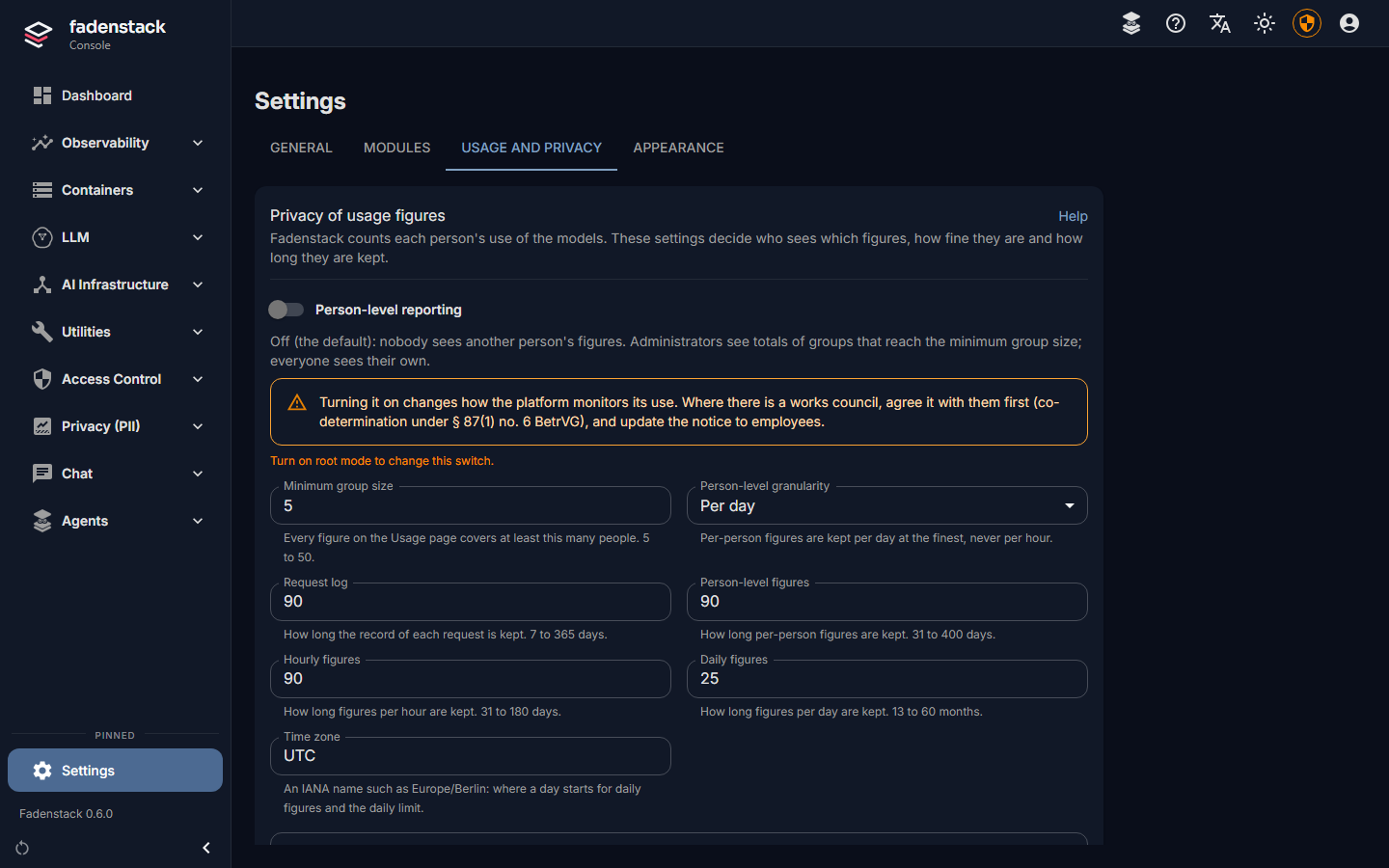
Open Settings and select the Usage and privacy tab. Administrators change the settings; Person-level reporting also needs Root Mode. Every change is recorded in the audit log with the name of who made it and when. A change applies within minutes; nothing restarts.
| Setting | Default | Range | What changing it means |
|---|---|---|---|
Person-level reporting (usage.person_reporting) |
Off | Off, on | On: people with the role usage_auditor can look at one person's or one team's figures per person, giving a reason each time (see Looking at one person's figures). Everyone's My usage then says so. This is an evaluation of employee data per person: in Germany it is co-determined by the works council (§ 87(1) no. 6 BetrVG), so agree it before switching it on; assume a data protection impact assessment is needed; and tell employees. |
Minimum group size (usage.min_group_size) |
5 | 5 to 50 | Every figure on Usage covers at least this many people. Raise it if your works agreement asks for more; it cannot go below 5. The higher it is, the more teams, agents and days are shown only in the Fewer than … people row. |
Person-level granularity (usage.person_granularity) |
Per day | Per day, Per month | How finely the person-level view shows a person's figures. Month shows less of how someone works. There is no finer setting: no person's figures exist by the hour. |
Request log (usage.request_log_retention_days) |
90 days | 7 to 365 days | How long each request's record is kept: the person, the time to the second, the model, the tokens and, for agents, the device. Keep it longer only for a reason you can name, such as investigating security incidents, and write that reason down. |
Person-level figures (usage.person_retention_days) |
90 days | 31 to 400 days | How long each person's daily figures are kept, for My usage and the person-level view. 90 days covers the current period, the one before and time to settle a dispute; for longer, write down why. |
Hourly figures (usage.hourly_retention_days) |
90 days | 31 to 180 days | Figures per hour by team, agent, model and provider, for capacity planning. They hold no person. |
Daily figures (usage.daily_retention_months) |
25 months | 13 to 60 months | Figures per day by team, agent, model and provider, for year-on-year planning and costs. They hold no person. |
Time zone (usage.time_zone) |
The server's time zone, or UTC | A time zone name such as Europe/Berlin |
Where days and months begin, and when the daily limit starts again. No effect on privacy. |
Privacy notice (usage.privacy_notice_url) |
Empty | Empty, or an https:// address |
My usage links to it, so people find your notice to employees where they see their own figures. Empty: no link. |
The configuration statement
Under Configuration statement on the same tab, pick the Language (English, German, Spanish, French or Chinese) and select Download: a document of the settings as they are. Attach it to the works agreement's annex and to the data protection impact assessment, and download it again after each change.
Looking at one person's figures¶
Only someone with the role usage_auditor, and only while Person-level reporting is on, sees one person's
figures, and only in the person-level view on Usage: no other page in the console shows them. The role is
built in, nobody holds it at installation, and being a superuser does not give it: an
administrator who is to look at person-level figures needs the role too. It is also all a usage auditor needs:
it opens the Usage page in the console, without administrator rights, and the person-level view offers the
people and usage groups to choose from.
- Agree who may look, and for which reasons, with your DPO and works council. Typical reasons: a dispute about costs, a person's own access request, a security incident.
- Give those people the role: Access Control → Users, Edit Roles in their row, tick
usage_auditor, Save. - Switch on Person-level reporting (see The settings).
A usage auditor then finds the person-level view on Observability → Usage, under Figures per person:
- Pick the page's Period, and select View figures per person.
- Under Whose figures, choose One person or One usage group, and pick the Person or the Usage group.
- Enter the Reason for looking (10 to 500 characters) and select Show figures.
The figures appear per person and per day (or month), sorted by name, never by how much someone used. The view covers at most the days that person-level figures are kept (Person-level figures): with a longer Period on the page, it covers the last of those days, and says so.
Under Download one person's data, Download as JSON or Download as CSV beside a person downloads their data: the same the person gets under My usage (see Your own view and the download), for example to answer an access request from someone who cannot sign in. The download is recorded with the reason given for the view.
Only while person-level reporting is on
The download, like the view, needs Person-level reporting on. While it is off, the console has no way to download another person's data. For an access request from someone who cannot sign in, agree a procedure with your DPO, for example giving the person access again so that they download their data under My usage.
Every look and every download is recorded in the audit log: who, at whose figures, which range, and the reason. The reason goes to the server in a request header, never in the page's address, so it does not end up in the logs of web servers or proxies; the audit log keeps it. The person sees, in their own download, the date and the stated reason of each, never who looked; My usage shows how many there were.
Who checks the record
The built-in role auditor reads the audit log and opens the Usage page without administrator rights, and
changes nothing: a fitting role for your DPO or a member of the works council. In Logs → Audit, the action filter usage. shows the looks
at person-level figures and the changes to the limits; the settings changes are there as well.
Your own view and the download¶
Everyone who signs in has My usage, in the menu behind their account button: their own tokens and estimated cost by day or month, by model, agent and chat project, and the limits that apply. When person-level reporting is on, it says so, with who can see their figures (the usage auditors), how finely and for how long. When you have set a Privacy notice address (see The settings), it links there.
Under Your data, Download as JSON and Download as CSV give them:
- their daily figures;
- their request records still in the request log: time, model, agent, tokens, cost and outcome, never what was written and never the device;
- the date and the stated reason of each look at their figures, or download of them, by a usage auditor; never who looked.
When someone asks what is stored about their usage (Art. 15 GDPR), point them there: the download, together with your employee notice (purposes, legal basis, recipients, retention, rights), answers it. For someone who cannot sign in, a usage auditor downloads the same for them while person-level reporting is on, giving the request as the reason (see Looking at one person's figures).
Retention and erasure¶
Every five minutes, Fadenstack deletes by itself what has outlived its setting: request records older than Request log, person-level figures older than Person-level figures, hourly and daily figures older than theirs. Shortening a period deletes what is now too old at the next run.
| Event | What happens |
|---|---|
| An account is deleted | Its request records and its person-level figures are erased with it. The figures by team, agent and model keep its share, without the person. |
| The upgrade to this release | The first run adds the existing request log up into hourly and daily figures. For seven days after that, nothing is deleted: a notice above the console's pages says from which date records older than their period will be deleted, so you can change the periods first. Then deletion starts, with the Request log setting (90 days unless changed) and the others. |
| A limit's minute or day ends | Its count is gone: the limits keep no history. |
What is not deleted with the figures
- Backups taken before keep the data until they are replaced (see Backups).
- The audit log, with the record of every look at person-level figures, is never deleted by Fadenstack (see The audit log). Agree with your DPO how long you need it.
The data fields¶
What Fadenstack stores for usage, what for, how finely, for how long and who sees it. It describes this release; the Help of each release has its own list, and the release notes name changes to it.
The request log (llm_gateway_request_log): one row per request, the source of every figure. Kept for 90
days (Request log, usage.request_log_retention_days); erased with the account.
| Fields | What for | Who sees them |
|---|---|---|
user_id |
The person who sent the request: their account id, not their name or e-mail | The person, in their download. Usage auditors, in the person-level view while person-level reporting is on, and in a download they take for one person. No other page shows it, Cost Observability and LLM Calls included |
group_id, agent_id |
The person's usage group (team), the agent | Administrators on LLM Calls; in sums on Usage; the person (agent) |
project_id |
The chat project | The person, on My usage. No page for administrators shows it |
group_path |
The usage team's position in the team tree at the time of use | Administrators; in sums on Usage |
device_id, session_id, conversation_id |
Tie an agent's request to its sign-in on a device and to its conversation | No page shows them, LLM Calls included, and none finds requests by them. Never in the figures or the download |
turn_id |
Groups the rounds an agent needed for one question | Administrators on LLM Calls |
request_id, trace_id, tenant_id, endpoint, stream |
Find a request and how it was asked | Administrators |
model_alias, provider_instance_id |
Which model answered and where it ran | Administrators; in sums; the person (model) |
created_at |
When, to the second | Administrators; the person |
prompt_tokens, cached_tokens, cache_write_tokens, completion_tokens, reasoning_tokens, total_tokens |
The tokens (see What is counted) | Administrators; in sums; the person |
usage_source |
Where the token count comes from: provider, counted or estimated |
Administrators |
estimated_input_cost, estimated_output_cost, estimated_total_cost, currency, price_catalog_id, cost_estimate_status |
The estimated cost and the price it used | Administrators; in sums; the person |
status_code, error_code, finish_reason, retry_count |
The outcome: success, error, or the limit that refused it | Administrators; in sums; the person (outcome) |
latency_ms, ttft_ms |
How long it took, and until the first token | Administrators |
skills_used, mcp_tool_call_count, mcp_tool_loop_iterations, rag_context |
Which skill versions it used, and how many tool rounds | Administrators |
Tool calls (llm_tool_call_log): the tool, its server, how long it took, the kind of failure, and the start of a failed tool's answer (encrypted) |
Why a tool failed | Administrators on LLM Calls; deleted with the request |
The figures: the request log added up. Each row holds the measures requests, failed, refused,
input_tokens, cached_input_tokens, output_tokens, reasoning_tokens, cost and currency (see
What is counted).
| Table | One row per | Also holds | Kept (setting) | Who sees it |
|---|---|---|---|---|
usage_hourly |
Hour (UTC), team, agent, model, provider and currency | people: how many people are behind the row. group_path: the usage team's position in the team tree at the time of use. No person, no project, no device |
90 days (usage.hourly_retention_days) |
Administrators and auditors (usage:read) on Usage, only hours of at least five people |
usage_daily |
Day (usage time zone), team, agent, model, provider and currency | people, group_path. No person, no project, no device |
25 months (usage.daily_retention_months) |
Administrators and auditors on Usage, under the minimum group size |
usage_daily_person |
Day, person, team, project, agent, model and currency | group_path. No device, no time of day |
90 days (usage.person_retention_days); erased with the account |
The person, on My usage and in the download. Usage auditors while person-level reporting is on, by day or month (usage.person_granularity), and in a download they take for one person |
usage_rollup_state |
One row in all | How far the figures are added up, and when they were last added up and deleted. No personal data | Kept | Nobody |
The limits: the values set (rpm_limit, tpm_limit, tokens_per_day of the instance's policy), and their
counts, one per instance, which last only for their minute or day. No personal data.
Enterprise Budgets, with Fadenstack Enterprise (see Budgets). What a budget used comes from the figures above; these tables hold the budgets themselves:
| Table | One row per | Holds | Kept | Who sees it |
|---|---|---|---|---|
ee.budgets |
Budget | name; whom it applies to (scope, target_id: a team, an agent or, for a person's budget, the person's account id); unit, currency, amount, period, mode, thresholds; the owner who gets its alerts (owner_id); who created it and when. No usage figures |
Until it is deleted | Administrators. A person's budget: its limit only; what the person used shows only to them on My usage, and to usage auditors while person-level reporting is on |
ee.budget_alerts |
Budget, period, threshold and kind (threshold or forecast) |
When the alert went out, so it goes out once, unless the mail server's answer was lost: then its mail can come twice. No figures, no person | With its budget | Nobody: the alerts themselves name the budget and the threshold, never a person's use |
ee.scim_person_attributes |
Person created by provisioning (SCIM) | cost_center and department, as the sign-in provider sends them |
Erased with the account | Administrators, through the cost-centre rule |
ee.cost_center_rules |
Cost centre | The team it makes a person's usage group | Until removed; deleted with the team | Administrators |
Each budget's count for the current period lasts only while the period runs; for a person's budget it is that person's use, shown to nobody else. Chargeback reports have no table of their own: they are made from the figures above when they are asked for, per team or cost centre, with at least five people per row.
The record of who looked and what changed, in the audit log: each look at person-level figures
(usage.people.view: who, whose, which range, the reason) and each download of one person's data by a usage
auditor (the same), each change to the limits (usage.limits.update) and
to the usage settings, each change to a budget (budget.create, budget.update, budget.delete) and to the
budget settings, and the reads of the cost pages. Kept as long as the audit log (see above). Seen by
administrators and auditors; the person sees the date and reason of the looks at their own figures.
Other places in the console that name people
These serve running and securing the service; they are not part of the usage figures, and the settings on this page do not change them. Name them in your agreement too.
- The chat pages show who has which chats, projects and files, and when, but not their content (see Your data and privacy).
- Access Control → API tokens shows each token's uses: when, from which address, with which application.
- The audit log names who did what, with e-mail and IP addresses (see The audit log).
What usage data is for¶
Fadenstack's usage figures and limits are built for:
- running the service and planning its capacity;
- knowing costs, and allocating them to teams, projects and agents;
- protection against runaway use, such as a script or an agent going in circles;
- showing each person their own use.
They are not built for, and must not be used for:
- monitoring or evaluating the performance or behaviour of individual workers, or comparing them;
- appraisals, pay, promotion, selection, warnings or dismissals;
- finding "heavy users", or people who use AI little;
- having an AI model analyse a person's usage.
Using usage data to evaluate workers changes what the system is
Counting and adding up usage is not an AI system in the sense of the EU AI Act. Fadenstack's chat and agents are, and their intended purpose is a general assistant and agent platform, not the evaluation of workers. An AI system used to monitor or evaluate workers' performance and behaviour is high-risk (AI Act, Annex III point 4(b)). An organisation that uses Fadenstack, or an agent built on it, to evaluate workers from usage data may become the provider of a high-risk AI system (Art. 25(1)©), with a provider's duties. In Germany it also needs the works council (§ 87(1) no. 6 BetrVG), and goes beyond what a works agreement on cost and capacity allows.
A note for administrators¶
Usage figures are about your colleagues. Before you work with them:
- Use them for costs, capacity and fair sharing of the models. Never to judge a person's work.
- Before switching on person-level reporting, ask your DPO and, where there is one, your works council.
- Look at one person's figures only for a reason your organisation has agreed, and write the reason as you would for that person to read: they see it in their download.
- Do not copy person-level figures out of Fadenstack, into screenshots or spreadsheets: there they escape the retention and the record of who looked.
- When someone asks what is stored about their usage, point them to My usage and its download; for someone who cannot sign in, a usage auditor downloads it for them while person-level reporting is on.
- If you are unsure whether a use is allowed, ask your DPO first.
When it does not work¶
| You see | What to do |
|---|---|
| Person-level reporting is off: nobody sees the figures of a single person. | It is off unless someone switched it on. Switch it on under Settings → Usage and privacy with Root Mode, once it is agreed. |
| Person-level reporting is on. Only people with the usage auditor role see the figures of single people., or The figures of single people need the usage auditor role. Being an administrator is not enough. | Your account lacks the role usage_auditor. Being a superuser does not give it: an administrator ticks it under Access Control → Users, Edit Roles. |
| Give a reason of 10 to 500 characters. | Enter why you look. It is recorded, and the person sees it. |
| Turn on root mode to change this switch., or Turning person-level reporting on or off needs root mode. | Start Root Mode in the top bar, then save again. |
| A whole number from … to …. under a setting | The ranges are in The settings: the minimum group size cannot go below 5, nor a retention below its lowest value. |
| Usage shows almost nothing | Few people used the instance in the range, or the minimum group size is high: see The minimum group size. |