Sign-in providers
Enterprise
People sign in with the account they already have at your organisation: through an identity provider that speaks OpenID Connect or SAML, or with their name and password from your directory (LDAP, Active Directory). They get a Fadenstack account the first time they do, with the roles and groups you choose.
Before you start
- You are signed in to the console as a Superuser.
- The Sign-in module is switched on (Settings → Modules). Then the page Access Control → Sign-in providers appears.
- The server is reached over HTTPS, at the address people use (for example
https://ai.example.internal). Each provider has a Server address: identity providers send people back there, and the addresses the provider is registered with are made from it. It starts as the address the console is open at.
Add a provider
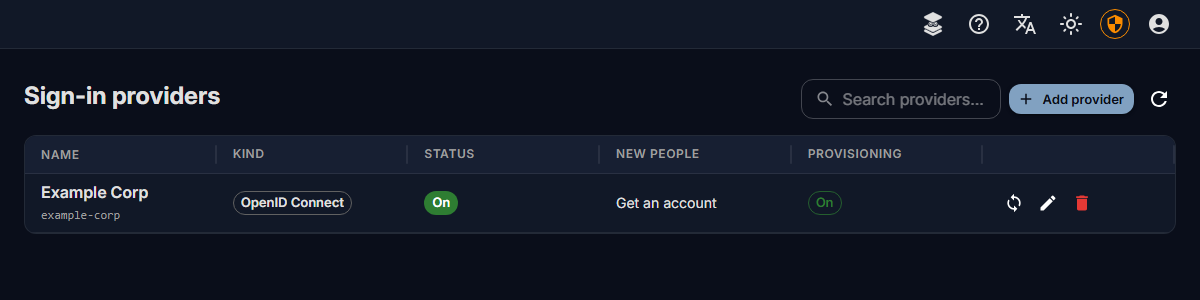
- Open Access Control → Sign-in providers and select Add provider.
- Under Kind, pick what your organisation has:
- OpenID Connect: Entra ID, Google, Okta, Keycloak and others. See OpenID Connect.
- SAML 2.0: AD FS, Shibboleth and others. See SAML.
- Directory (LDAP, Active Directory): people type their directory name and password on the sign-in page. See Directories.
- Give it a Name: people see it on the sign-in page, for example "Example Corp".
- Check the Key the console made from the name. It is part of the addresses the provider is registered with, and cannot be changed later.
- Check the Server address, fill in the provider's fields, and register the addresses shown at the provider (see the page for your kind). Then decide who may sign in (below).
- Select Add provider.
The dialog lists what is Still needed before it can be sent. When the sign-in module refuses a setting, it says which one and why, in the dialog.
Who may sign in, and what they get
| Field | What it does |
|---|---|
| Create an account at the first sign-in | Off: only people who already have an account here can sign in with the provider. |
| Roles of new accounts | The roles a new account gets, at its first sign-in or from provisioning. A new provider starts with default_user, which people need to chat (see Users, groups and roles). Empty: none until someone gives them. Nobody becomes a superuser this way. |
| Only people the provider's provisioning added may sign in with it | Shown with provisioning. Everyone else is refused, and nobody gets an account by signing in. Superusers are not held to it. |
| Allowed e-mail domains | Only people with an address in these domains may sign in, for example example.com. An address in one of them counts as verified. Empty: any. |
| People with an address in these domains may only sign in with this provider | They can no longer sign in with a password here, so leaving your organisation ends their access here too. Superusers keep their password; a superuser who mistypes it sees the same message as everyone in the domain, so the page never tells whether a password was right. |
| Group rules | People in a group at the provider join a group here when they sign in. Name the group as the provider sends it: its name, its ID (Entra ID sends IDs), or its DN (directories). |
| Take memberships away that the provider no longer gives | At each sign-in, people leave the groups here that a rule gave them before and no longer gives. Memberships set by hand stay as they are. |
| Sign-in lasts at most (hours) | Then people sign in again. 12 unless you change it; the server's own Sign-in lifetime applies when it is shorter. |
| Suspend after days without sign-in | Accounts that signed in with the provider and were not used for this long are suspended: no sign-in, and none of their agents active. 45 unless you change it; empty: never. Superusers are never suspended this way. |
Note
A suspended account keeps everything it had. Let back in on Access Control → Users gives the access back.
How people sign in
- OpenID Connect and SAML: the sign-in page shows Sign in with and the provider's name. People are sent to the provider and come back signed in.
- Directories: the sign-in page shows a choice between Fadenstack account and the directory's name. With the directory picked, people type their Account name and password. Forgot password? is not offered: the password is the directory's.
Someone who already has an account here
When someone signs in with a provider for the first time and an account with their address exists already, the two are not joined by themselves: someone else could hold that address at the provider. Instead, the sign-in page asks them to prove the account is theirs, in the same browser, within 10 minutes:
- with the account's password, or
- with a code sent to the account's address: Don't know the password? Get a code by e-mail. This is offered while the server can send mail (Enterprise, with the mail service switched on).
Then the sign-in is linked to the account and they are signed in; afterwards they sign in with the provider. Five wrong passwords or codes end the attempt: they sign in with the provider again to start over.
An account made by a provider's sign-in has no password anyone knows. Without mail, give the person a password reset link for it; they set a password, then link with it.
Change or remove a provider
- Change: the pencil icon in the provider's row. Secrets are never shown again: leave the field empty to keep the one that is set.
- The server's address changed: change the Server address, save, and register the new addresses at the provider. Until the provider knows them, sign-ins with it fail.
- Switch off for a while: turn off People can sign in with it. It disappears from the sign-in page.
- Delete: the bin icon. People who signed in with it keep their accounts, but can no longer sign in with it.
When it does not work
What people see on the sign-in page, and what to do:
| You see | What to do |
|---|---|
| "There is no account for you here yet, and this provider does not create one." | Turn on Create an account at the first sign-in, or create their account under Access Control → Users. |
| "You may not sign in with this provider." | Their address is not in the Allowed e-mail domains. |
| "You have not been given access here yet …" | Only people the provider's provisioning added may sign in, and this person was not added. Assign them to the application at the identity provider (see Provisioning). |
| "The provider did not confirm your e-mail address …" | The provider does not say the address is verified. Add the domain to Allowed e-mail domains, or, for SAML and directories, tick Its e-mail addresses are verified if the provider is your organisation's own. |
| "The provider did not give your e-mail address …" | Have the provider send the e-mail address (the email scope, or the mail attribute). |
| "The sign-in took too long or was already used." | Start again from the sign-in page. A sign-in not finished within 10 minutes expires. |
| "This sign-in only works over HTTPS." | Open the console at its HTTPS address. |
| "This sign-in is not available with this server's licence." | The Enterprise licence is missing or has expired, past its grace period; the admin pages say which. Renew it, then sign in with the provider again. Passwords keep working meanwhile. |
| "This sign-in is not offered here any more." | The provider was removed or switched off, or no provider is offered (see the licence above), after the person opened the sign-in page. They sign in another way from a fresh sign-in page. |
| "The sign-in service cannot be reached right now." | The sign-in module is not running, or cannot reach the provider. Check the Sign-in card under Settings → Modules. |
| "The sign-in did not work." | The provider refused or answered something the module does not accept. Check the provider's settings on both sides; the sign-in module's log says more. |