Skills for the organisation
A skill teaches the assistant how to do one kind of task the way your organisation does it: a review checklist, a report format, the steps of an incident write-up. People create their own skills in the chat and share them; as administrator you see every skill, publish skills for everyone, and decide who may do what.
How people use and create skills in the chat is in Skills. The skill format itself (the
SKILL.md file and its folder) is on the Developers site: Skills.
Before you start
- The Skills module is on (Settings → Modules; see Modules).
- Extensions → Skills Hub lists every skill. People reach their own skills from the chat's user menu (Skills).
Owners and who sees a skill
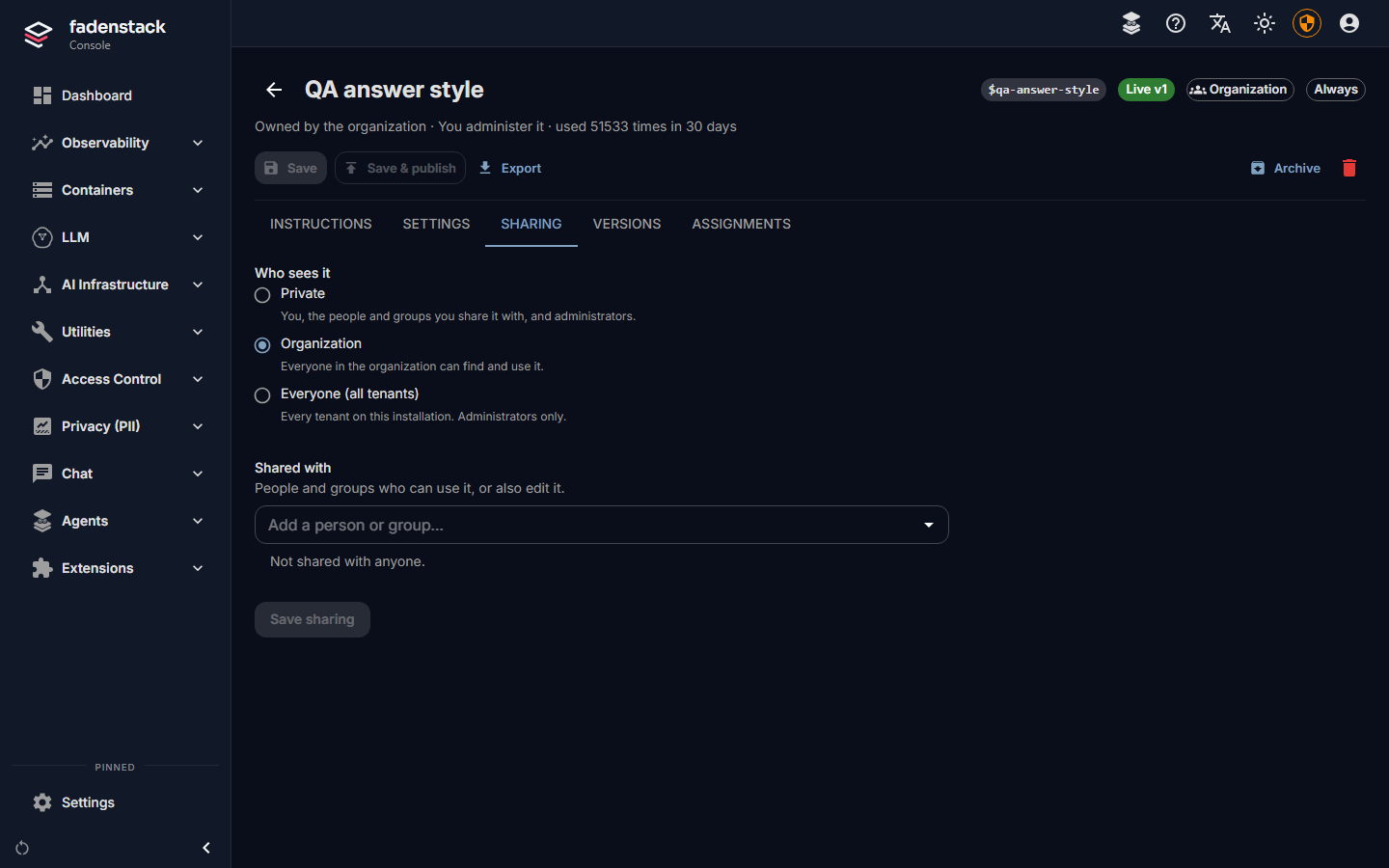
Every skill has an owner: the person who created it, or the organisation (shown as Owned by the organization). Only the owner, or an administrator, shares a skill, changes who sees it, archives it or deletes it.
| Who sees it | Who can find and use it |
|---|---|
| Private | The owner, the people and groups it is shared with, and administrators. Every new skill starts here. |
| Organization | Everyone in the organisation. |
| Everyone (all tenants) | Every tenant on this installation. Administrators only. |
A private skill can be shared with people and groups on its Sharing tab, at one of two levels:
| Level | Allows |
|---|---|
| Can use | Seeing the published version and using it in chats. |
| Can edit | Also saving new versions and publishing them. |
The same rules decide what reaches a chat: a private skill never reaches the chat of anyone it is not shared with. When someone leaves a group, the skills shared with that group stop reaching their chats within a minute.
Create a skill for everyone
-
Open Extensions → Skills Hub and select Create Skill (or Import a
SKILL.mdor a zipped skill folder).
-
Enter the Skill Name and the Short name, which people type after
$in the chat to pick it. - Write the Description (what the skill does and when to use it: the model reads it) and the instructions.
- Choose When it is used:
- When picked: only when someone picks it in a chat, or asks for it with
$name; - When it matches: when a message contains one of its trigger keywords or the chat has a file of one of its file types, and whenever it is picked;
- Always: in every chat of everyone who sees it.
- When picked: only when someone picks it in a chat, or asks for it with
- Under Who sees it, choose Organization.
- Save it, and publish it (see Versions).
Always for the whole organisation
A skill everyone sees goes into every chat when it is set to Always, so only an administrator can set that, on the skill's Settings tab. Use it for few, short skills.
The Settings tab also holds the skill's tags, triggers, and tool lists: tools the skill may use, prefers or must not use, and the knowledge sources it draws on.
Versions
Every save is a new version; no version is ever changed, and none is deleted while the skill exists. A skill points at two of them:
- the latest version, which the editor shows;
- the published (live) version, which chats get.
Save adds a version without changing what chats get. Save & publish, or Publish on a version, changes what chats get. On the Versions tab, Changes compares two versions and Roll back to this publishes an older one, with its triggers and tool lists. The skill's status says what is live, for example "Live v3 · v4 draft".
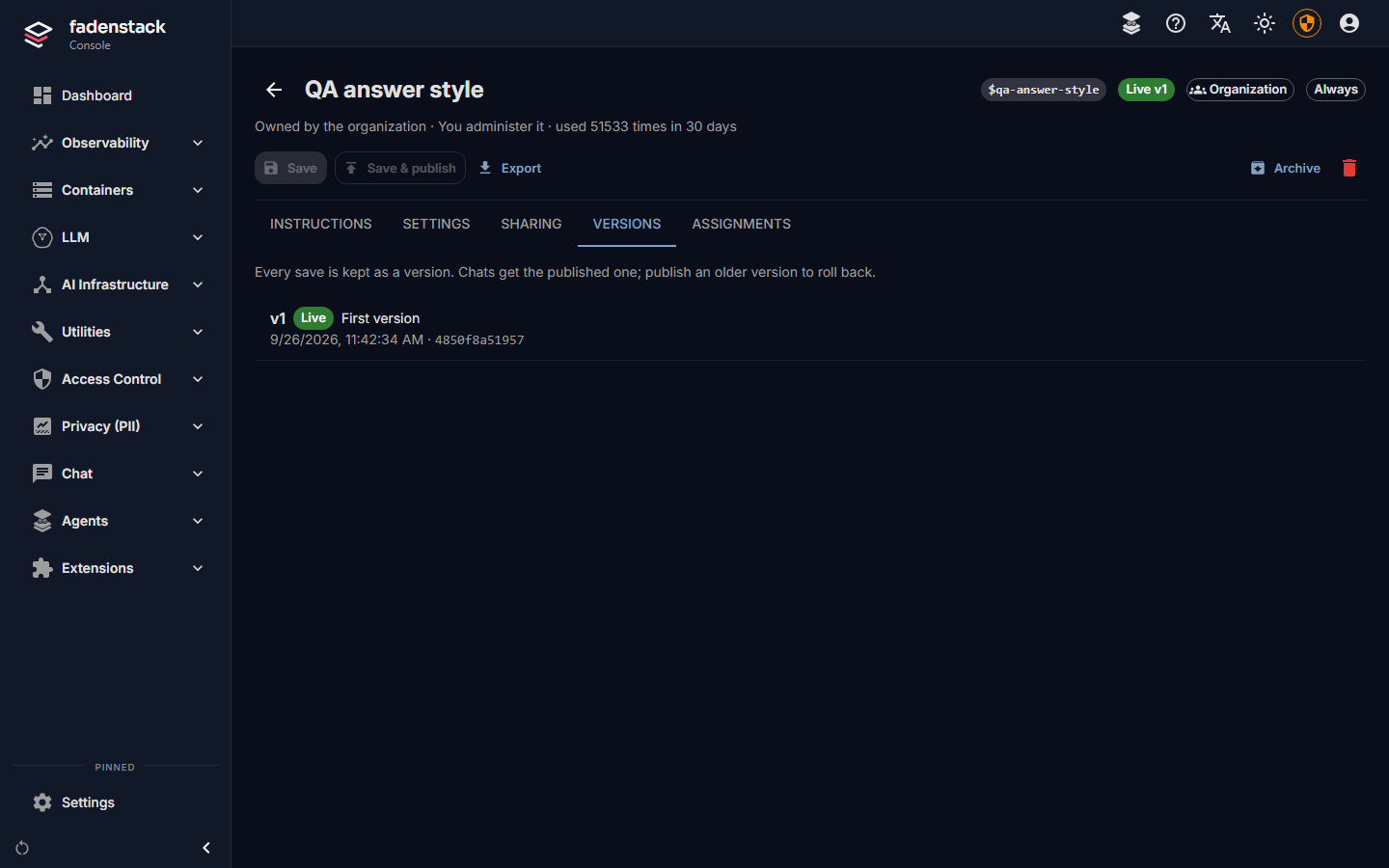
Each version has a fingerprint of its content. The request log records the skill, the version and that fingerprint for every request that used it, so what the model was told can be looked up as long as the skill is not deleted.
If two people save the same skill at once, the second save is refused with "This skill changed since you opened it", instead of replacing the first.
Manage the organisation's skills
In Extensions → Skills Hub:
- All, Organization, Mine and Shared with me narrow the list. Each skill shows its owner, status and how often it was used in the last 30 days.
- Publish v… publishes a skill's latest version; Archive takes it out of use and keeps it (Restore brings it back); Delete removes it for good.
- Export gives the Skill folder (.zip) or the SKILL.md only, to keep or to use in other tools.
- The Assignments tab brings a skill into the chats of a tenant, workspace, project or assistant, for the people who can see it.
Fadenstack never runs the scripts a skill folder may contain. They are kept so the skill can be exported to tools that do.
Who may do what
| Permission | Allows | Built-in roles that have it |
|---|---|---|
skills:read |
Seeing and using the skills visible to them | default_user, viewer, operator, admin |
skills:create |
Creating and importing skills of their own | default_user, operator, admin |
skills:share |
Sharing their skills with people and groups | default_user, operator, admin |
skills:publish |
Making a skill visible to the whole organisation | admin |
skills:manage |
Administering every skill | admin |
Superusers have all of them. To let someone who is not an administrator publish skills for everyone, give
them a role with skills:publish (see Users, groups and roles).
Limits
Unless whoever runs the server changed them:
| Limit | Default |
|---|---|
| Published skills the whole organisation sees | 25 |
| Skills one person owns | 200 |
| Skills picked for one message | 5 |
| Instructions of one version | 100,000 characters |
| Files in a skill's folder | 64, at most 512 KiB each and 4 MiB in all |
Private skills do not count against the 25.
When it does not work
A skill does not come into a chat. Check that it is published (not only saved), that the person can see it, and how it is used: a skill set to When picked comes in only when picked.
"You do not have the permission to share skills." The person's roles lack skills:share.
People cannot see the Skills page. The Skills module is off, or their roles lack skills:read.